📘 VMware vSphere 9: A Concise Architecture and Operations Reference Guide
Table of Contents
Chapter 1: Introduction to VMware vSphere 9
- 1.1 Understanding VMware vSphere 9
- 1.2 Core Components of vSphere
- 1.3 From Virtualization to Cloud Infrastructure
- 1.4 Key Features of vSphere 9
- 1.5 vSphere in Enterprise Architecture
- 1.6 Editions and Licensing Overview
- 1.7 Evolution of vSphere
- 1.8 Role of vSphere in Modern IT
- 1.9 Ecosystem and Integrations
- 1.10 Architectural Philosophy
Chapter 2: ESXi Installation and Host Setup
- 2.1 Introduction to ESXi Installation
- 2.2 Hardware Requirements and Compatibility
- 2.3 ESXi Installation Methods
- 2.4 ESXi Boot Architecture
- 2.5 Initial Configuration Using DCUI
- 2.6 Managing ESXi Using Host Client
- 2.7 Security Considerations During Setup
- 2.8 Networking Configuration at Host Level
- 2.9 Storage Configuration at Host Level
- 2.10 Lifecycle Considerations
- 2.11 Enterprise Deployment Patterns
Chapter 3: vCenter Server Deployment and Configuration
- 3.1 Introduction to vCenter Server
- 3.2 vCenter Architecture
- 3.3 Deployment Models
- 3.4 Authentication and Identity Management
- 3.5 Networking Requirements
- 3.6 Inventory Organization
- 3.7 Adding and Managing Hosts
- 3.8 vCenter Configuration
- 3.9 Security Configuration
- 3.10 Monitoring vCenter
- 3.11 vCenter High Availability
- 3.12 Upgrade and Lifecycle
Chapter 4: vCenter and Host Management
- 4.1 Introduction
- 4.2 Inventory Model Deep Dive
- 4.3 Managing ESXi Hosts
- 4.4 Maintenance Mode and Lifecycle
- 4.5 Cluster Configuration
- 4.6 Resource Pools
- 4.7 Roles and Permissions
- 4.8 Tags and Attributes
- 4.9 Host Profiles
- 4.10 Tasks, Events, and Alarms
- 4.11 Lifecycle Integration
Chapter 5: Virtual Machine Administration
- 5.1 Introduction to Virtual Machines
- 5.2 VM Lifecycle
- 5.3 Creating Virtual Machines
- 5.4 VM Hardware and Internals
- 5.5 Templates and Cloning
- 5.6 Snapshots
- 5.7 Migration and Mobility
- 5.8 Security and Isolation
- 5.9 Monitoring and Performance
- 5.10 Configuration Changes
- 5.11 Decommissioning
Chapter 6: Resource Management and Scheduling
- 6.1 Introduction
- 6.2 CPU Scheduling
- 6.3 Memory Management
- 6.4 Resource Allocation Controls
- 6.5 Resource Pools
- 6.6 Distributed Resource Scheduler (DRS)
- 6.7 Load Balancing
- 6.8 Advanced CPU Features
- 6.9 Monitoring Resource Usage
- 6.10 Cluster-Level Management
Chapter 7: vSphere Networking
- 7.1 Introduction
- 7.2 Networking Architecture
- 7.3 Standard Switch (vSS)
- 7.4 Distributed Switch (vDS)
- 7.5 Port Groups and VLANs
- 7.6 VMkernel Networking
- 7.7 NIC Teaming
- 7.8 Network I/O Control
- 7.9 Network Security Policies
- 7.10 NSX Integration
Chapter 8: vSphere Storage Architecture
- 8.1 Introduction
- 8.2 Storage Architecture Overview
- 8.3 Datastores
- 8.4 VMFS
- 8.5 NFS
- 8.6 vSAN
- 8.7 Storage Policy-Based Management
- 8.8 Storage I/O Control
- 8.9 Multipathing
- 8.10 Storage Security
Chapter 9: High Availability and Fault Tolerance
- 9.1 Introduction
- 9.2 High Availability (HA)
- 9.3 Failover Process
- 9.4 Admission Control
- 9.5 Host Isolation
- 9.6 Fault Tolerance (FT)
- 9.7 vMotion
- 9.8 Replication
- 9.9 Disaster Recovery
Chapter 10: Monitoring and Performance
- 10.1 Introduction
- 10.2 Monitoring Architecture
- 10.3 CPU Metrics
- 10.4 Memory Metrics
- 10.5 Storage Metrics
- 10.6 Network Metrics
- 10.7 Performance Charts
- 10.8 Alarms and Alerts
- 10.9 Troubleshooting Methodology
- 10.10 Capacity Planning
Chapter 11: Security and Authentication
- 11.1 Introduction
- 11.2 Security Architecture
- 11.3 Authentication and Identity
- 11.4 RBAC
- 11.5 ESXi Security
- 11.6 VM Security
- 11.7 Network Security
- 11.8 Certificates
- 11.9 Key Management
- 11.10 Auditing
Chapter 12: Lifecycle Management and Upgrades
- 12.1 Introduction
- 12.2 Lifecycle Manager
- 12.3 Image-Based Management
- 12.4 ESXi Upgrades
- 12.5 vCenter Upgrades
- 12.6 Firmware Management
- 12.7 Cluster Lifecycle
Chapter 13: Host Profiles and Automation
- 13.1 Introduction
- 13.2 Host Profiles
- 13.3 Architecture
- 13.4 Configuration Elements
- 13.5 Compliance and Drift
- 13.6 Applying Profiles
- 13.7 Automation Tools
- 13.8 Desired State Model
Chapter 14: WSFC on vSphere
- 14.1 Introduction
- 14.2 Architecture
- 14.3 Storage Options
- 14.4 Networking
- 14.5 Configuration
- 14.6 Integration with HA
- 14.7 Limitations
- 14.8 Monitoring
Chapter 15: Backup and Ecosystem Integration
- 15.1 Introduction
- 15.2 Backup Fundamentals
- 15.3 Backup Architecture
- 15.4 Backup Methods
- 15.5 Tools and Ecosystem
- 15.6 Replication and DR
- 15.7 Enterprise Strategies
- 15.8 Security
- 15.9 Monitoring
- 15.10 Recovery
Chapter 16: Advanced Architecture and Design Patterns
- 16.1 Introduction
- 16.2 Multi-Cluster Design
- 16.3 Multi-Site Architecture
- 16.4 Hybrid Cloud
- 16.5 Performance Optimization
- 16.6 Security at Scale
- 16.7 Scalability Planning
- 16.8 Design Patterns
- 16.9 Governance
- 16.10 Resilience Design
Preface
Modern infrastructure has evolved beyond static systems into dynamic, software-defined platforms that demand speed, consistency, and clarity. VMware vSphere 9 stands at the center of this transformation, serving as the foundational layer for enterprise virtualization and hybrid cloud environments.
This book takes a deliberately structured and concise approach to explaining vSphere 9. Rather than presenting lengthy narrative descriptions, it focuses on delivering clear, organized, and directly applicable knowledge aligned with official VMware (Broadcom) documentation.
The goal of this book is not to replace official documentation, but to complement it by:
- Structuring concepts in a logical, end-to-end flow
- Highlighting architectural relationships between components
- Providing quick-reference insights for real-world usage
- Enabling faster learning and recall for practitioners
Each chapter is designed to be:
- Focused and modular
- Easy to navigate
- Rich in key concepts without unnecessary verbosity
This makes the book especially useful for:
- Architects designing enterprise environments
- Engineers working with vSphere daily
- Professionals preparing for certifications
- Teams needing a quick operational reference
Readers looking for deep theoretical exploration or long-form storytelling may find this format different from traditional books. However, those seeking clarity, speed, and practical alignment with real-world systems will find this approach highly effective.
In essence, this book is designed to function as both:
- A learning companion
- A day-to-day reference manual
As infrastructure continues to evolve toward automation and cloud-native paradigms, the ability to quickly understand and apply core concepts becomes more valuable than ever.
This book aims to support that journey.
About the Author
Aditya Pratap Bhuyan is a seasoned technology professional with over two decades of experience in enterprise software development, cloud infrastructure, and distributed systems.
With a strong background in Java and extensive hands-on experience in modern platforms such as Kubernetes, OpenShift, and VMware technologies, Aditya has worked on designing and implementing scalable, resilient, and high-performance systems across diverse domains.
He is deeply passionate about simplifying complex technical concepts and making them accessible to engineers, architects, and learners. His work often focuses on bridging the gap between theoretical knowledge and real-world implementation.
Aditya is also an active contributor to technical communities, a content creator, and the voice behind cloudnativeblogs.in, where he shares insights on cloud-native technologies, automation, and modern infrastructure practices.
This book reflects his practical approach to learning—structured, concise, and aligned with real-world enterprise needs—helping readers quickly grasp and apply VMware vSphere concepts effectively.
📘 Chapter 1: Introduction to VMware vSphere 9
(Aligned with official Broadcom TechDocs and VMware resources)
🖥️ 1.1 Understanding VMware vSphere 9

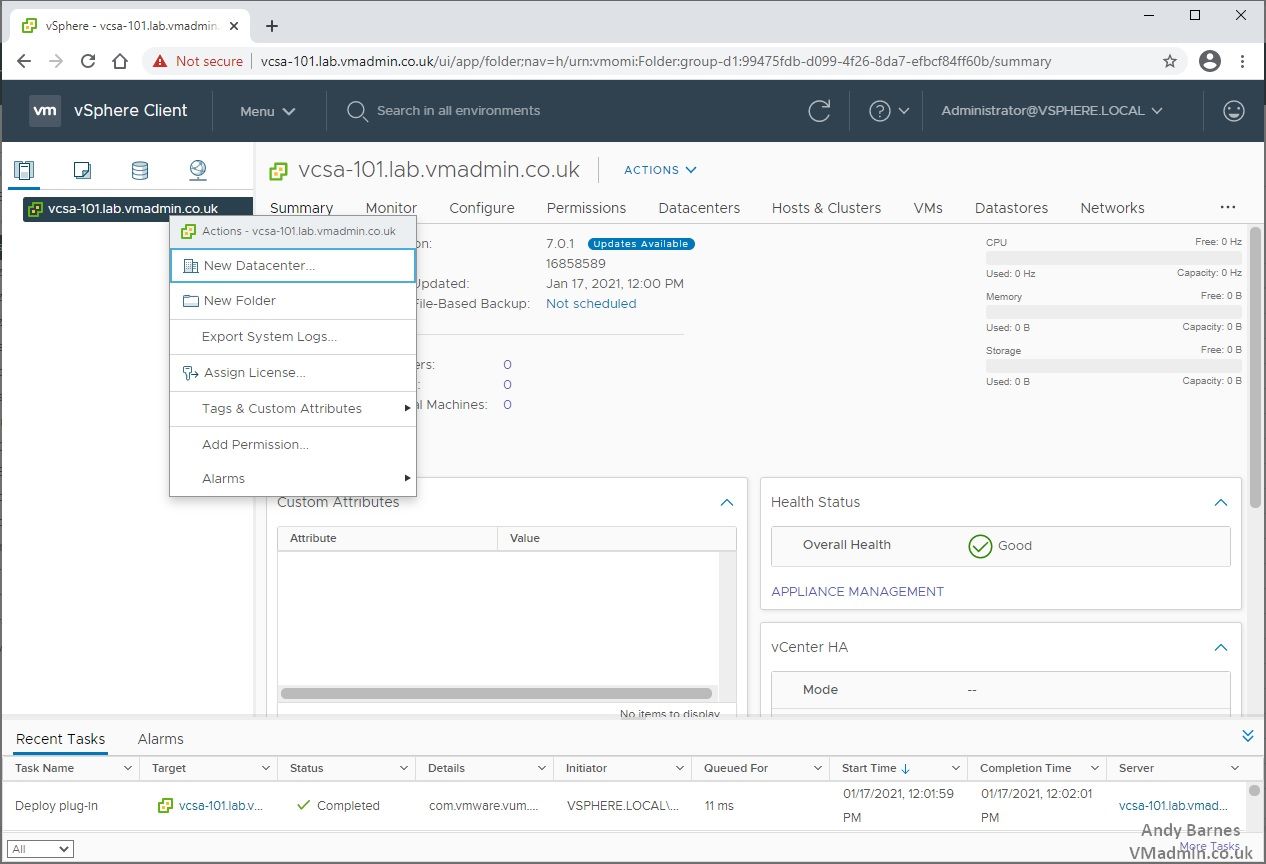
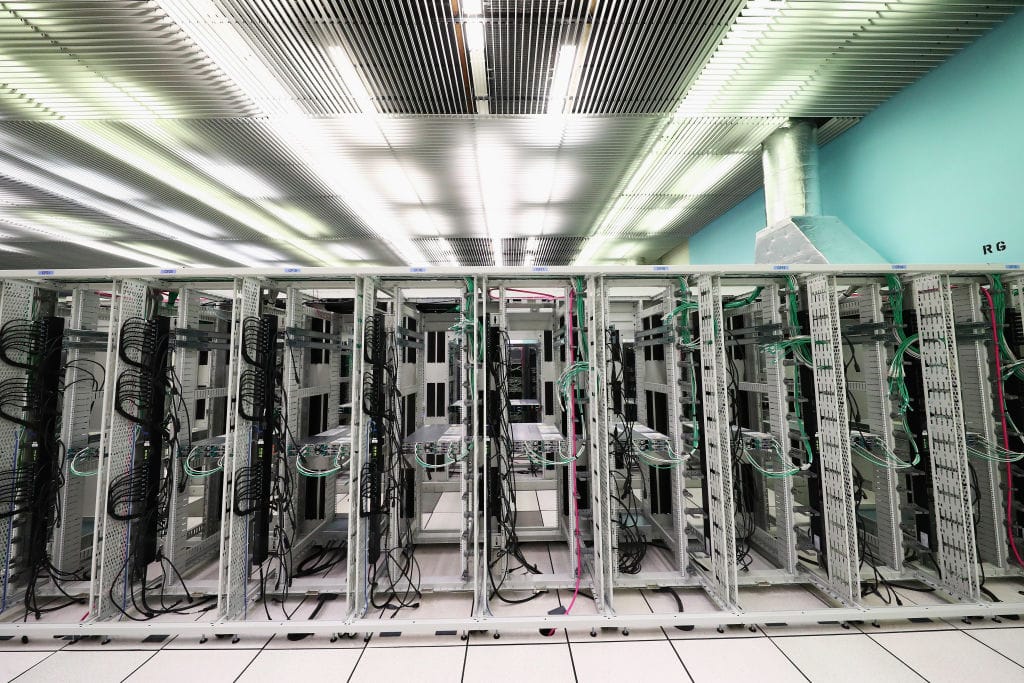

At its core, VMware vSphere 9 represents a mature, enterprise-grade virtualization platform designed to abstract, pool, and manage physical infrastructure resources—compute, storage, and networking—into a unified, software-defined environment.
Unlike traditional infrastructure, where applications are tightly coupled to physical hardware, vSphere introduces a layer of abstraction through the hypervisor, enabling multiple workloads to coexist efficiently on shared hardware while remaining isolated and secure.
🔍 Key Concept: Infrastructure Abstraction
In a physical data center:
- One server = One operating system = One application (often underutilized)
With vSphere:
- One server = Multiple virtual machines = Multiple applications
- Resource utilization increases dramatically
- Hardware dependency is eliminated
This shift is not merely technical—it is architectural. It transforms infrastructure from a static, hardware-bound system into a dynamic, policy-driven platform.
🧠 1.2 Core Components of vSphere 9

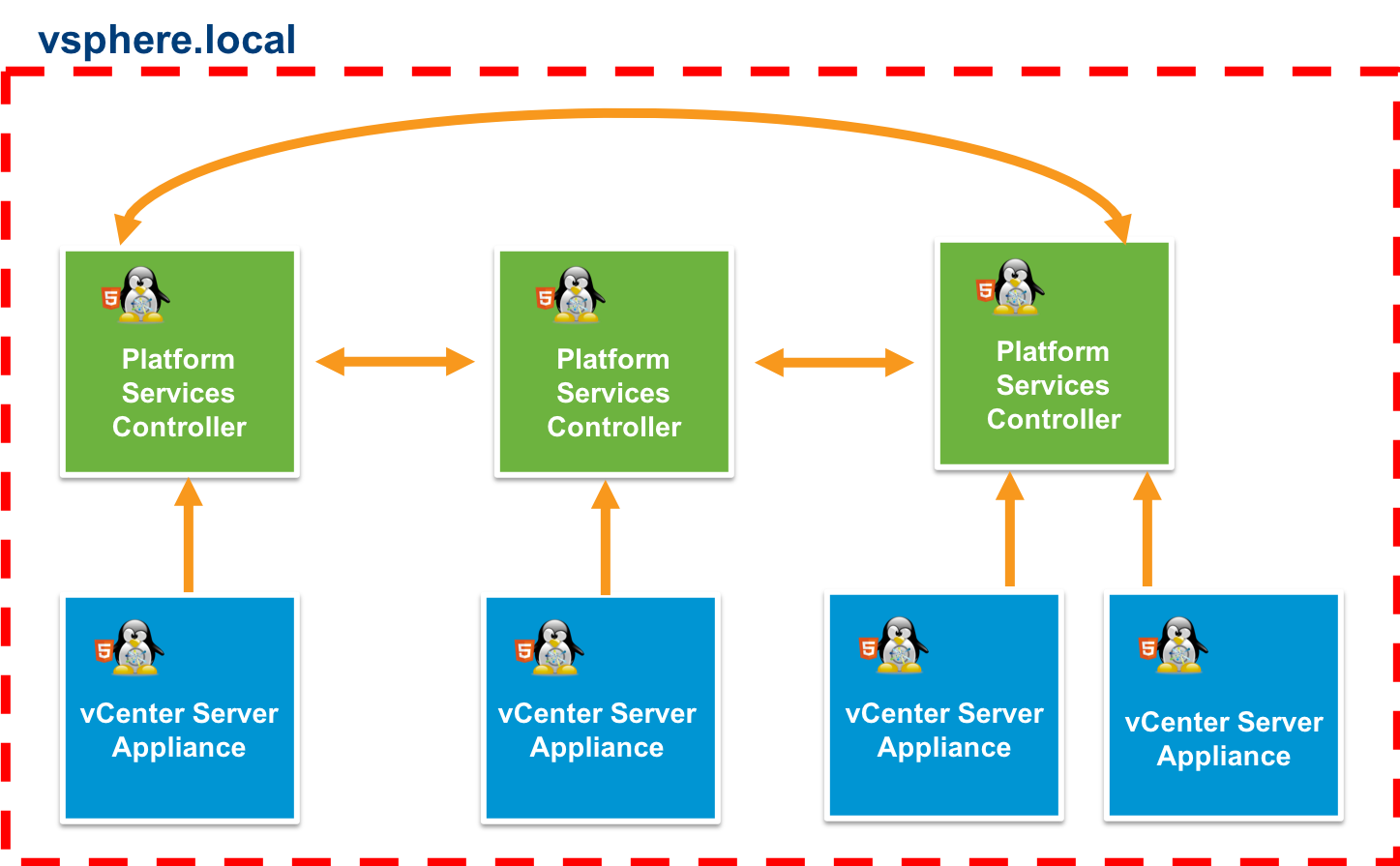
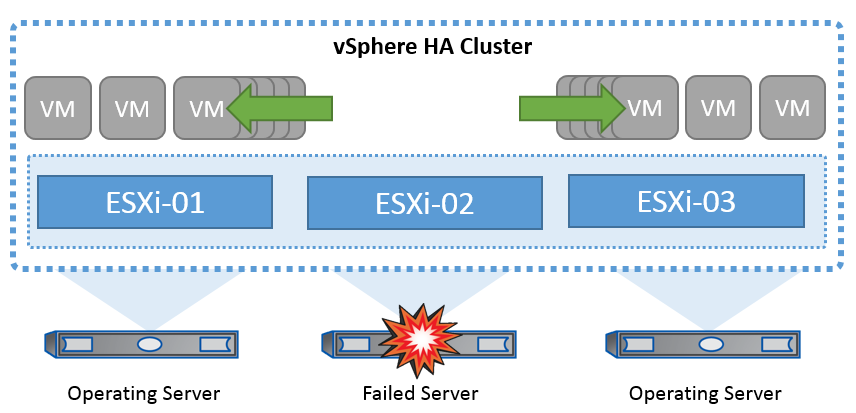
The vSphere ecosystem is built around two foundational components:
🔹 1.2.1 VMware ESXi
ESXi is a bare-metal hypervisor, meaning it installs directly on physical hardware without requiring a host operating system.
Key Responsibilities:
- CPU scheduling across virtual machines
- Memory allocation and reclamation
- Storage I/O handling
- Network packet switching
Architectural Significance:
ESXi operates as the data plane of vSphere. It is responsible for executing workloads efficiently and securely.
🔹 1.2.2 vCenter Server
vCenter Server acts as the centralized control plane.
Key Capabilities:
- Centralized management of multiple ESXi hosts
- Cluster configuration
- Policy enforcement
- Automation and orchestration
Architectural Role:
If ESXi is the engine, vCenter is the brain—coordinating resources, enforcing policies, and enabling advanced features such as:
- vMotion
- Distributed Resource Scheduler (DRS)
- High Availability (HA)
🔁 Control Plane vs Data Plane
| Layer | Component | Responsibility |
|---|---|---|
| Data Plane | ESXi | Executes workloads |
| Control Plane | vCenter Server | Manages and orchestrates |
This separation is foundational for scalability and resilience.
☁️ 1.3 From Virtualization to Cloud Infrastructure
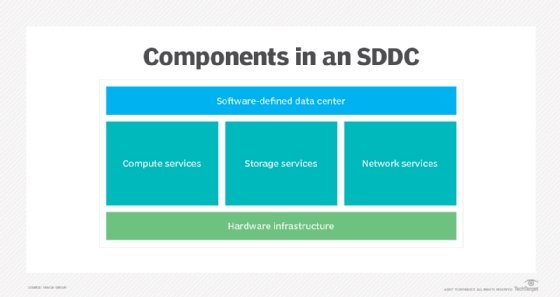
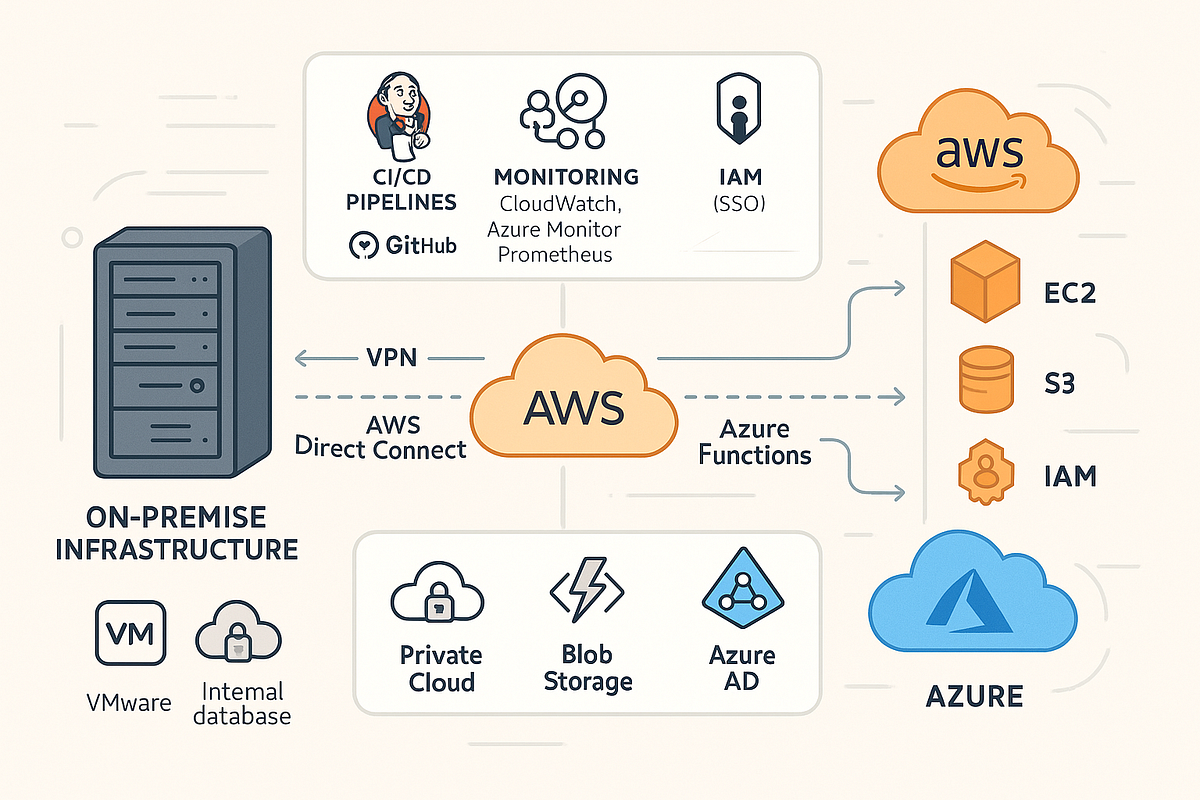
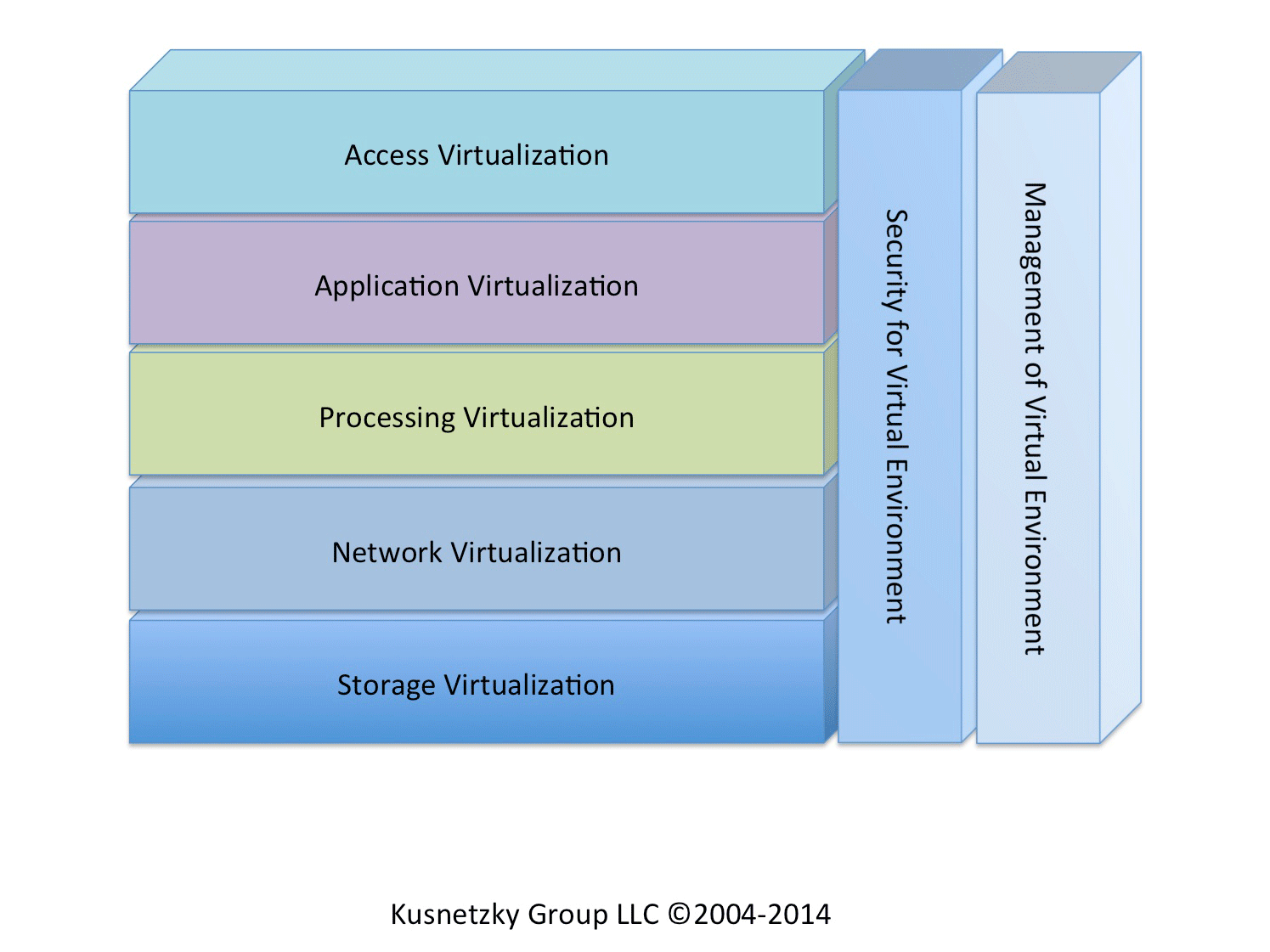
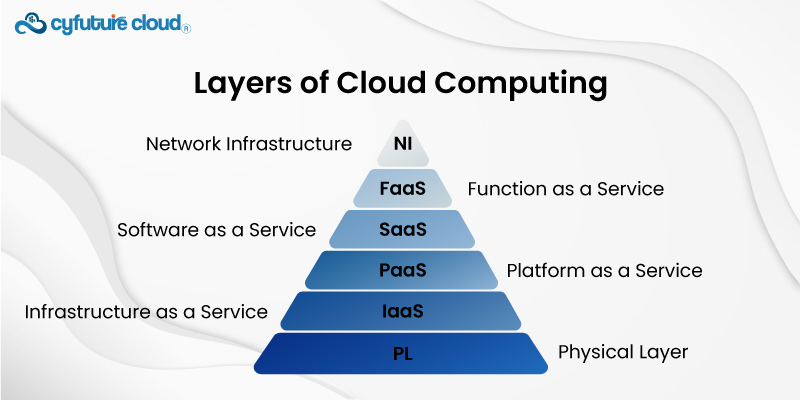
vSphere 9 is not just a virtualization platform—it is a building block of modern cloud infrastructure.
🔹 Evolution Path:
- Server Virtualization
- Storage Virtualization
- Network Virtualization
- Software-Defined Data Center (SDDC)
- Hybrid and Multi-Cloud
vSphere integrates seamlessly into the SDDC model, where:
- Compute is virtualized via ESXi
- Storage is virtualized via vSAN
- Networking is virtualized via NSX
This convergence allows organizations to operate their infrastructure like a cloud provider—internally.
⚙️ 1.4 Key Features of vSphere 9
🔹 Compute Virtualization
- Efficient CPU scheduling
- Memory overcommitment
- NUMA awareness
🔹 Storage Virtualization
- VMFS and NFS datastores
- Policy-based storage management
- Integration with software-defined storage
🔹 Network Virtualization
- Virtual switches (standard and distributed)
- Traffic shaping and control
- Integration with VMware NSX
🔹 Availability and Resilience
- High Availability (HA)
- Fault Tolerance (FT)
- Live migration (vMotion)
🔹 Automation and Lifecycle Management
- Lifecycle Manager (LCM)
- Host profiles
- API-driven automation
🔹 Security
- VM encryption
- Secure boot
- Role-based access control
🔹 Observability
- Performance monitoring
- Alerts and alarms
- Capacity analytics
🏢 1.5 vSphere in Enterprise Architecture


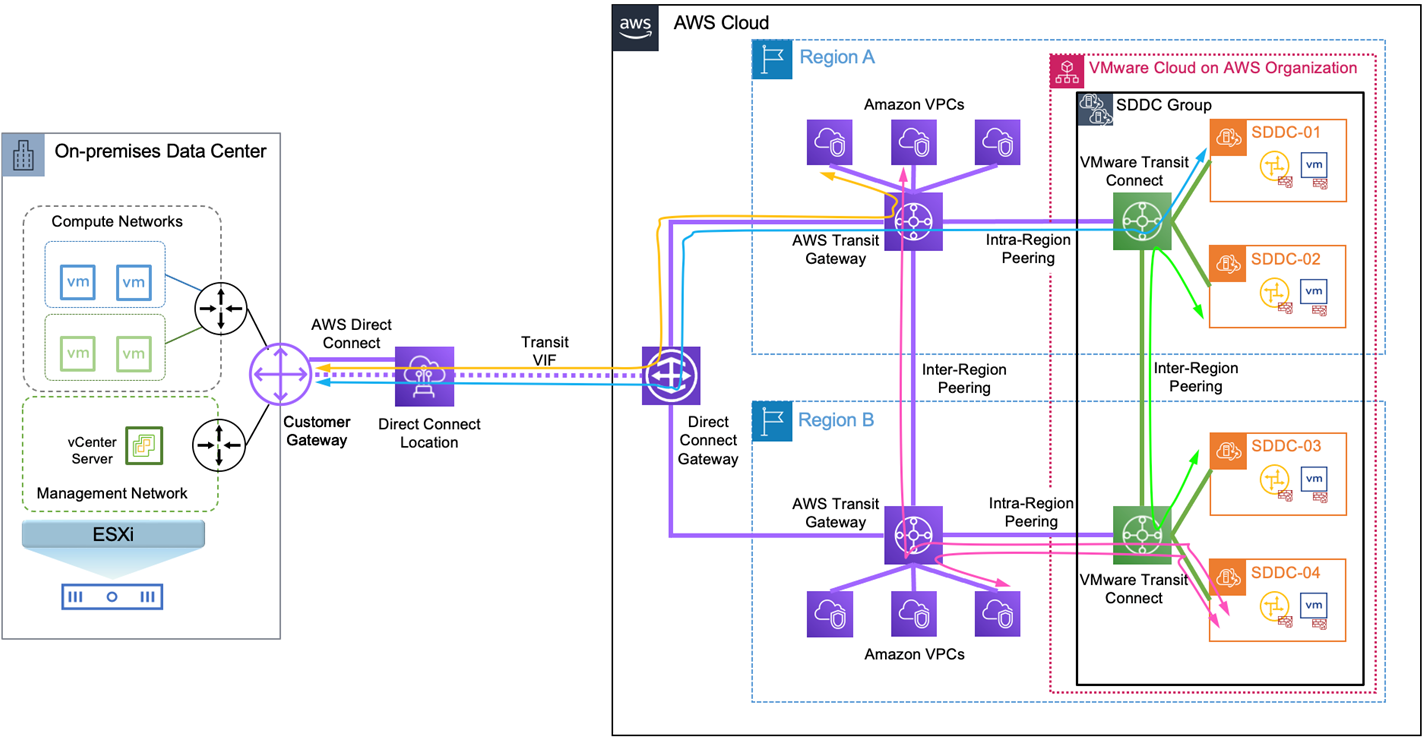
In enterprise environments, vSphere is rarely deployed as a standalone tool. Instead, it forms the core infrastructure layer.
🔹 Typical Enterprise Stack:
- Infrastructure Layer → vSphere
- Automation Layer → APIs, PowerCLI
- Cloud Layer → VMware Cloud / Hybrid Cloud
- Application Layer → VMs & Containers
🔹 Why Enterprises Choose vSphere:
- Maturity – Decades of development and refinement
- Stability – Proven reliability in mission-critical systems
- Ecosystem – Integration with backup, DR, and cloud tools
- Scalability – Supports massive clusters and workloads
📊 1.6 Editions and Licensing Overview
Based on official VMware product comparison documentation:
🔹 Common Editions:
- vSphere Standard
- vSphere Enterprise Plus
- vSphere Foundation
🔹 Feature Differentiation:
| Feature | Standard | Enterprise Plus |
|---|---|---|
| vMotion | ✔ | ✔ |
| DRS | ✖ / Limited | ✔ |
| Distributed Switch | ✖ | ✔ |
| Host Profiles | ✖ | ✔ |
Licensing directly impacts architectural decisions, especially for:
- Automation
- Networking
- Scalability
🔄 1.7 Evolution of vSphere (6 → 9)


🔹 Key Milestones:
- vSphere 6 → Stability and foundational features
- vSphere 7 → Kubernetes integration (Tanzu)
- vSphere 8 → Lifecycle automation and performance improvements
- vSphere 9 → Enhanced security, scalability, and operational intelligence
🔐 1.8 Role of vSphere in Modern IT
vSphere now operates at the intersection of:
- Virtualization
- Cloud computing
- DevOps
- Platform engineering
It supports:
- Traditional enterprise applications
- Cloud-native applications
- AI/ML workloads
- Edge deployments
🧩 1.9 Ecosystem and Integrations
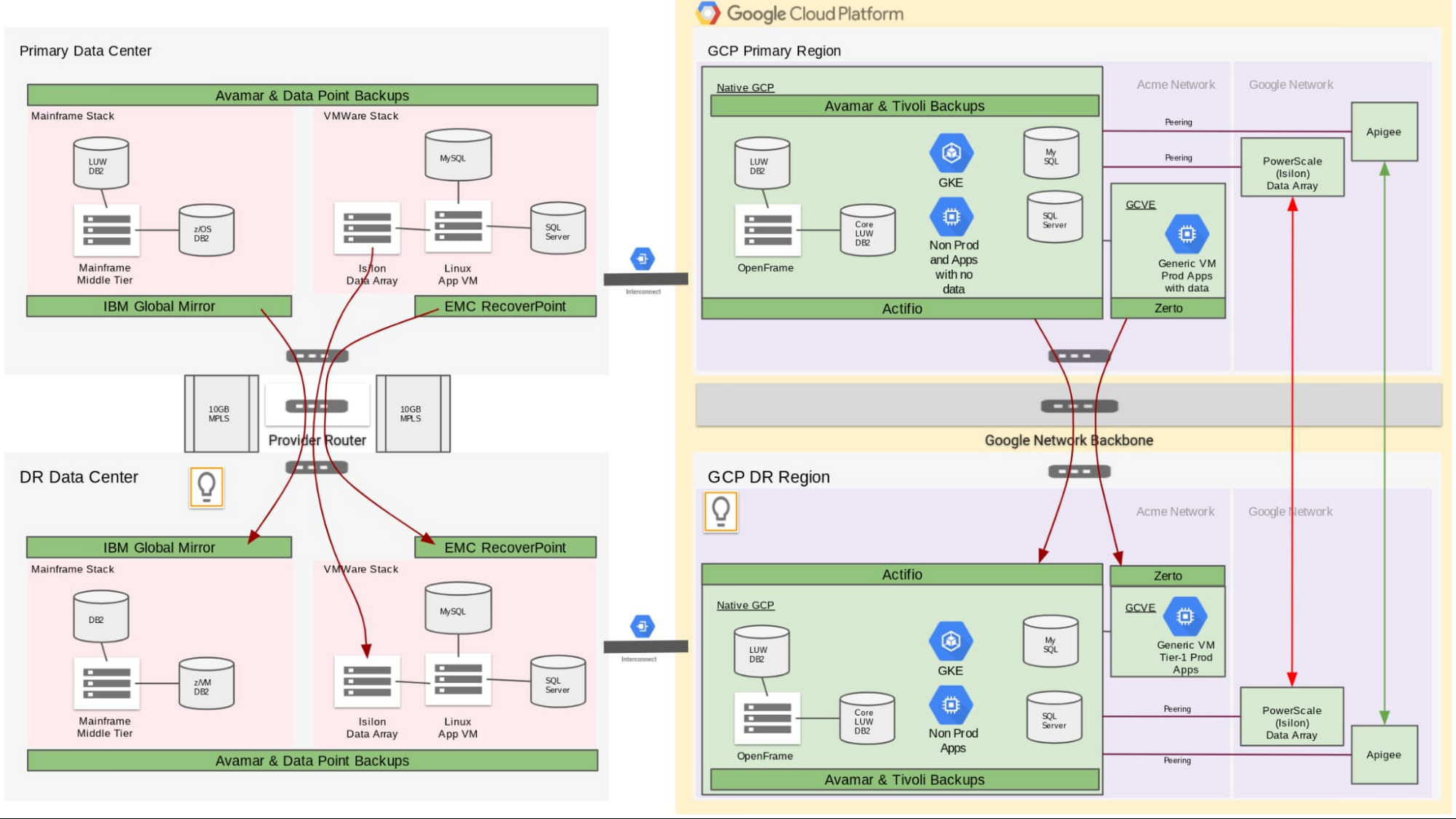
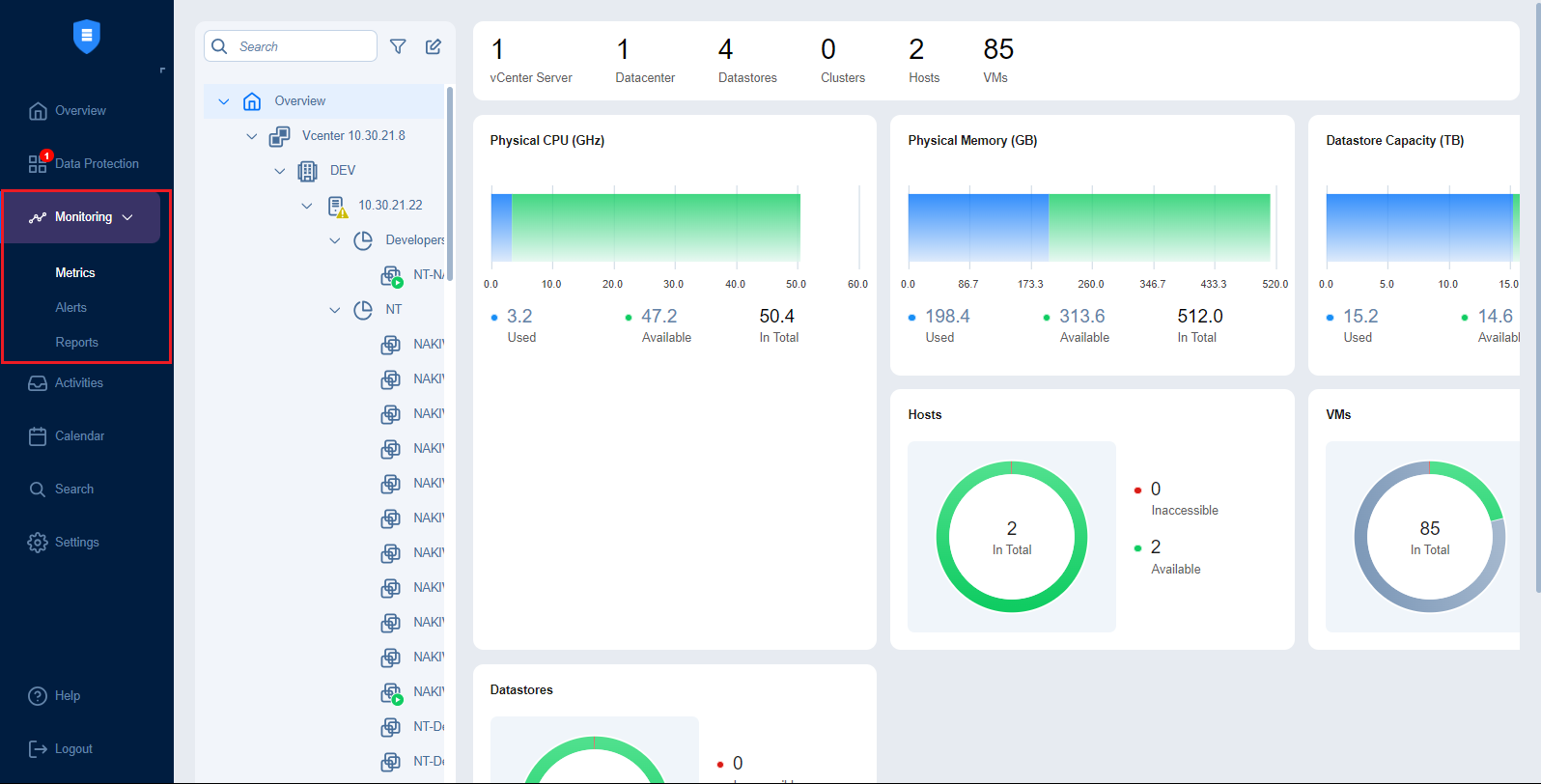


vSphere integrates with a vast ecosystem, including:
- Backup & DR tools like NAKIVO
- Automation tools (Terraform, Ansible)
- Monitoring platforms
This ecosystem is critical for building enterprise-grade solutions.
🧠 1.10 Architectural Philosophy of vSphere
At a deeper level, vSphere is built on several guiding principles:
🔹 Abstraction
Decouple workloads from hardware
🔹 Pooling
Aggregate resources into clusters
🔹 Automation
Reduce manual intervention
🔹 Policy-Driven Management
Define intent, let the system enforce it
🔹 Resilience
Design for failure, not avoidance
📌 1.11 Summary
VMware vSphere 9 is not just a hypervisor platform—it is a complete infrastructure operating system for modern data centers.
It provides:
- A robust abstraction layer
- Centralized control via vCenter
- Enterprise-grade availability and security
- Seamless integration into cloud ecosystems
This chapter lays the foundation for the rest of the book. In the next chapter, we will move into the hands-on world of ESXi installation and host configuration, grounding these concepts in practical implementation.
📘 Chapter 2: ESXi Installation and Host Setup
(Aligned strictly with official Broadcom TechDocs: ESX Installation, Host Client, Lifecycle, and Host Management)
🖥️ 2.1 Introduction to ESXi Installation
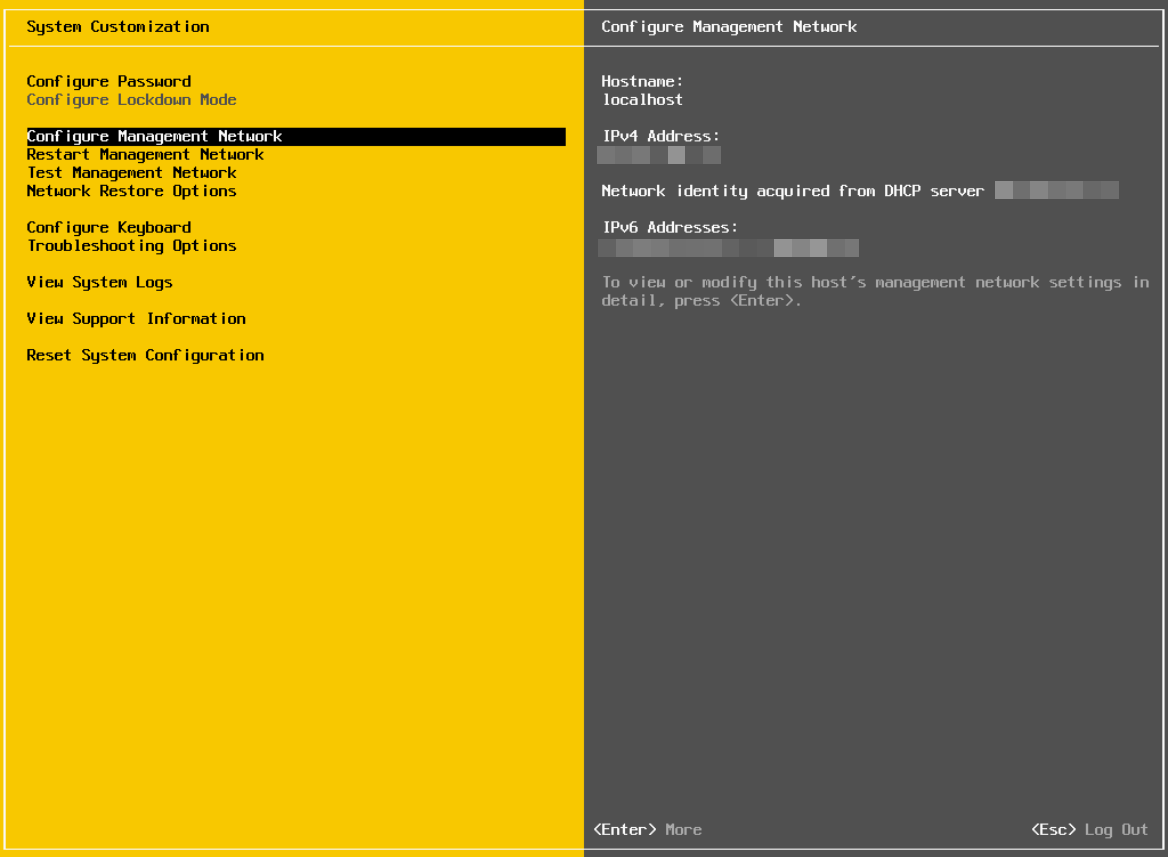
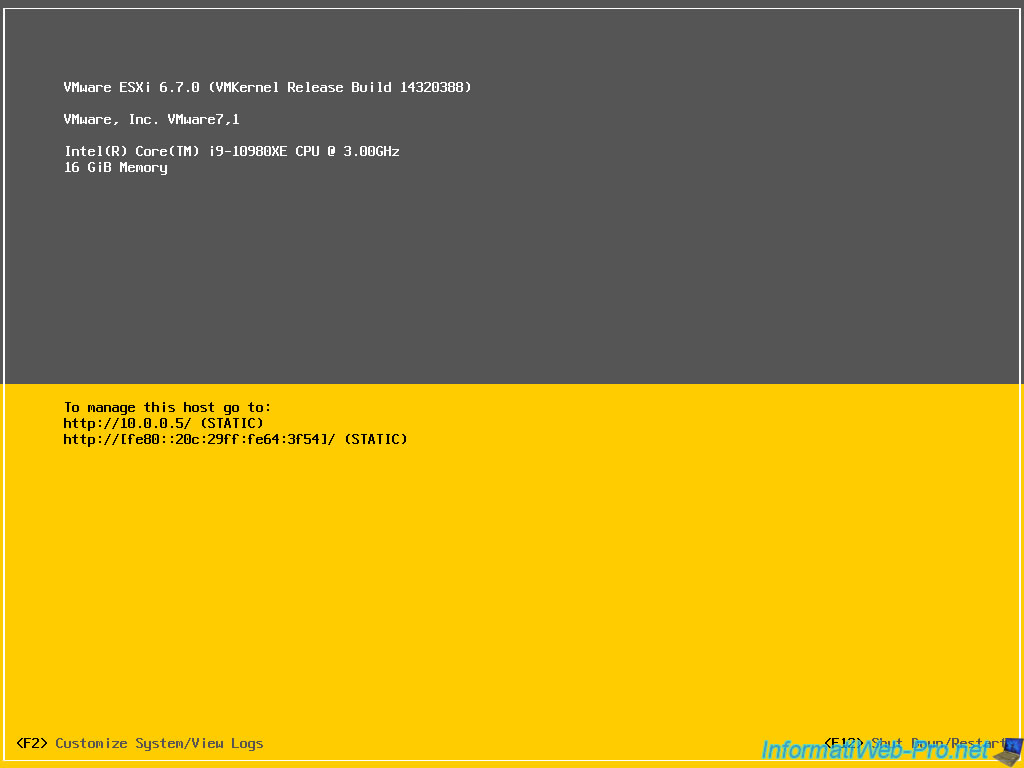

The installation of VMware ESXi represents the first and most foundational step in building a vSphere-based infrastructure. Unlike traditional operating systems, ESXi is a type-1 (bare-metal) hypervisor, meaning it installs directly onto physical hardware without relying on an underlying OS.
From an architectural standpoint, this design choice is deliberate:
- It minimizes attack surface
- Reduces overhead
- Improves performance and determinism
🔍 Why ESXi Installation Matters
Every decision made during installation impacts:
- Future scalability
- Security posture
- Operational efficiency
- Lifecycle management
This is why enterprises treat ESXi deployment not as a simple setup task, but as a strategic infrastructure provisioning process.
🧰 2.2 Hardware Requirements and Compatibility


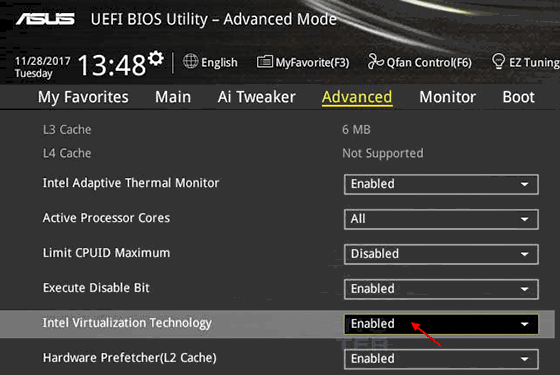
Before installation, validating hardware compatibility is critical.
🔹 Hardware Compatibility List (HCL)
VMware maintains an official HCL (as per Broadcom TechDocs), which ensures:
- CPU support (Intel VT-x / AMD-V)
- Storage controller compatibility
- Network adapter drivers
- Firmware alignment
Failure to comply with HCL can result in:
- Installation failure
- Driver instability
- Performance degradation
🔹 Key Hardware Components
CPU
- Must support hardware virtualization extensions
- NUMA architecture considerations for large workloads
Memory
- Minimum: typically 8 GB (practical deployments require much more)
- ECC memory strongly recommended
Storage
-
Local disks, SAN, or NVMe
-
Boot options:
- Local disk
- SD card / USB (less preferred in modern deployments)
- Network boot
Network
-
Multiple NICs recommended:
- Management
- vMotion
- VM traffic
- Storage
⚙️ 2.3 ESXi Installation Methods
🔹 2.3.1 Interactive Installation (ISO-Based)
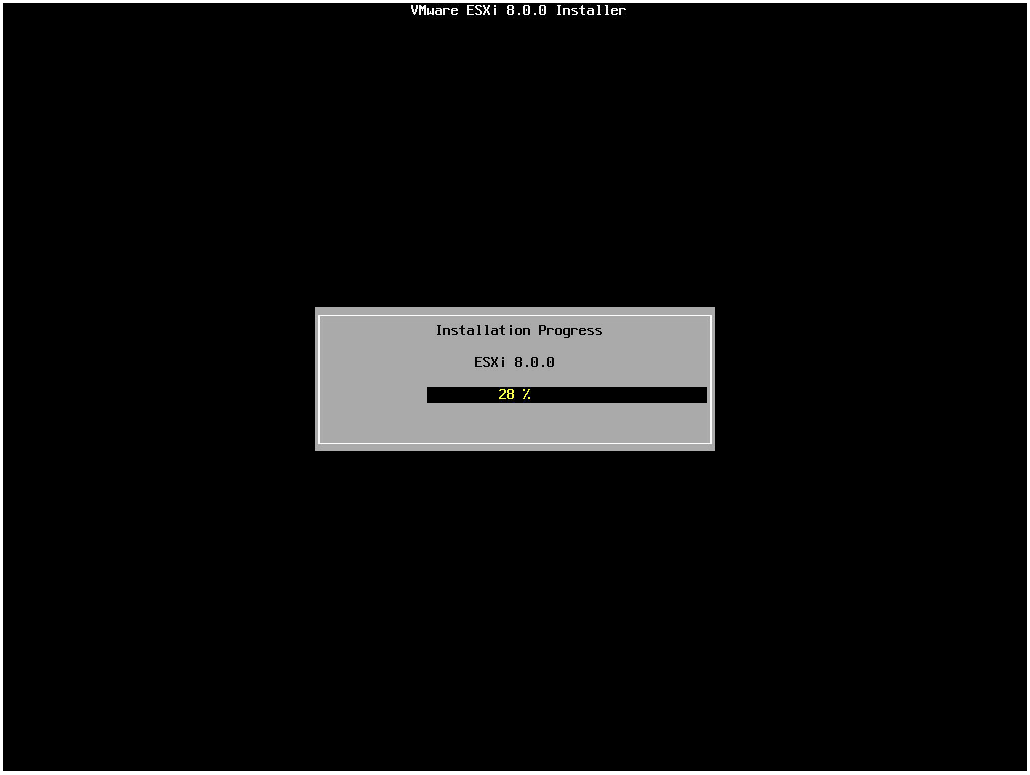
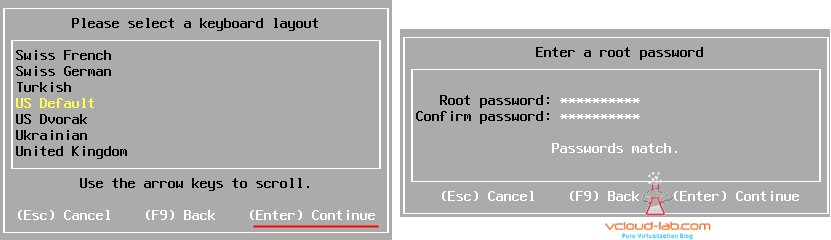
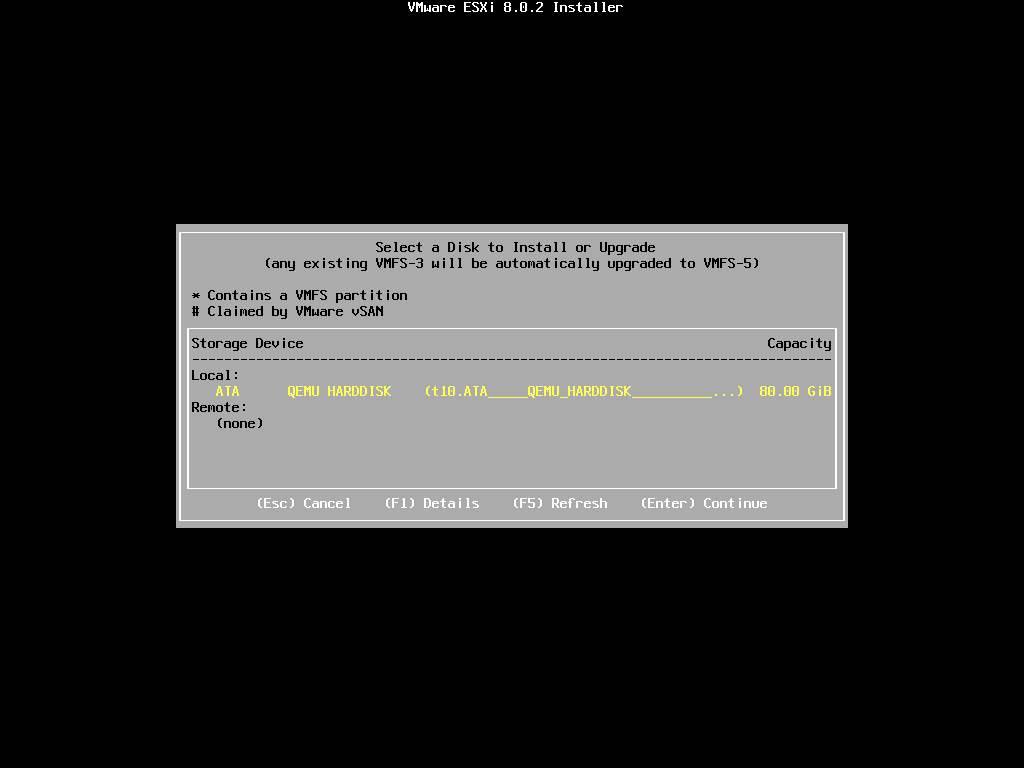
This is the most common method for:
- Labs
- Small deployments
- Initial setup
Steps Overview:
- Boot from ESXi ISO
- Accept EULA
- Select installation disk
- Configure keyboard
- Set root password
- Complete installation and reboot
🔹 2.3.2 Scripted Installation (Kickstart)
For enterprise environments, manual installation is not scalable.
Kickstart Enables:
- Automated deployments
- Standardized configurations
- Integration with provisioning pipelines
Example use cases:
- Data center provisioning
- Edge deployments
- Consistent compliance
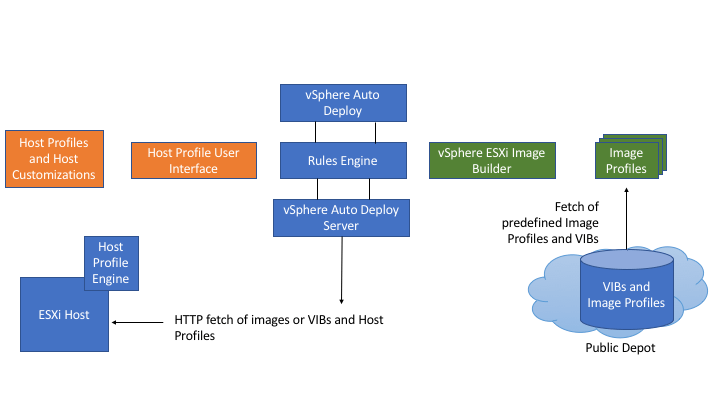
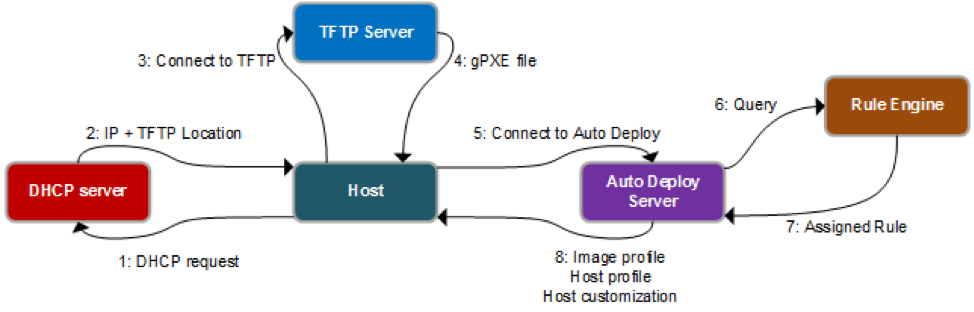
🔹 2.3.3 Network-Based Installation (PXE / Auto Deploy)
Advanced environments use:
- PXE boot
- Stateless ESXi deployments
Benefits:
- Zero-touch provisioning
- Centralized image management
- Rapid scaling
This aligns with Infrastructure as Code principles.
🧠 2.4 ESXi Boot Architecture
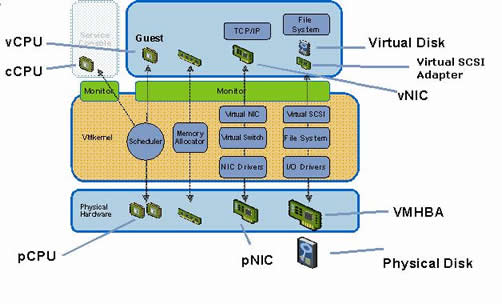


Understanding the boot process is essential for troubleshooting and lifecycle management.
🔹 Boot Components:
- Bootloader
- VMkernel
- System partitions (bootbank, altbootbank)
🔹 Key Insight:
ESXi maintains dual bootbanks:
- Active bootbank
- Alternate bootbank
This allows:
- Safe upgrades
- Rollback capability
🌐 2.5 Initial Configuration Using DCUI
After installation, ESXi provides a Direct Console User Interface (DCUI).
🔹 Key Configurations:
- Management network
- IP address (static recommended)
- DNS and hostname
- Troubleshooting options
🖥️ 2.6 Managing ESXi Using Host Client
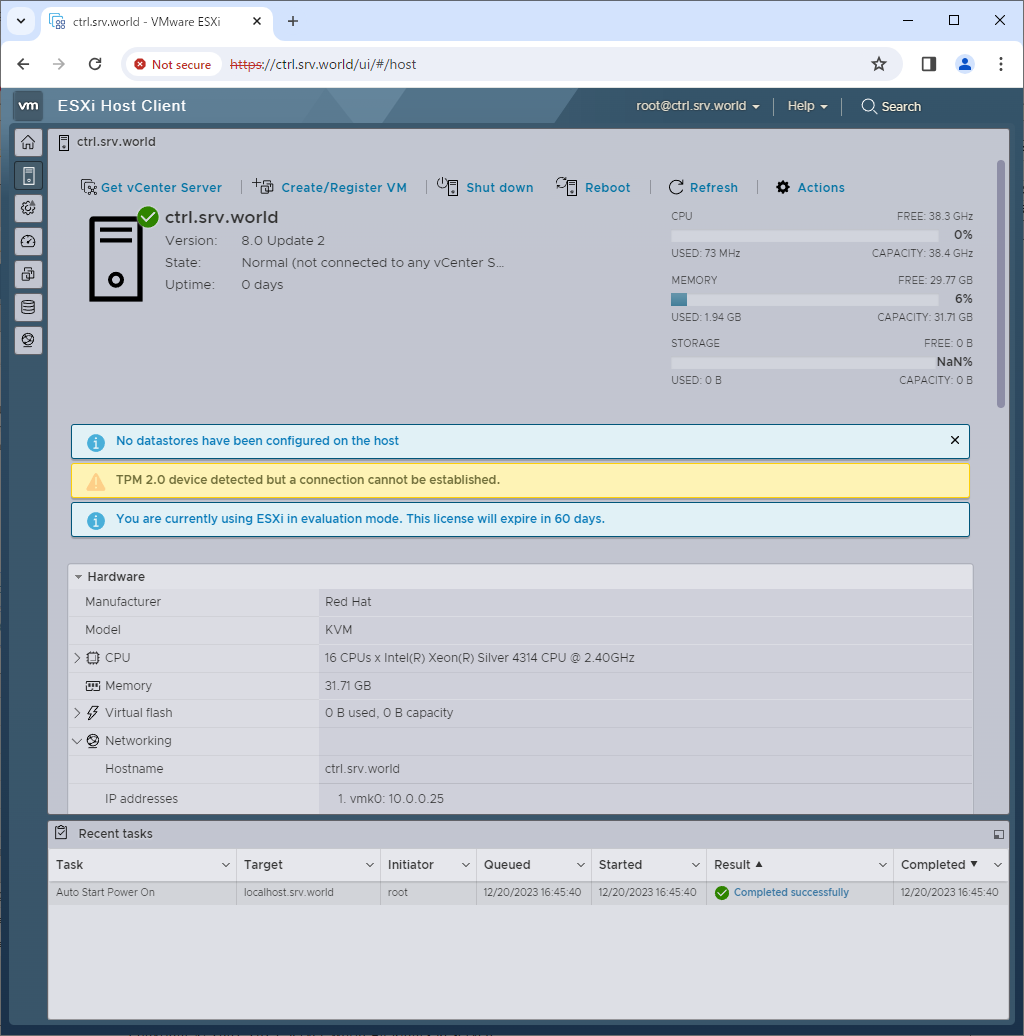
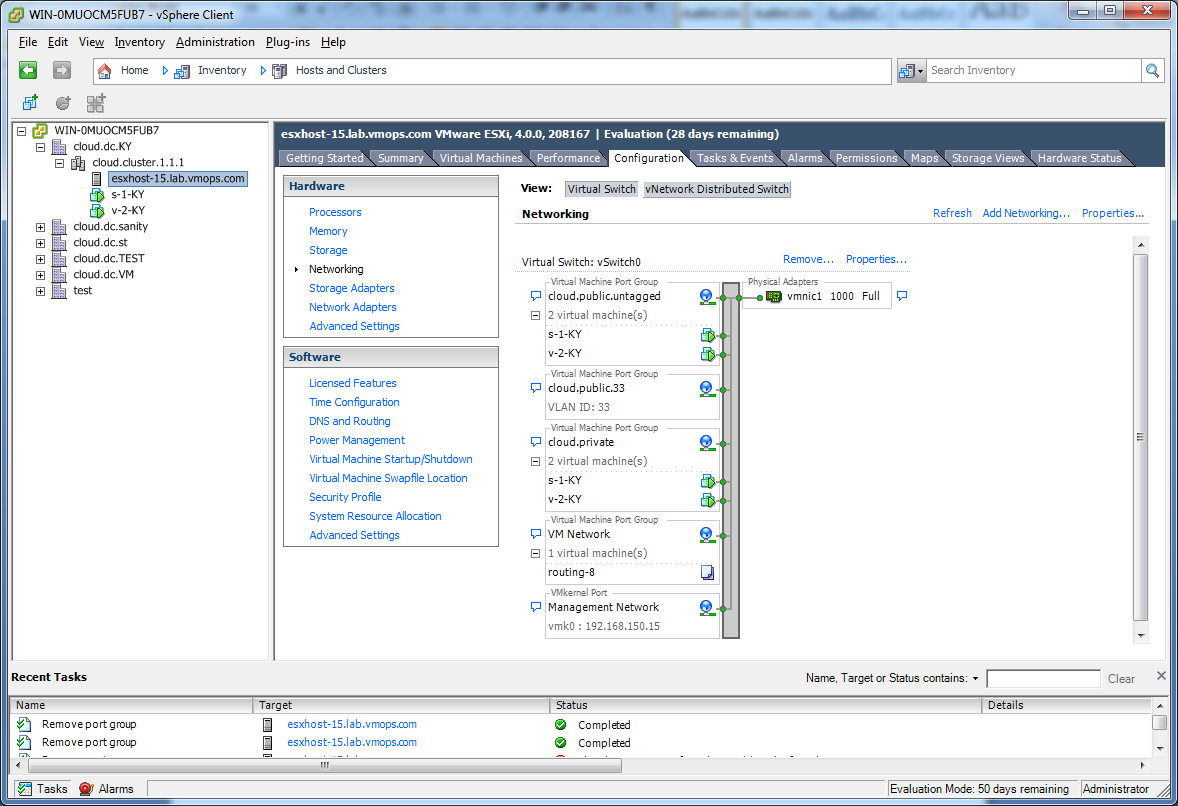
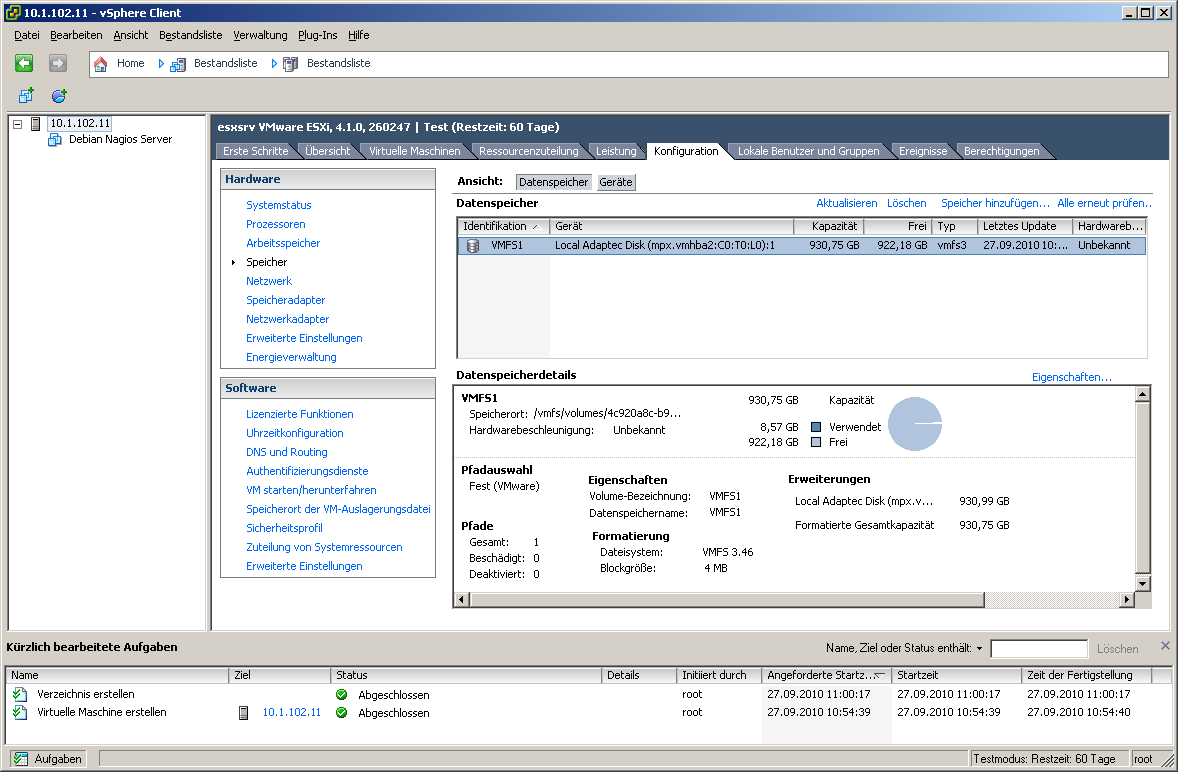

The Host Client allows browser-based management of a single ESXi host.
🔹 Features:
- VM creation and management
- Datastore browsing
- Network configuration
- Performance monitoring
🔹 Architectural Limitation:
- No centralized management
- Limited scalability
This is why enterprises rely on vCenter Server for multi-host environments.
🔐 2.7 Security Considerations During Setup
🔹 Root Account Management
- Strong password required
- Avoid direct usage in production
🔹 Lockdown Mode
- Restricts direct host access
- Forces management via vCenter
🔹 Secure Boot
- Ensures only signed code runs
- Protects against tampering
🔹 Firewall Configuration
- ESXi includes built-in firewall
- Only required ports should be open
🧩 2.8 Networking Configuration at Host Level


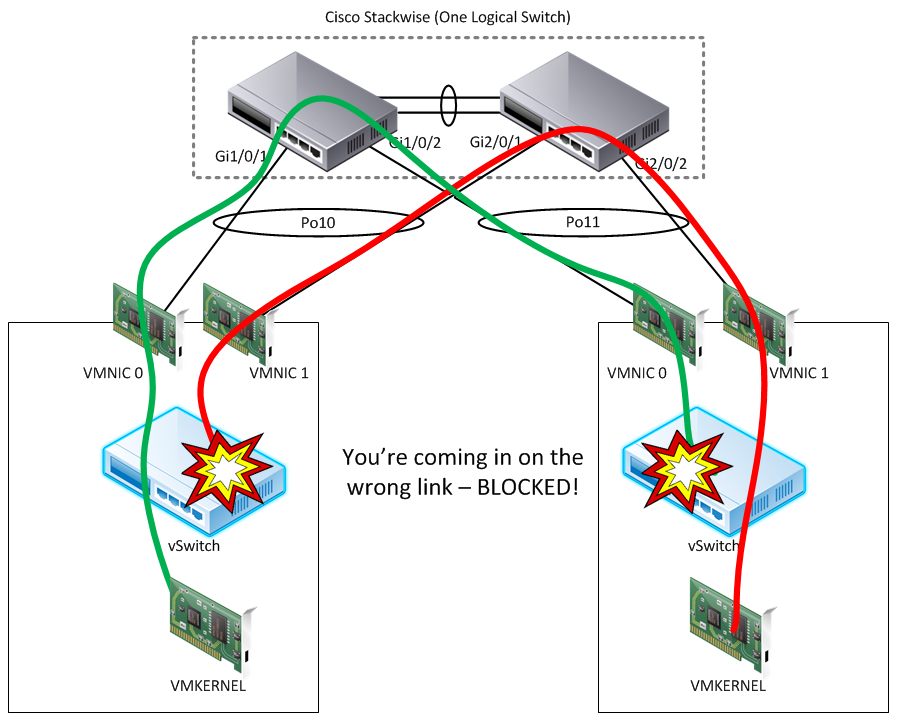
🔹 Standard Switch (vSS)
- Default networking construct
- Managed per host
🔹 VMkernel Ports
Used for:
- Management
- vMotion
- Storage
🔹 NIC Teaming
Provides:
- Redundancy
- Load balancing
💾 2.9 Storage Configuration at Host Level
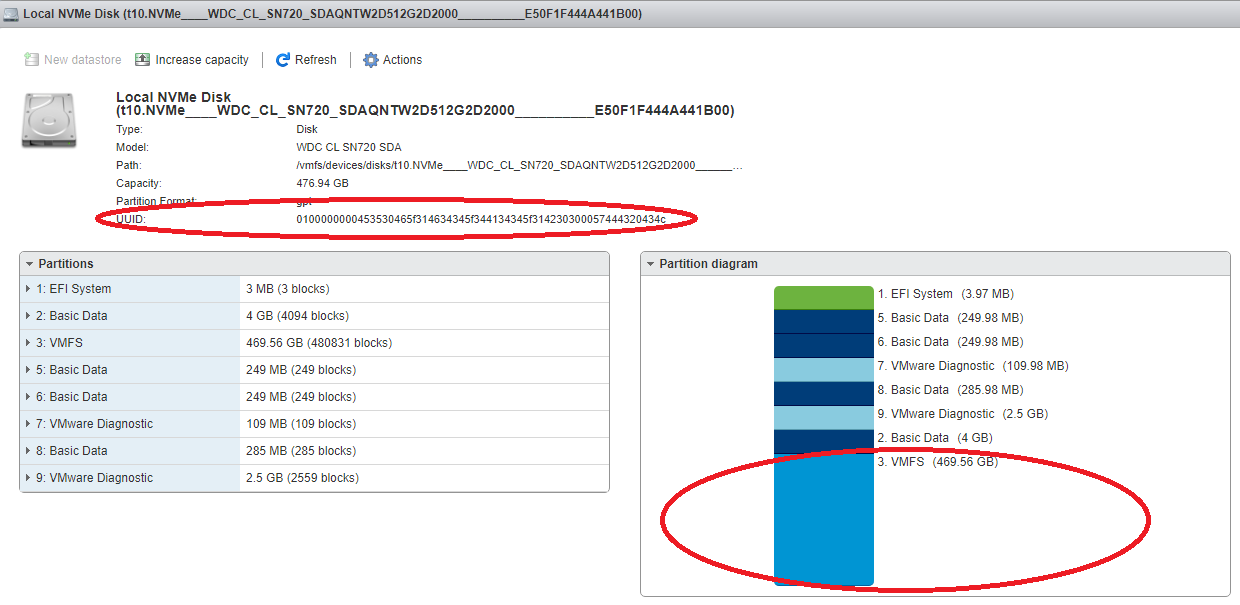


🔹 Datastore Types:
- VMFS
- NFS
🔹 Storage Adapters:
- iSCSI
- Fibre Channel
- NVMe
🔹 Best Practice:
Separate:
- OS datastore
- VM datastore
- Backup datastore
🔄 2.10 Lifecycle Considerations
🔹 Patching and Updates
Handled via Lifecycle Manager (later chapters)
🔹 Image-Based Deployment
Modern approach:
- Desired state model
- Version consistency
🔹 Upgrade Strategy
- In-place upgrade
- Fresh deployment
🏢 2.11 Enterprise Deployment Patterns

🔹 Small Environment
- Few hosts
- Manual install
🔹 Medium Enterprise
- Scripted install
- Standardized configs
🔹 Large Enterprise
- Auto Deploy
- Stateless hosts
- Centralized lifecycle
⚠️ 2.12 Common Pitfalls and Best Practices
❌ Pitfalls:
- Ignoring HCL
- Using weak passwords
- Improper network design
- Mixing firmware versions
✅ Best Practices:
- Use automation wherever possible
- Standardize configurations
- Separate traffic types
- Plan for scalability from day one
📌 2.13 Summary
VMware ESXi installation is not just a technical step—it is the foundation of the entire vSphere architecture.
Key takeaways:
- Always validate hardware compatibility
- Choose the right installation method
- Understand boot architecture
- Secure the host from day one
- Design networking and storage carefully
📘 Chapter 3: vCenter Server Deployment and Configuration
(Aligned strictly with official Broadcom TechDocs: vCenter Installation, Configuration, Authentication, and Management)
🧠 3.1 Introduction to vCenter Server


In a standalone deployment, an ESXi host can operate independently. However, enterprise environments demand centralized control, scalability, automation, and policy enforcement. This is where vCenter Server becomes indispensable.
🔍 Core Idea
vCenter Server is not just a management tool—it is the control plane of the entire vSphere ecosystem.
It enables:
- Centralized management of multiple ESXi hosts
- Cluster-level features (HA, DRS, vMotion)
- Policy-driven infrastructure
- Automation and lifecycle operations
🔹 Why vCenter is Mandatory in Enterprises
Without vCenter:
- No clustering
- No live migration
- No centralized policies
- No scalability
With vCenter:
- Infrastructure behaves like a cloud platform
🏗️ 3.2 vCenter Server Architecture

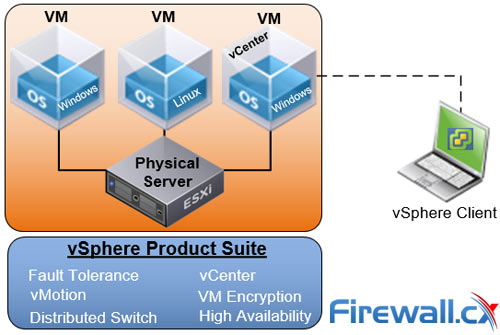
Modern vCenter is delivered as the vCenter Server Appliance (VCSA).
🔹 Key Architectural Components
1. vpxd (vCenter Server Service)
- Core management service
- Handles inventory and operations
2. Platform Services Controller (Embedded)
- Authentication (SSO)
- Licensing
- Certificate management
3. Database (vPostgres)
- Stores configuration and inventory data
- Embedded within appliance
4. Services Framework
Includes:
- Inventory Service
- Content Library Service
- Lifecycle Manager
- Update Manager
🔁 Control Plane Role
vCenter acts as:
- Decision engine
- Policy enforcer
- Automation orchestrator
⚙️ 3.3 Deployment Models
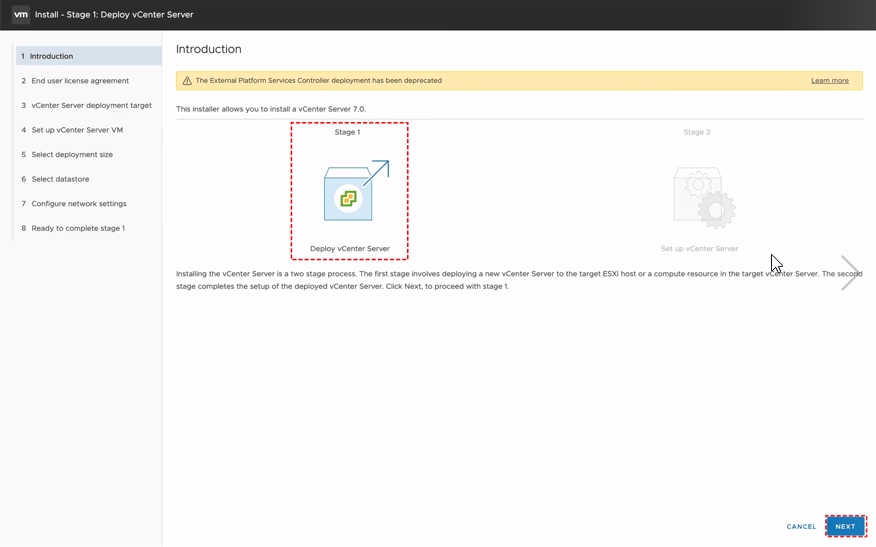
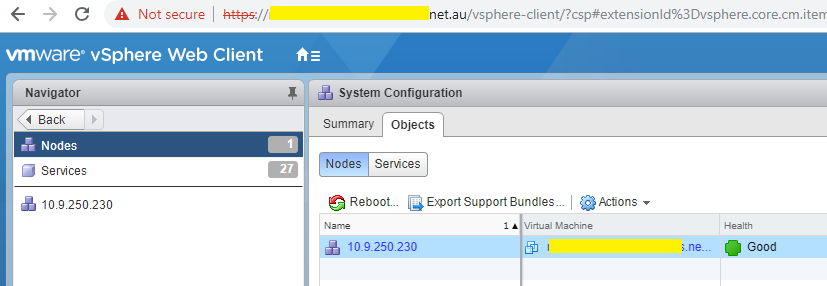
🔹 3.3.1 vCenter Server Appliance (VCSA)
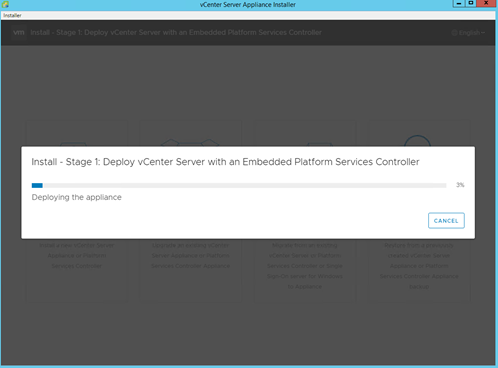

This is the recommended and dominant deployment model.
Advantages:
- Pre-configured Linux-based appliance
- Simplified deployment
- Integrated services
- Optimized performance
🔹 3.3.2 Deployment Stages
Stage 1: Appliance Deployment
- Deploy OVA to ESXi host
- Configure CPU, memory, storage
Stage 2: Configuration
- SSO setup
- Network configuration
- Database initialization
🔹 3.3.3 Sizing Considerations
| Size | Hosts | VMs |
|---|---|---|
| Tiny | Small labs | Few VMs |
| Small | Small production | Moderate |
| Medium/Large | Enterprise | Thousands |
🔐 3.4 Authentication and Identity Management


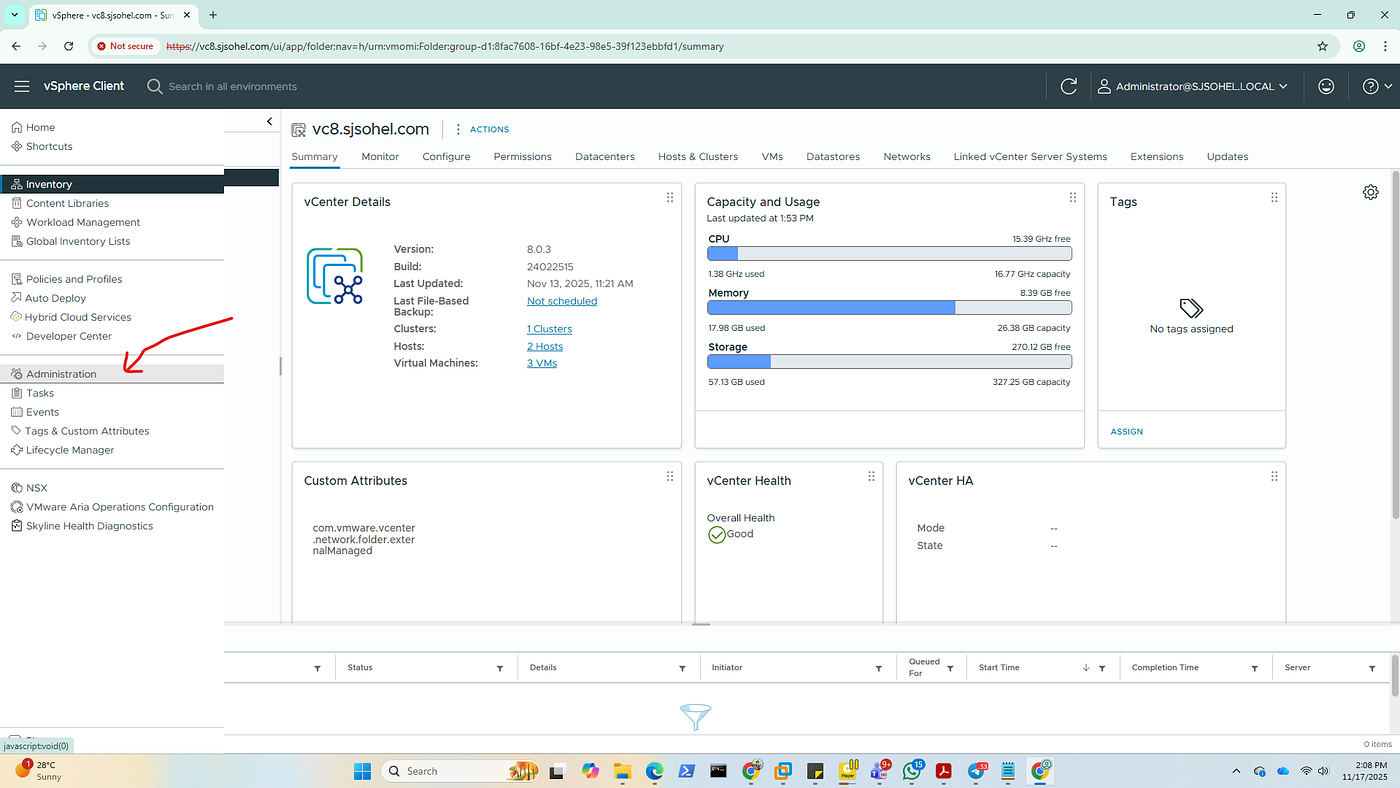
Authentication is handled through Single Sign-On (SSO).
🔹 Key Concepts
Identity Sources:
- Active Directory
- LDAP
- Local users
SSO Domain:
- Default:
vsphere.local - Central authentication domain
Tokens:
- Secure authentication tokens replace repeated logins
🔹 Role-Based Access Control (RBAC)
Permissions are defined via:
- Roles
- Privileges
- Objects
🔹 Best Practice:
Never assign permissions directly to users—use groups.
🌐 3.5 Networking Configuration for vCenter
🔹 Key Requirements:
- Static IP address
- Proper DNS resolution (forward & reverse)
- NTP synchronization
🔹 Why DNS is Critical
vCenter heavily relies on:
- FQDN-based communication
- Certificate validation
Misconfigured DNS leads to:
- Deployment failures
- Authentication issues
🗂️ 3.6 Inventory Organization and Design


Inventory design is one of the most critical—and often overlooked—areas.
🔹 Hierarchy:
-
Datacenter
-
Cluster
-
Host
- Virtual Machines
-
-
🔹 Logical Constructs:
Datacenter
- Top-level container
Cluster
- Enables HA, DRS
Folder
- Organizational grouping
Resource Pool
- Resource allocation boundary
🔹 Design Principles:
- Reflect business structure
- Separate environments (Dev/Test/Prod)
- Plan for scale
🔄 3.7 Adding and Managing Hosts
🔹 Steps:
- Add ESXi host to vCenter
- Provide credentials
- Assign to cluster
🔹 Post-Addition:
- Host inherits cluster policies
- Centralized management begins
🔧 3.8 vCenter Configuration
🔹 Key Settings:
Licensing
- Apply licenses centrally
Time Synchronization
- Essential for authentication
Logging
- Configure retention policies
Backup and Restore
- File-based backup of VCSA
🔐 3.9 Security Configuration
🔹 Certificates
- Replace self-signed certificates
- Use enterprise CA
🔹 Hardening
- Disable unnecessary services
- Enforce strong authentication
🔹 Lockdown Mode
- Restrict direct ESXi access
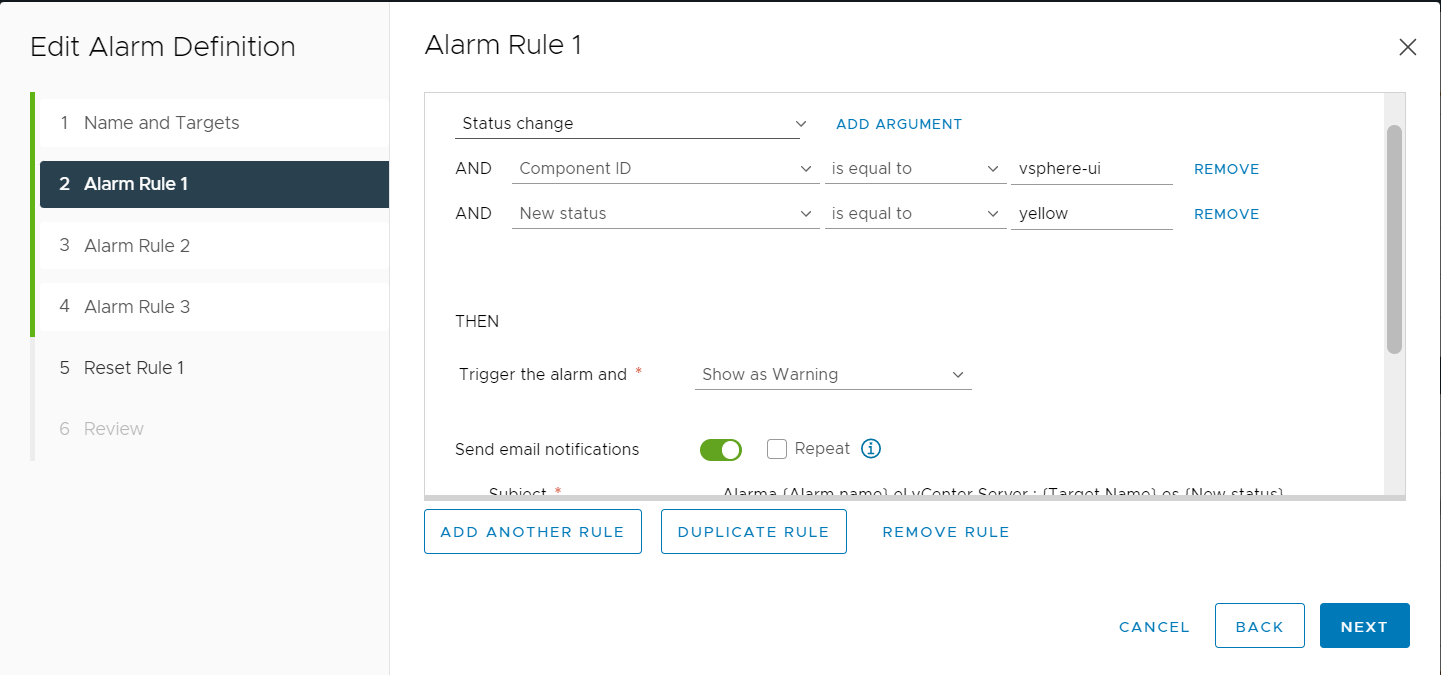
📊 3.10 Monitoring vCenter
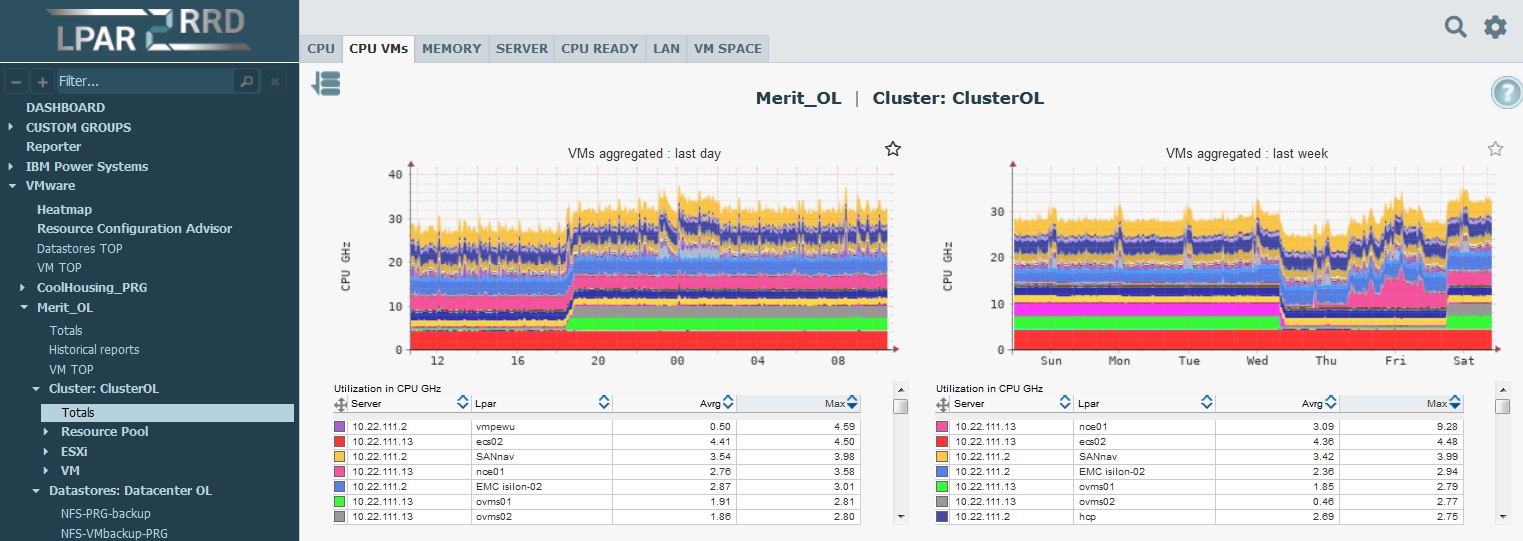
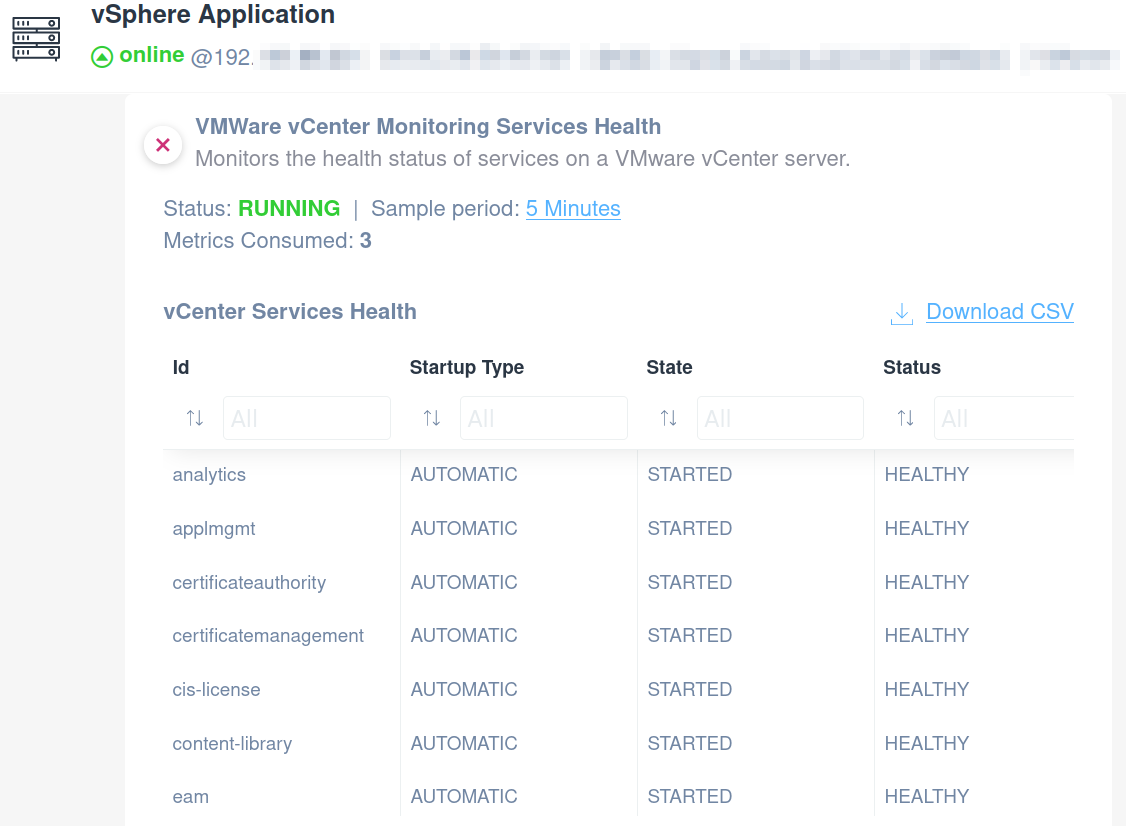
🔹 Key Metrics:
- CPU usage
- Memory consumption
- Database size
- Service health
🔹 Alarms:
- Threshold-based alerts
- Automated responses
🔁 3.11 High Availability for vCenter
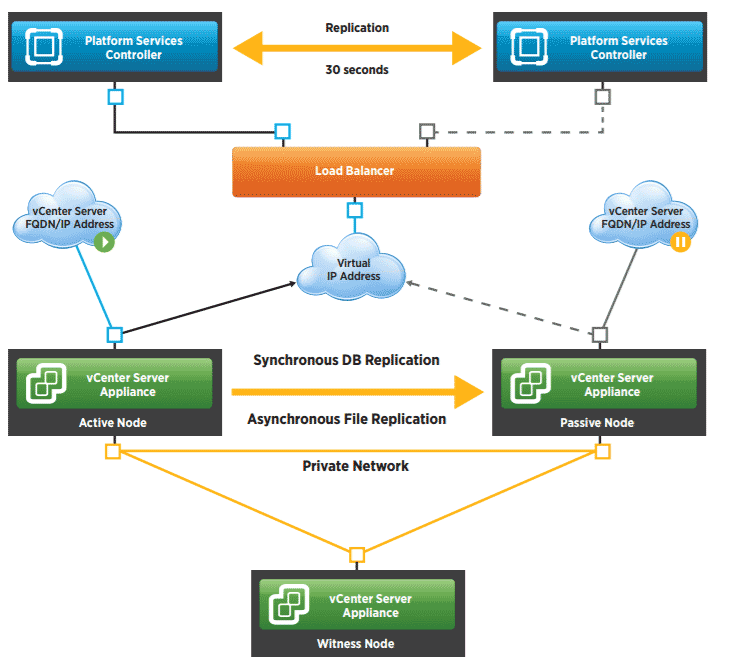
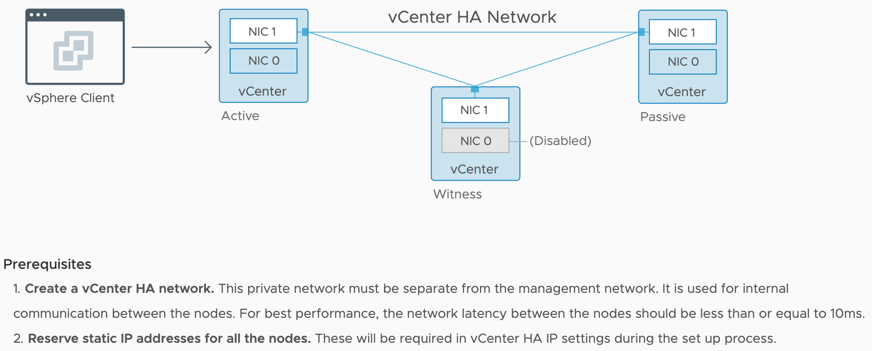
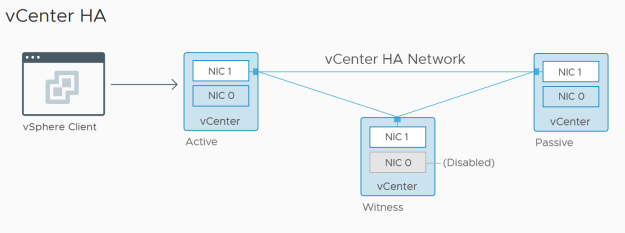
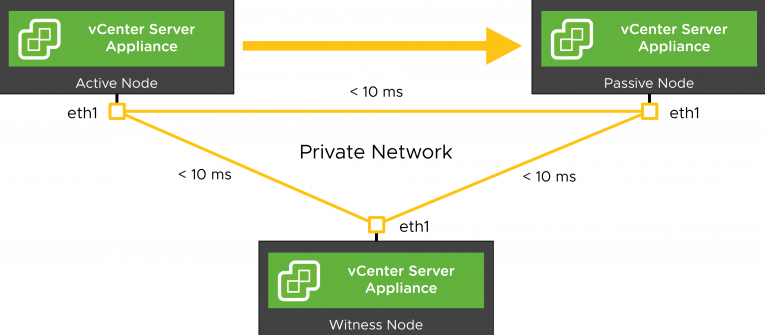
vCenter supports High Availability (VCHA).
🔹 Architecture:
- Active node
- Passive node
- Witness node
🔹 Benefits:
- Automatic failover
- Reduced downtime
🔄 3.12 Upgrade and Lifecycle Management
🔹 Upgrade Paths:
- From previous vSphere versions
- In-place upgrade
🔹 Lifecycle Manager Integration:
- Patch management
- Image-based updates
🏢 3.13 Enterprise Deployment Patterns

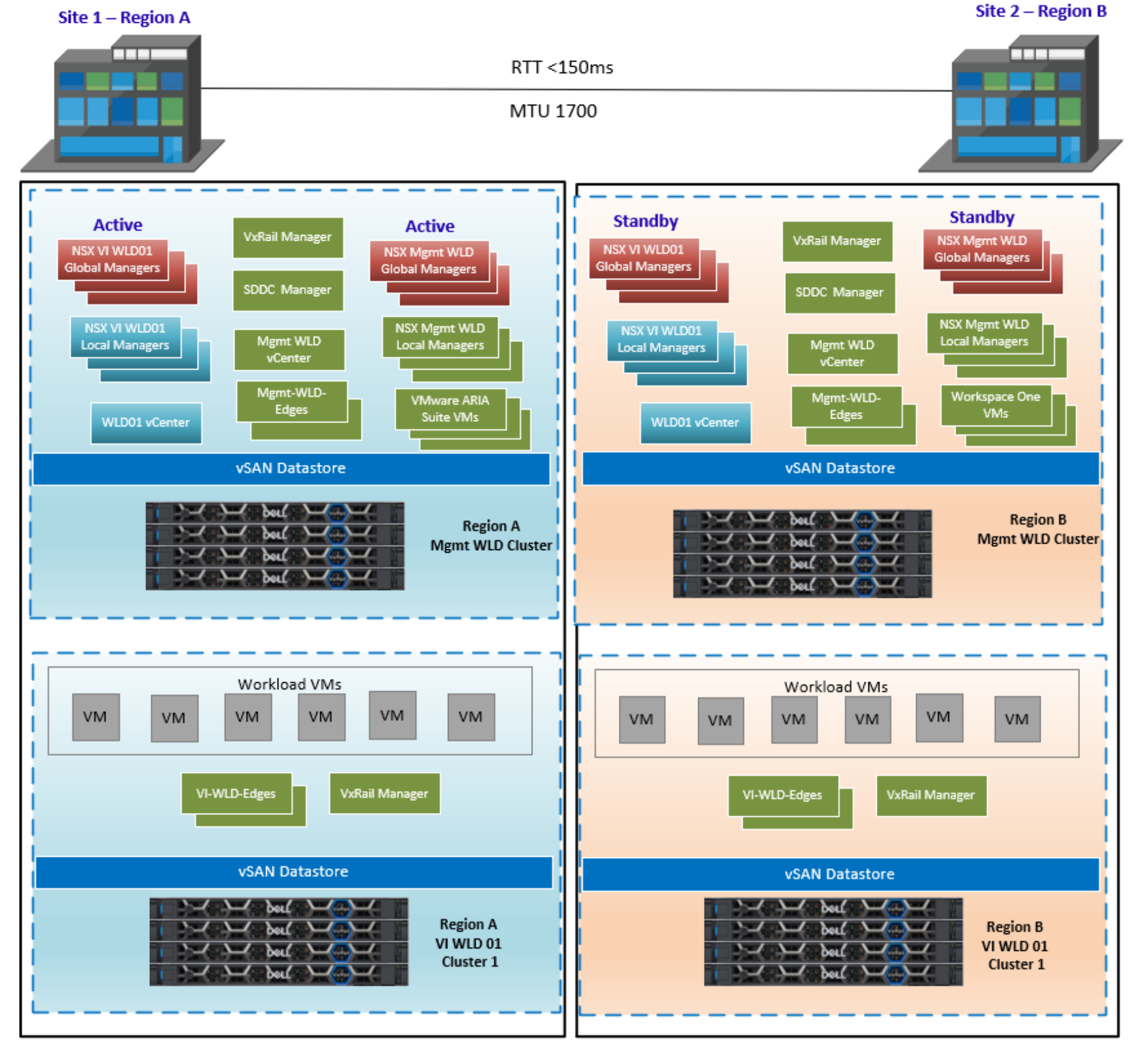
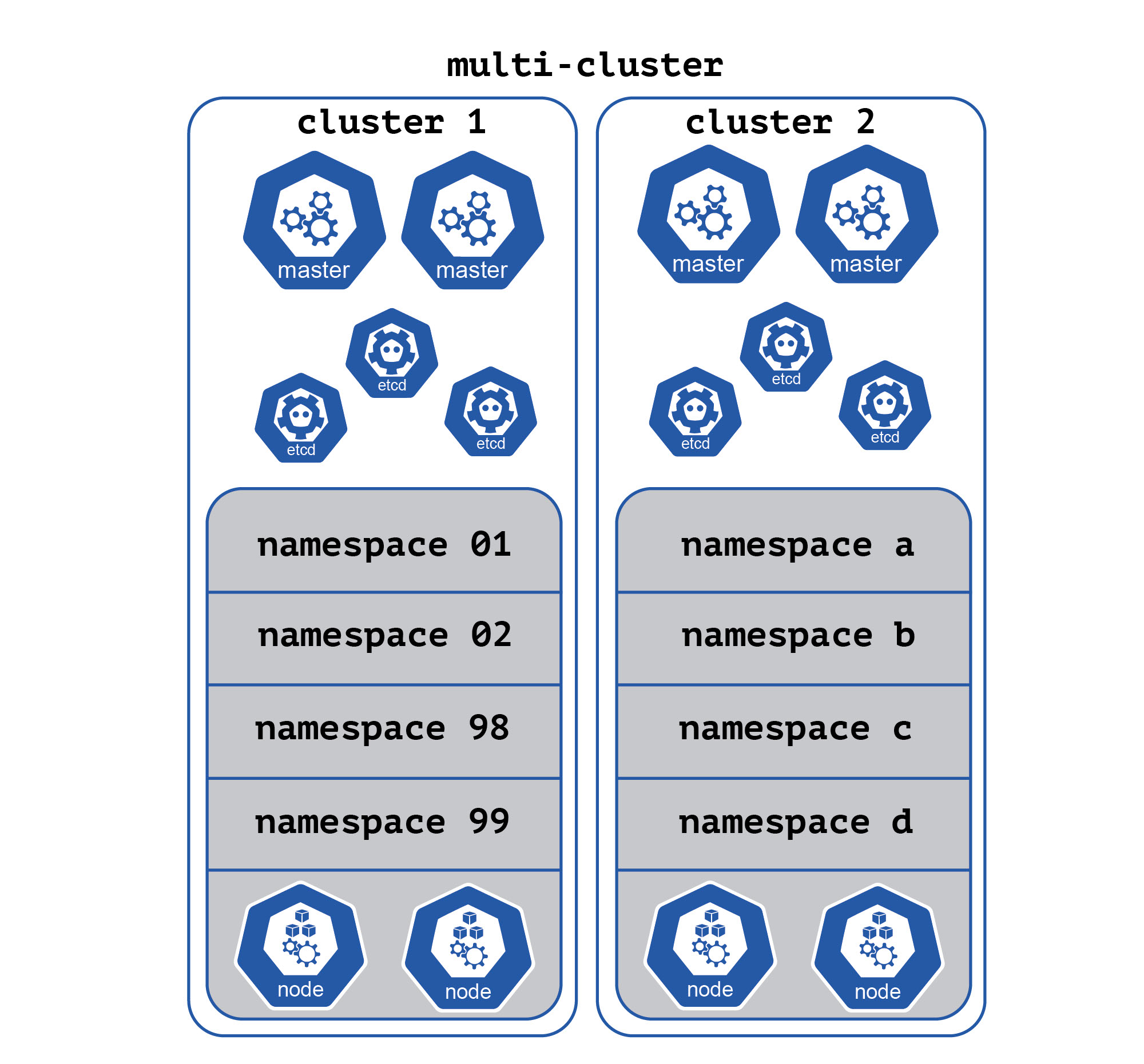
🔹 Single vCenter
- Small environments
🔹 Multiple vCenters
- Large enterprises
- Geographic distribution
🔹 Enhanced Linked Mode
- Unified view across vCenters
⚠️ 3.14 Common Pitfalls and Best Practices
❌ Pitfalls:
- Poor DNS configuration
- Incorrect sizing
- Weak authentication setup
✅ Best Practices:
- Use FQDN everywhere
- Integrate with Active Directory
- Regular backups
- Monitor health continuously
📌 3.15 Summary
vCenter Server is the central nervous system of vSphere.
It provides:
- Centralized control
- Policy enforcement
- Automation capabilities
- Enterprise scalability
Without vCenter, vSphere is just a collection of hosts. With vCenter, it becomes a true cloud platform.
📘 Chapter 4: vCenter and Host Management
(Aligned with official Broadcom TechDocs: vCenter and Host Management, Configuration, Lifecycle, and Governance)
🧠 4.1 Introduction to vCenter and Host Management

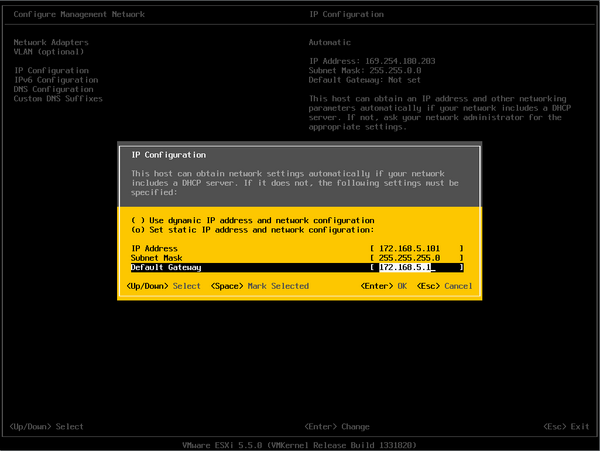
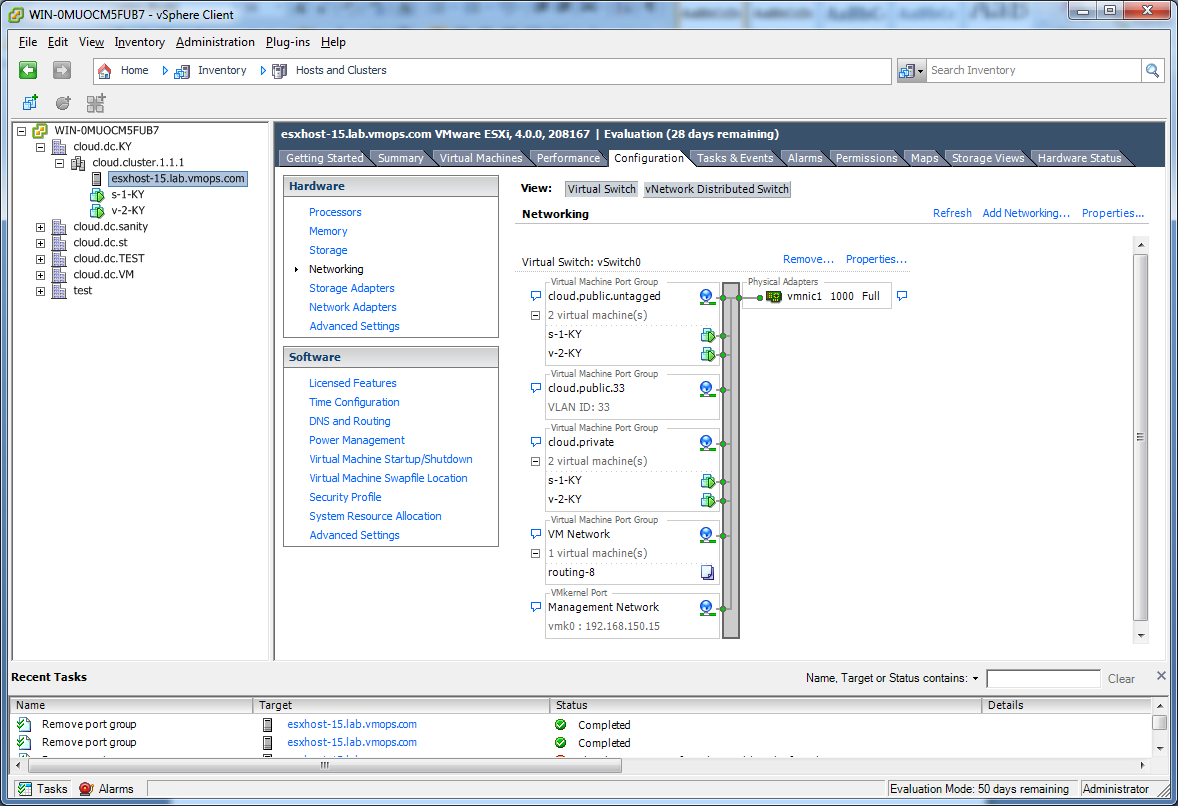
Once vCenter Server is deployed, the real power of vSphere emerges through centralized host and infrastructure management.
This chapter focuses on how administrators:
- Organize infrastructure
- Manage ESXi hosts at scale
- Apply governance and policies
- Maintain operational consistency
🔍 Core Principle
vCenter transforms a collection of standalone ESXi hosts into a cohesive, policy-driven infrastructure fabric.
🏗️ 4.2 vCenter Inventory Model Deep Dive

The vCenter inventory is a logical representation of physical and virtual resources.
🔹 Hierarchical Structure
      Datacenter
   ├── Cluster
   │      ├── Host
   │      │     ├── Virtual Machines
   │      │     └── Datastores
   │      └── Resource Pools
   └── Folders
🔹 Key Objects Explained
Datacenter
- Top-level container
- Represents a physical or logical site
Cluster
-
Group of ESXi hosts
-
Enables:
- High Availability (HA)
- Distributed Resource Scheduler (DRS)
Host
- Physical server running VMware ESXi
Virtual Machine
- Encapsulated workload
Folder
- Logical grouping (not resource-based)
Resource Pool
- Logical partitioning of compute resources
🔹 Design Insight
A well-designed inventory:
- Simplifies operations
- Improves security
- Enables automation
🖥️ 4.3 Adding and Managing ESXi Hosts
🔹 Host Addition Workflow


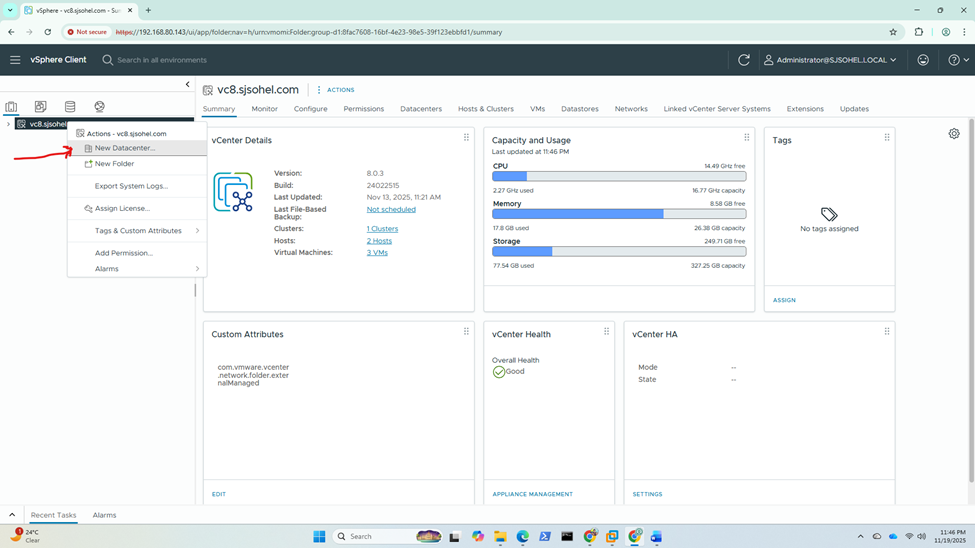
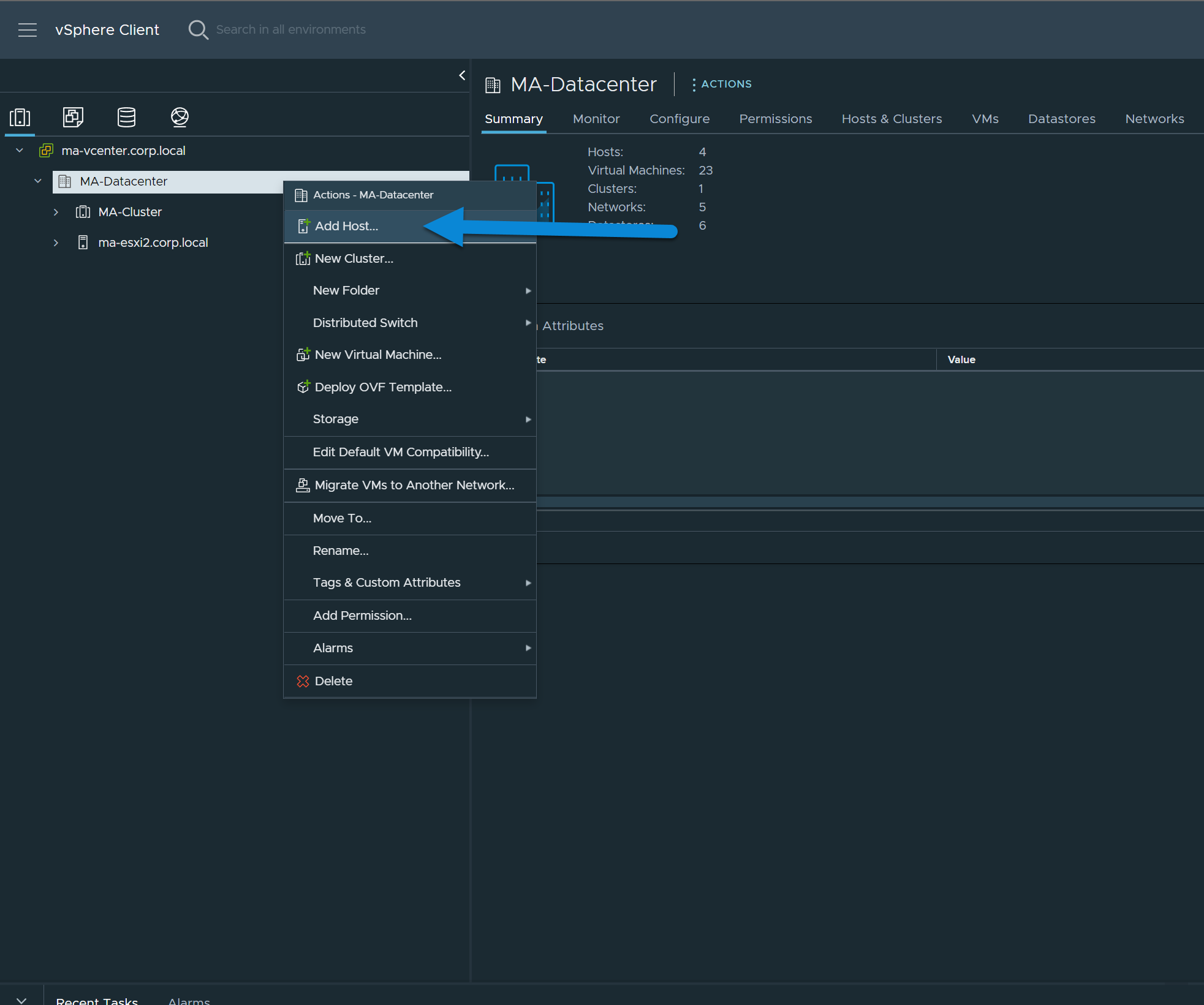
Steps:
- Connect to vCenter
- Add host (IP/FQDN)
- Provide credentials
- Validate certificate
- Assign to cluster
🔹 What Happens Internally
- vCenter establishes trust
- Host joins inventory
- Policies are inherited
- Monitoring begins
🔹 Host States
| State | Meaning |
|---|---|
| Connected | Fully operational |
| Disconnected | Communication lost |
| Maintenance Mode | Not running workloads |
🔄 4.4 Maintenance Mode and Host Lifecycle
🔹 Maintenance Mode
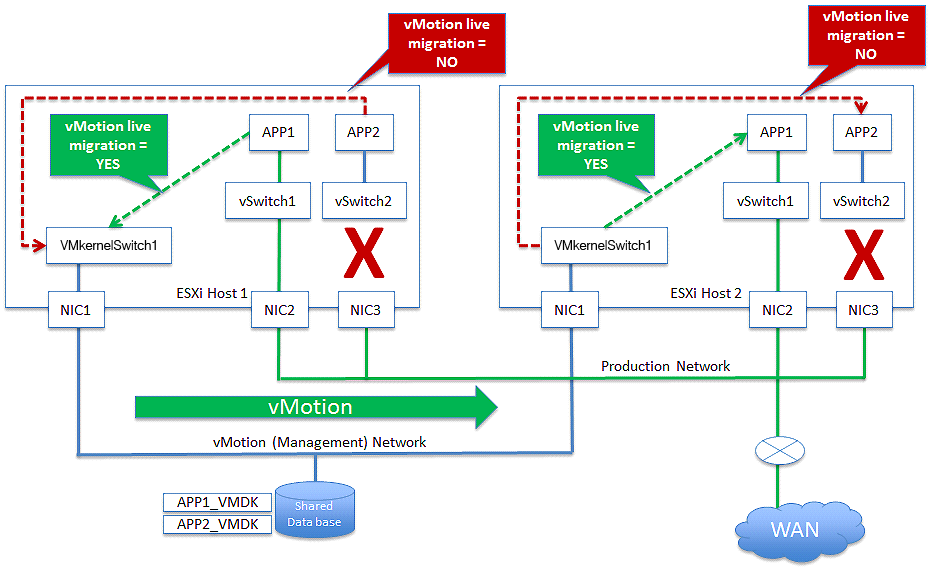


Used when:
- Patching
- Hardware maintenance
- Upgrades
🔹 VM Evacuation Options:
- Migrate powered-on VMs (vMotion)
- Power off VMs
- Leave powered-off VMs
🔹 Lifecycle Operations:
- Patch
- Upgrade
- Reboot
- Decommission
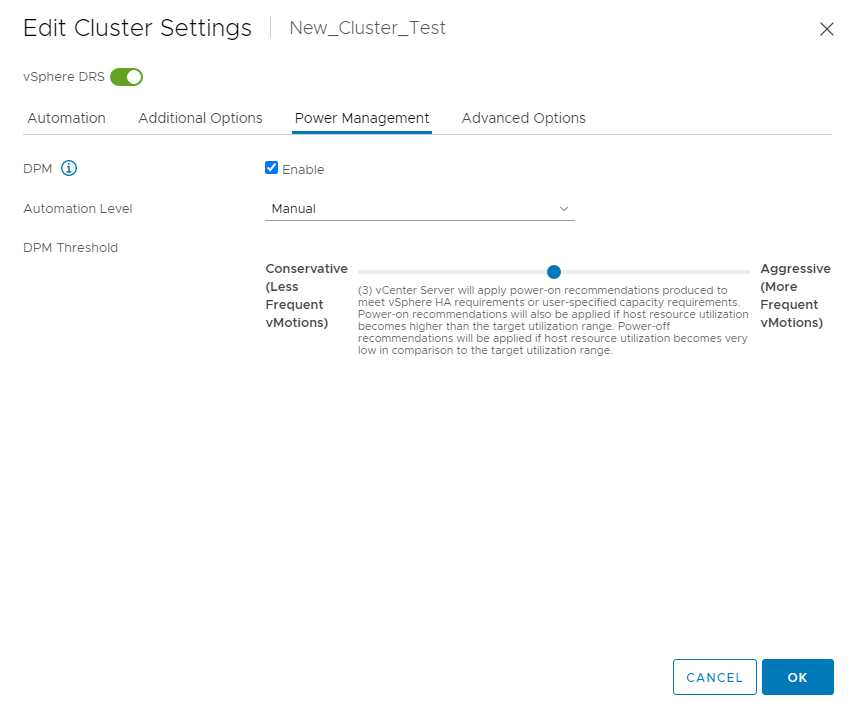
⚙️ 4.5 Cluster Configuration and Management
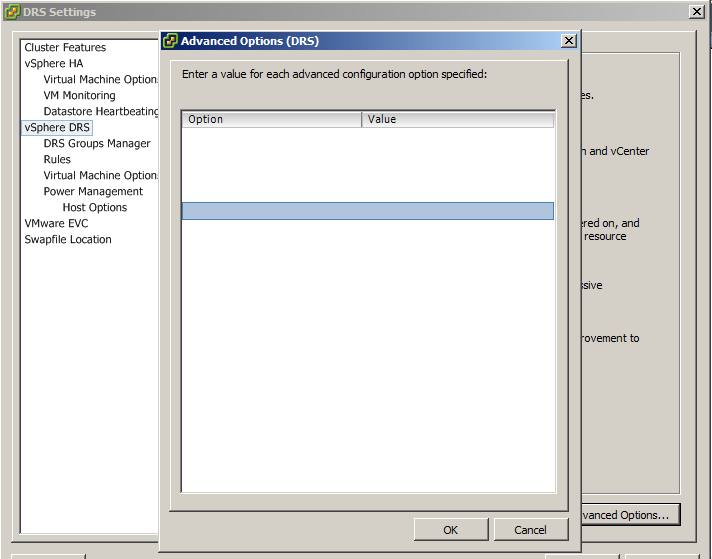

Clusters are the foundation of enterprise vSphere environments.
🔹 Key Features Enabled at Cluster Level
High Availability (HA)
- Restarts VMs on failure
Distributed Resource Scheduler (DRS)
- Balances workloads
Admission Control
- Ensures failover capacity
🔹 Cluster Design Considerations
- Number of hosts
- Resource distribution
- Network redundancy
- Storage accessibility
📊 4.6 Resource Pools and Allocation
🔹 Why Resource Pools?
They provide:
- Logical segmentation
- Resource control
- Multi-tenant isolation
🔹 Resource Controls
| Parameter | Description |
|---|---|
| Shares | Relative priority |
| Limits | Maximum usage |
| Reservations | Guaranteed resources |
🔹 Example Use Case:
- Separate Dev/Test/Prod workloads
- Allocate guaranteed CPU to critical apps
🔐 4.7 Roles, Permissions, and Access Control
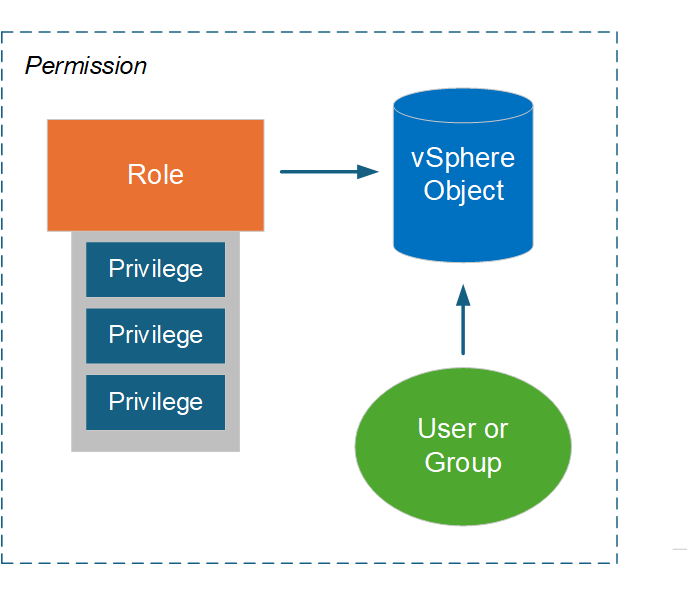


Security in vCenter is enforced through RBAC (Role-Based Access Control).
🔹 Components:
Roles
- Collection of privileges
Privileges
- Specific actions (e.g., power on VM)
Permissions
- Role assigned to user/group on object
🔹 Best Practices:
- Use Active Directory groups
- Apply least privilege principle
- Avoid direct user assignments
🏷️ 4.8 Tags and Custom Attributes
🔹 Tags
-
Metadata labels
-
Used for:
- Automation
- Policy enforcement
- Organization
🔹 Categories
- Define grouping logic
🔹 Example:
- Tag:
Production - Tag:
Database
🔹 Benefits:
- Dynamic grouping
- Simplified management
🔄 4.9 Host Profiles and Configuration Management


Host Profiles ensure consistent configuration across hosts.
🔹 Key Capabilities:
- Capture host configuration
- Apply to other hosts
- Detect drift
- Remediate automatically
🔹 Example:
- Standard networking setup
- NTP configuration
- Security settings
🔧 4.10 Tasks, Events, and Alarms
🔹 Tasks
- Actions performed
🔹 Events
- State changes
🔹 Alarms
- Triggered alerts
🔹 Importance:
- Operational visibility
- Troubleshooting
- Automation triggers
🌐 4.11 Networking and Storage Visibility at vCenter Level
🔹 Centralized Networking View
- Distributed switches
- Port groups
- Traffic policies
🔹 Centralized Storage View
- Datastores
- Storage policies
- Capacity monitoring
🔁 4.12 Lifecycle Management Integration
🔹 Lifecycle Manager (LCM)
Used for:
- Patching ESXi
- Firmware updates
- Desired state enforcement
🔹 Image-Based Model:
- Defines desired host state
- Ensures compliance
🏢 4.13 Enterprise Governance Models

🔹 Multi-Tenancy
- Separate teams
- Isolated resources
🔹 Environment Segmentation
- Dev
- Test
- Production
🔹 Compliance
-
Enforced via:
- Host profiles
- Policies
- RBAC
⚠️ 4.14 Common Pitfalls and Best Practices
❌ Pitfalls:
- Flat inventory structure
- Over-permissioned users
- Lack of standardization
- Ignoring lifecycle management
✅ Best Practices:
- Design hierarchy carefully
- Use clusters for scalability
- Implement RBAC properly
- Automate configuration
📌 4.15 Summary
vCenter Server transforms infrastructure management from:
- Manual → Automated
- Fragmented → Centralized
- Reactive → Policy-driven
Through:
- Inventory modeling
- Cluster management
- Role-based access control
- Lifecycle automation
📘 Chapter 5: Virtual Machine Administration
(Aligned with official Broadcom TechDocs: Virtual Machine Administration, Configuration, and Operations)
🧠 5.1 Introduction to Virtual Machines in vSphere
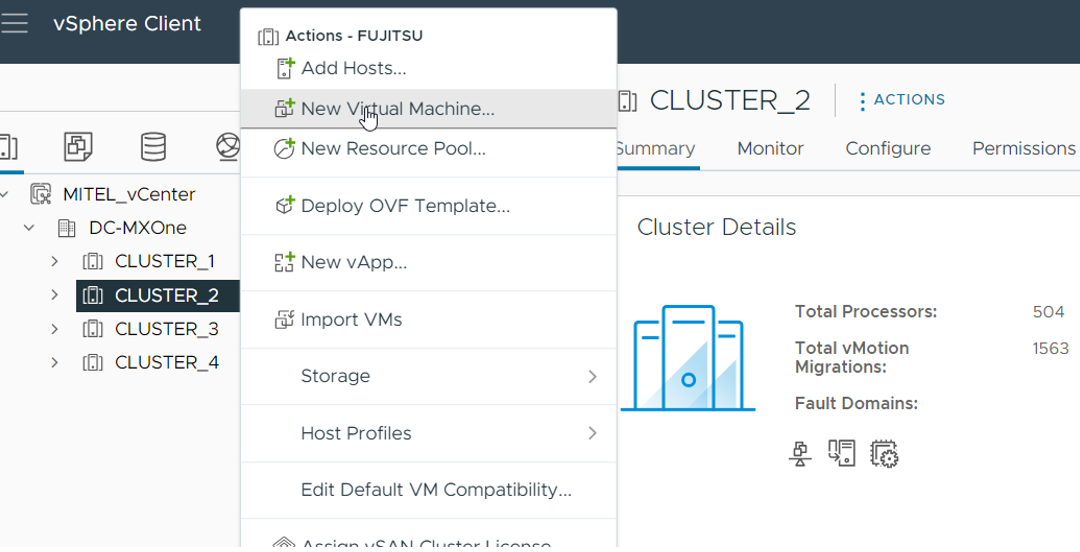


At the heart of VMware vSphere lies the virtual machine (VM)—a software-defined abstraction of a physical computer.
A VM encapsulates:
- CPU
- Memory
- Storage
- Network
into a portable, isolated runtime environment.
🔍 Key Concept: Encapsulation
A VM is essentially a set of files:
- Configuration file (
.vmx) - Virtual disks (
.vmdk) - Snapshot files
- Logs
This file-based nature enables:
- Portability
- Backup and recovery
- Cloning
🔹 Why VMs Matter
VMs allow:
- Consolidation of workloads
- Isolation between applications
- Rapid provisioning
- Disaster recovery capabilities
⚙️ 5.2 Virtual Machine Lifecycle
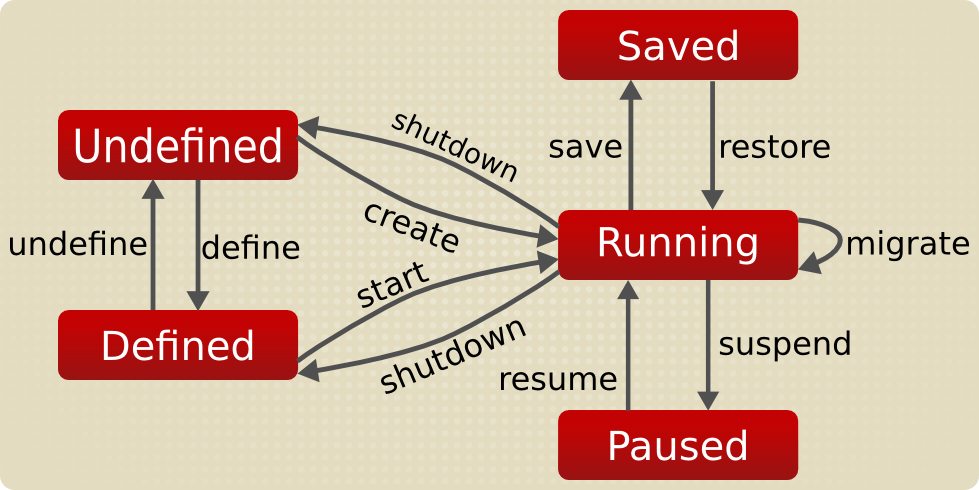
🔹 Lifecycle Phases
- Creation
- Configuration
- Operation
- Maintenance
- Decommissioning
🔹 Power States
| State | Description |
|---|---|
| Powered On | Running |
| Powered Off | Stopped |
| Suspended | Memory state saved |
🔹 Lifecycle Insight
Efficient VM lifecycle management is critical for:
- Cost optimization
- Resource efficiency
- Governance
🖥️ 5.3 Creating Virtual Machines
🔹 Creation Methods
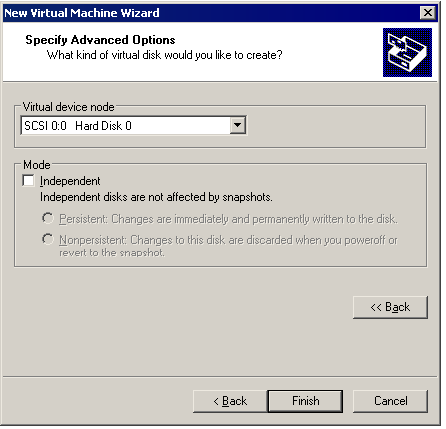
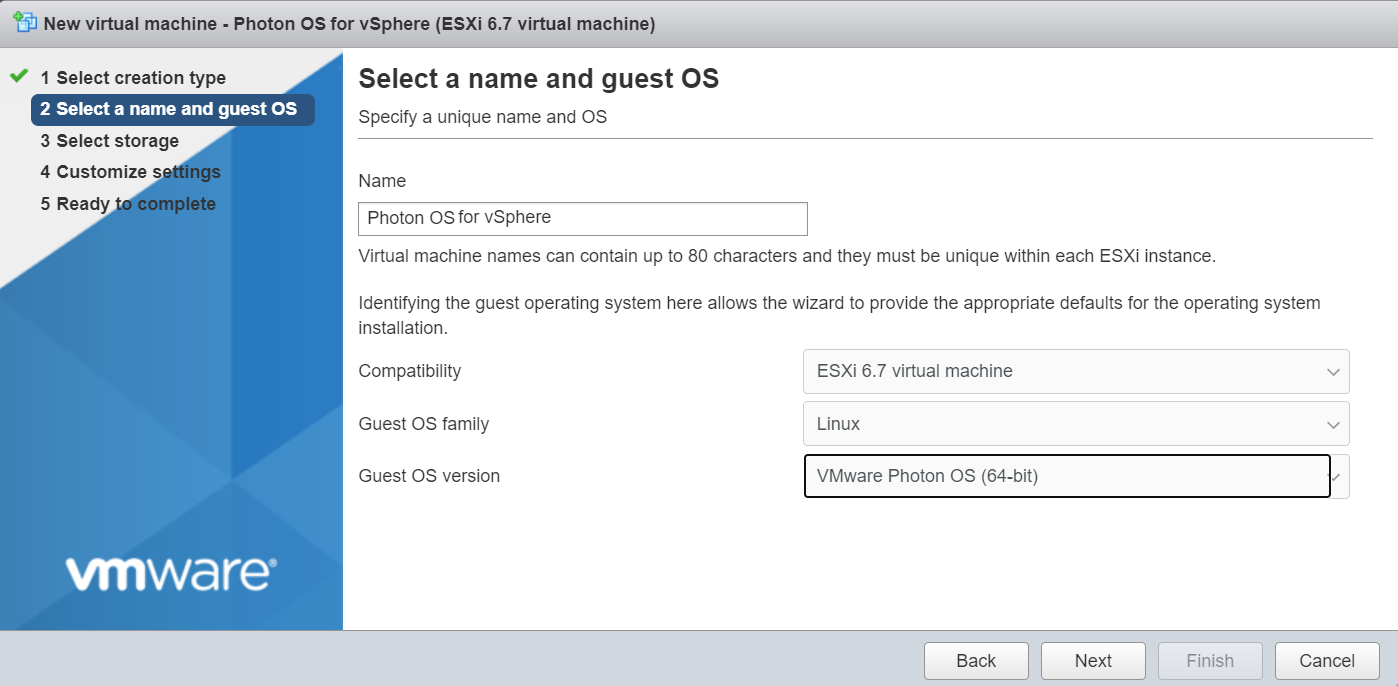
1. Create New VM
- Manual configuration
2. Deploy from Template
- Pre-configured image
3. Clone Existing VM
- Copy of a running or powered-off VM
🔹 Key Configuration Parameters
CPU
- Number of vCPUs
- Cores per socket
Memory
- Allocated RAM
- Reservation and limits
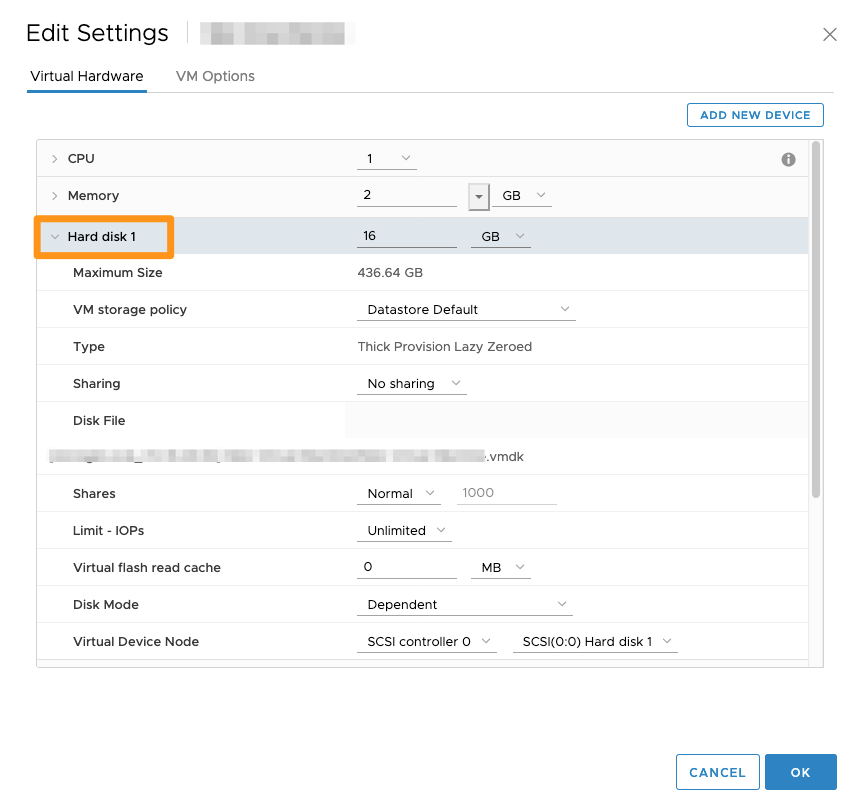
Storage
- Disk size
- Thin vs thick provisioning
Network
- Port group selection
- VLAN assignment
🧬 5.4 VM Hardware and Virtualization Internals
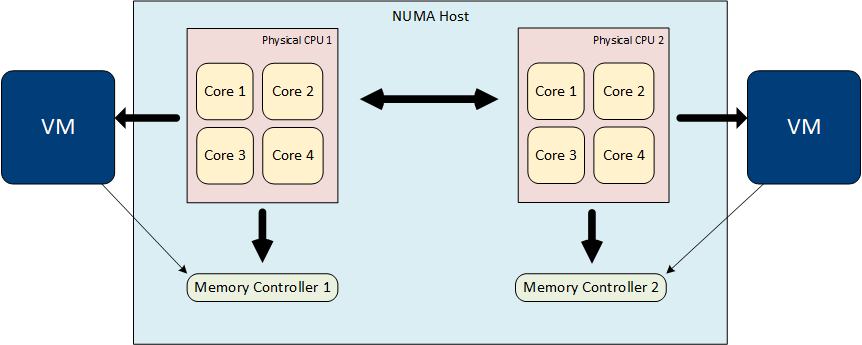

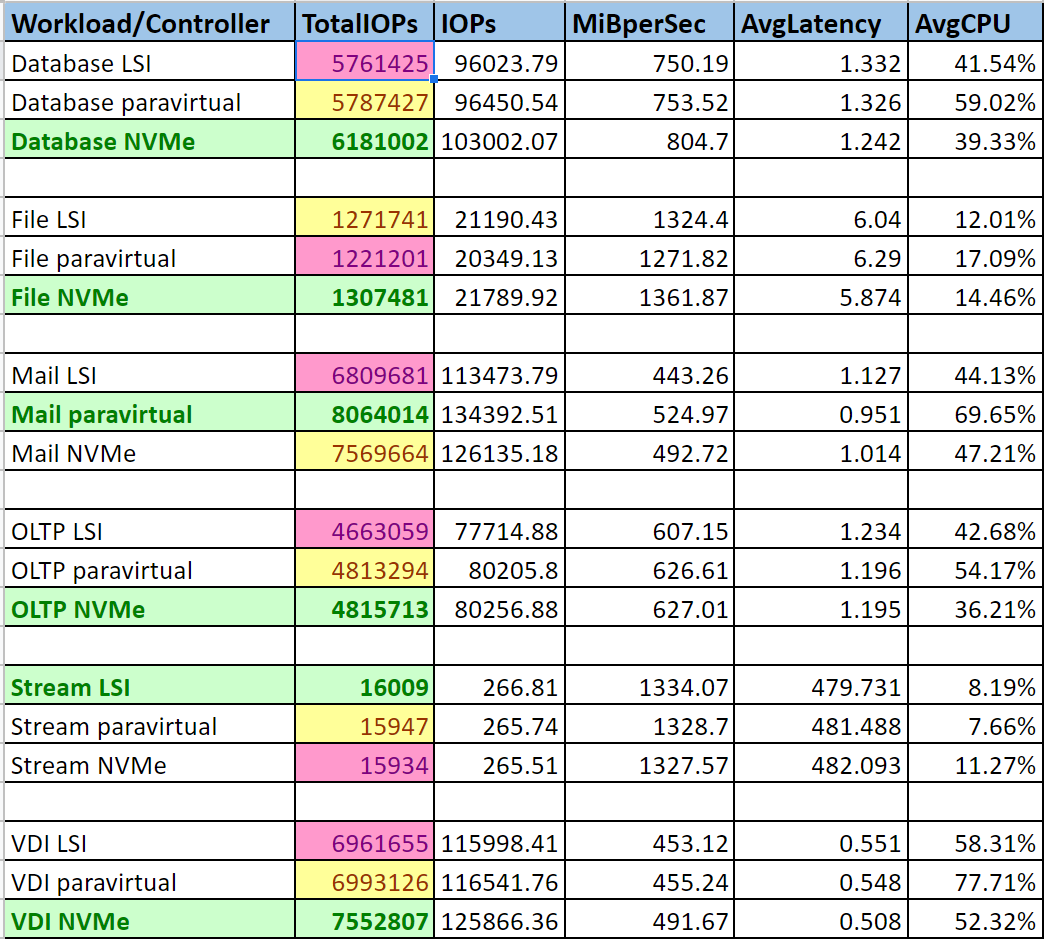

🔹 CPU Virtualization
- vCPUs mapped to physical CPUs
- Scheduler ensures fairness
🔹 Memory Virtualization
Techniques include:
- Ballooning
- Swapping
- Transparent Page Sharing (TPS)
🔹 Disk Virtualization
- VMDK files
- Virtual controllers (SCSI, NVMe)
🔹 Hardware Version
Defines:
- Supported features
- Compatibility with ESXi versions
📦 5.5 Templates and Cloning
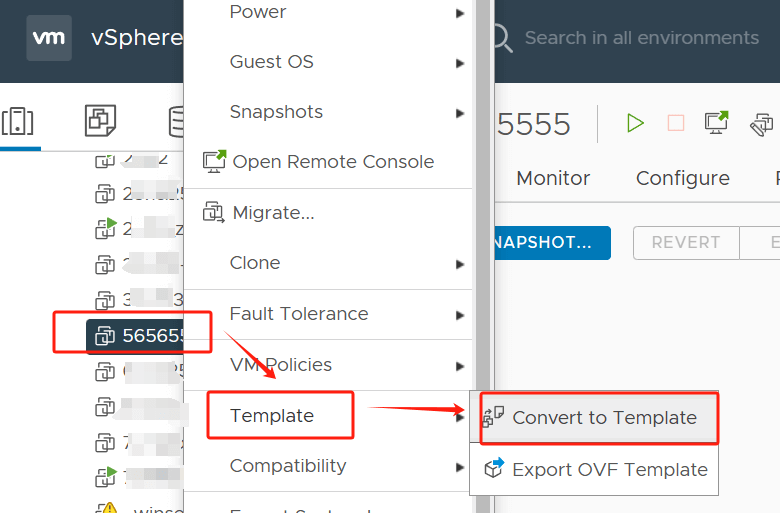

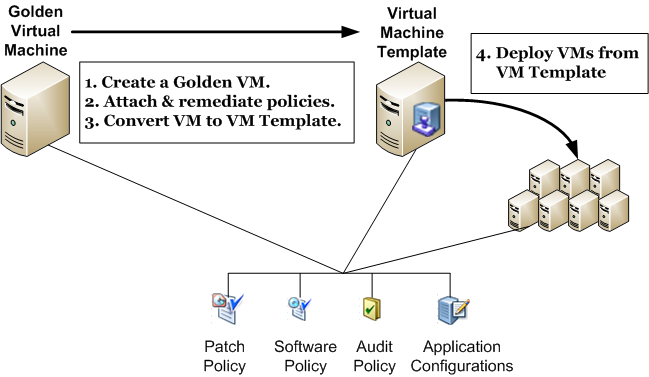
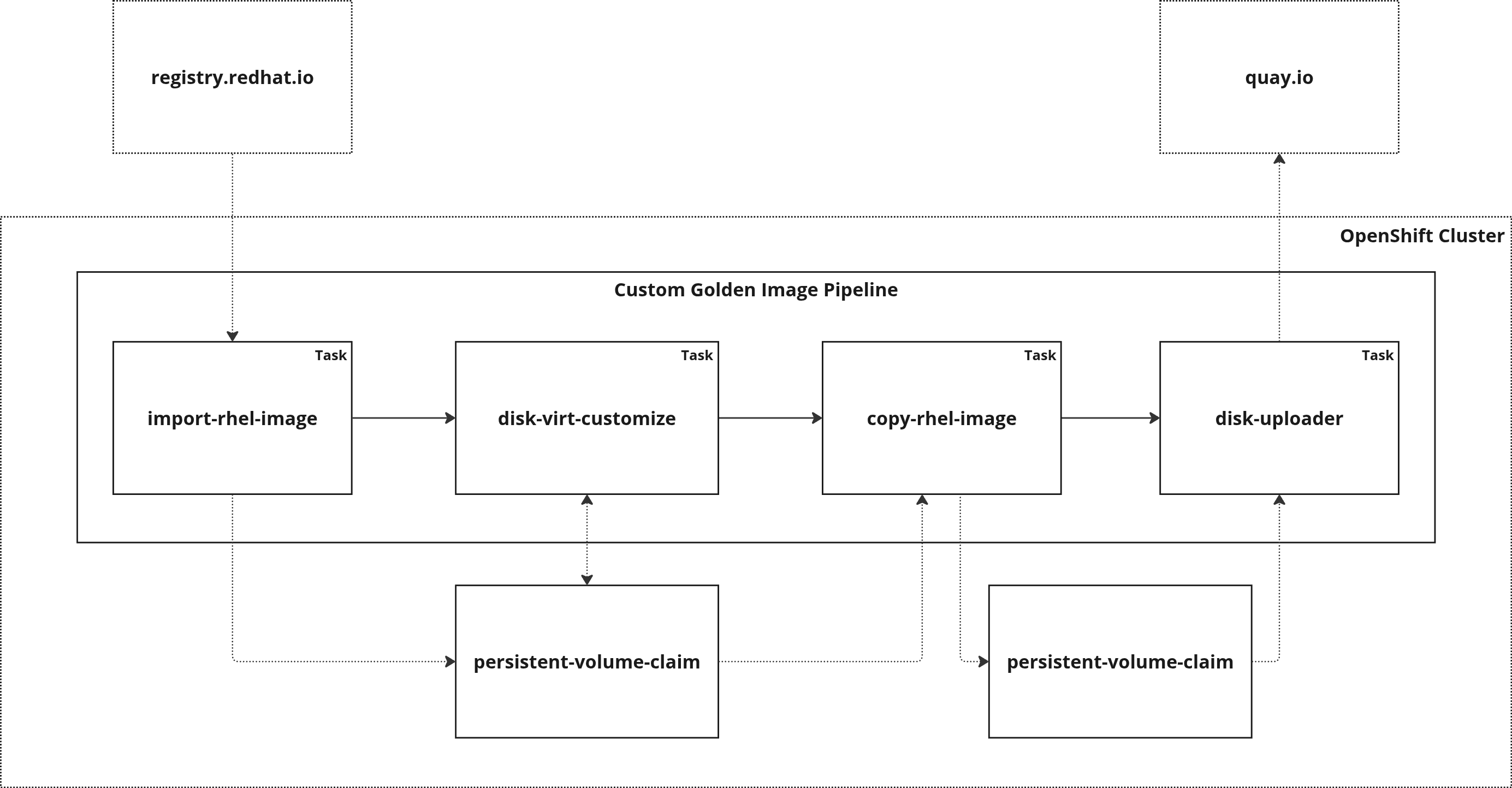
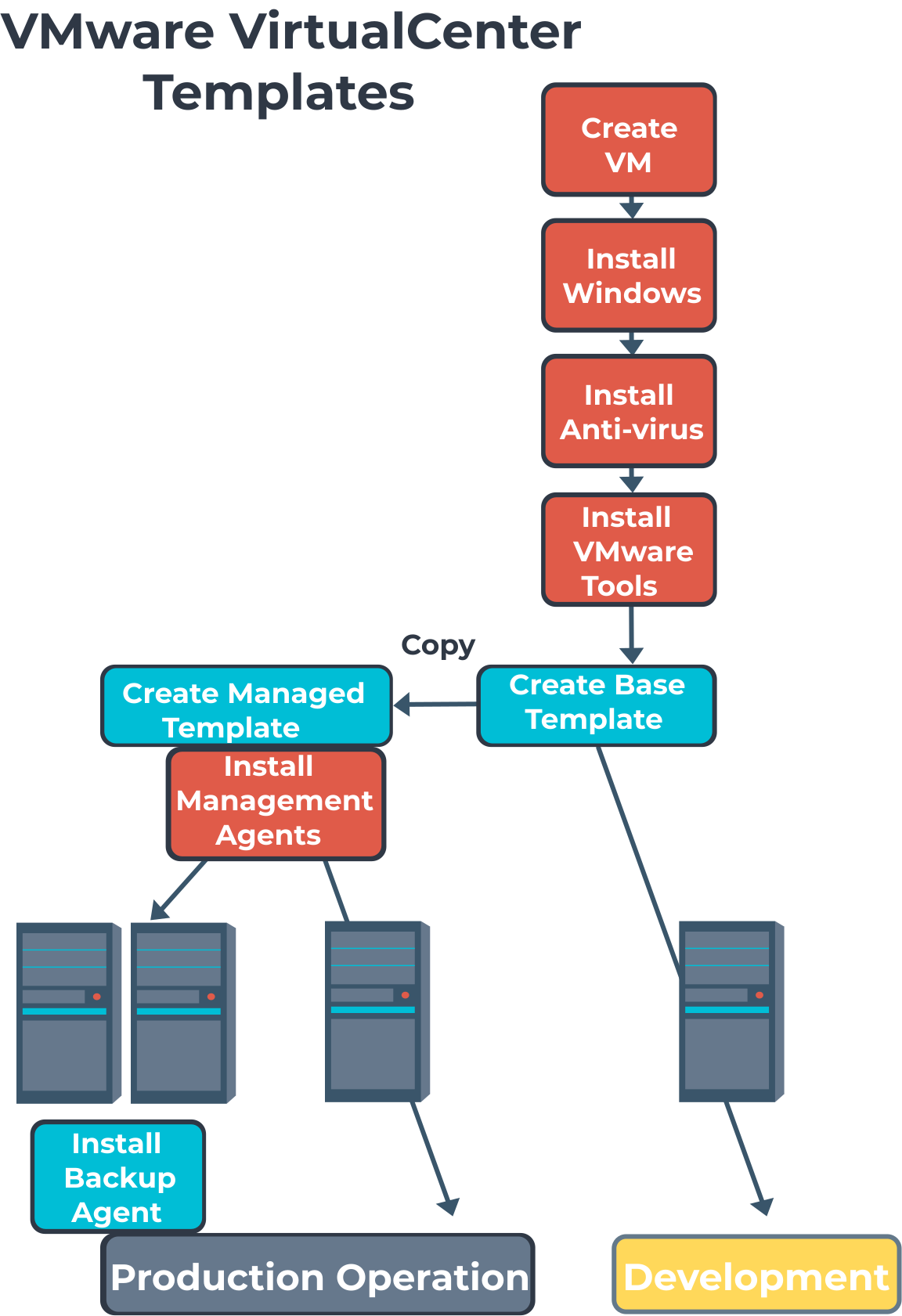
🔹 Templates
A template is a golden image used to deploy new VMs.
🔹 Benefits:
- Standardization
- Faster deployment
- Reduced errors
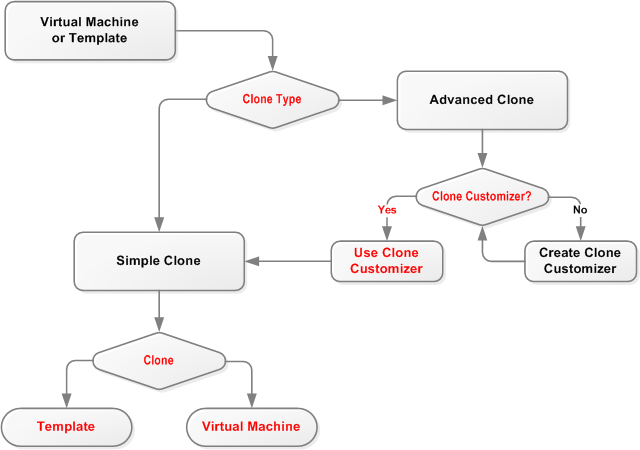
🔹 Cloning Types
Full Clone
- Independent copy
Linked Clone
- Shares base disk
🔹 Customization Specifications
- Hostname
- IP address
- Domain join
📸 5.6 Snapshots

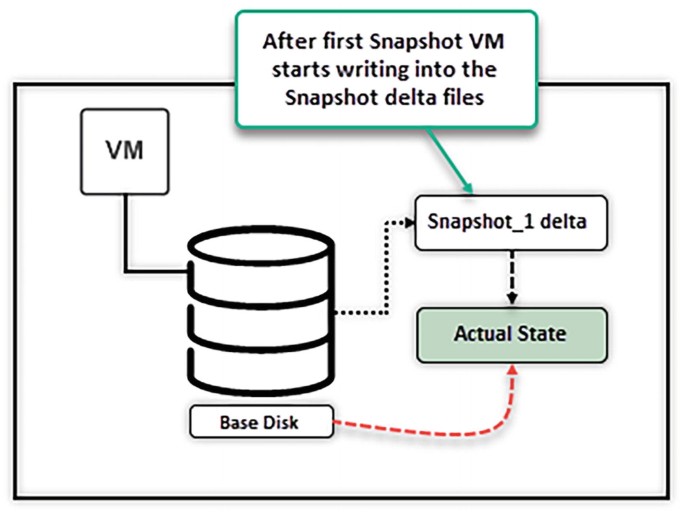
🔹 What is a Snapshot?
A snapshot captures:
- Disk state
- Memory state (optional)
🔹 Use Cases:
- Before upgrades
- Testing changes
- Backup integration
🔹 Important Considerations:
- Not a replacement for backups
- Can impact performance
- Should be temporary
🔄 5.7 VM Migration and Mobility


🔹 Types of Migration
vMotion
- Live migration (no downtime)
Storage vMotion
- Moves VM storage
Cold Migration
- VM powered off
🔹 Benefits:
- Load balancing
- Maintenance operations
- Zero downtime
🔐 5.8 Security and Isolation
🔹 Isolation
- VMs are sandboxed
🔹 Security Features:
- VM encryption
- Secure boot
- Virtual TPM
🔹 Best Practice:
- Separate workloads logically
- Apply least privilege
📊 5.9 Monitoring and Performance
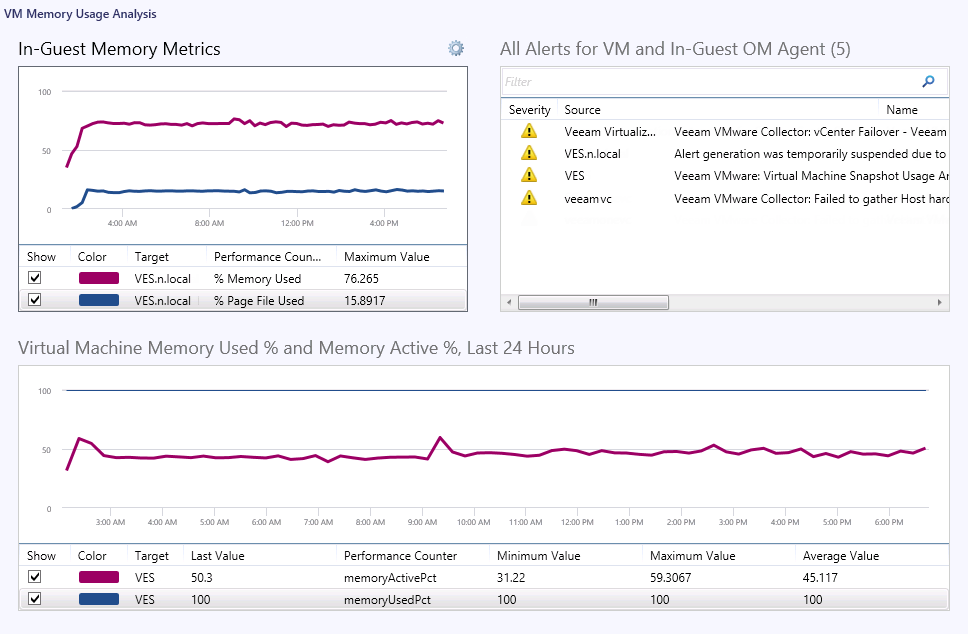
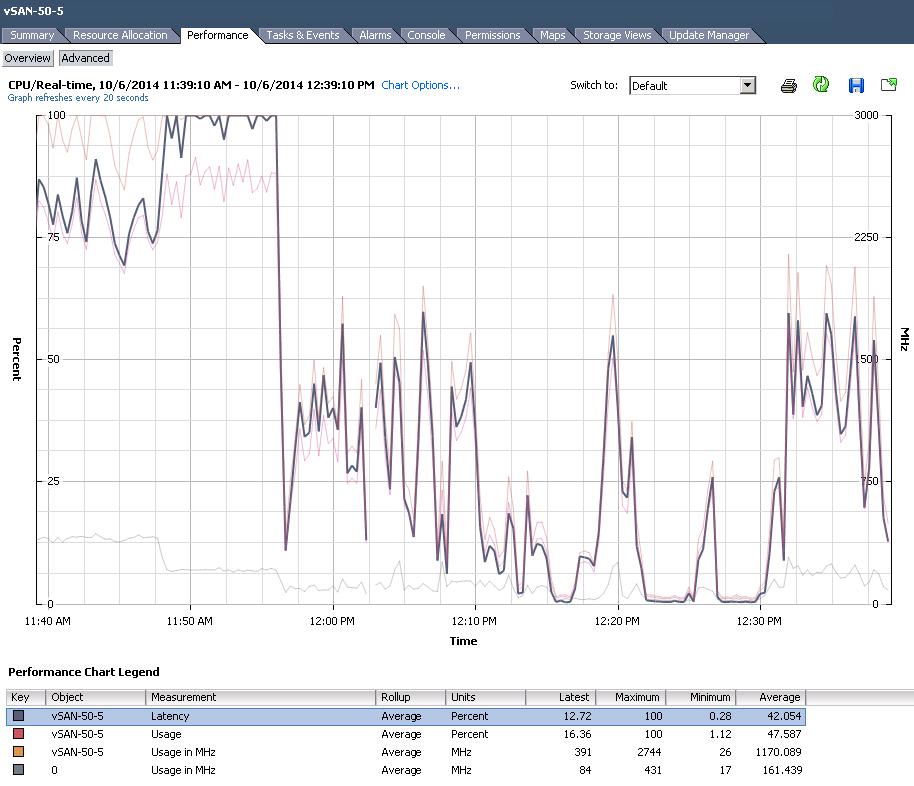
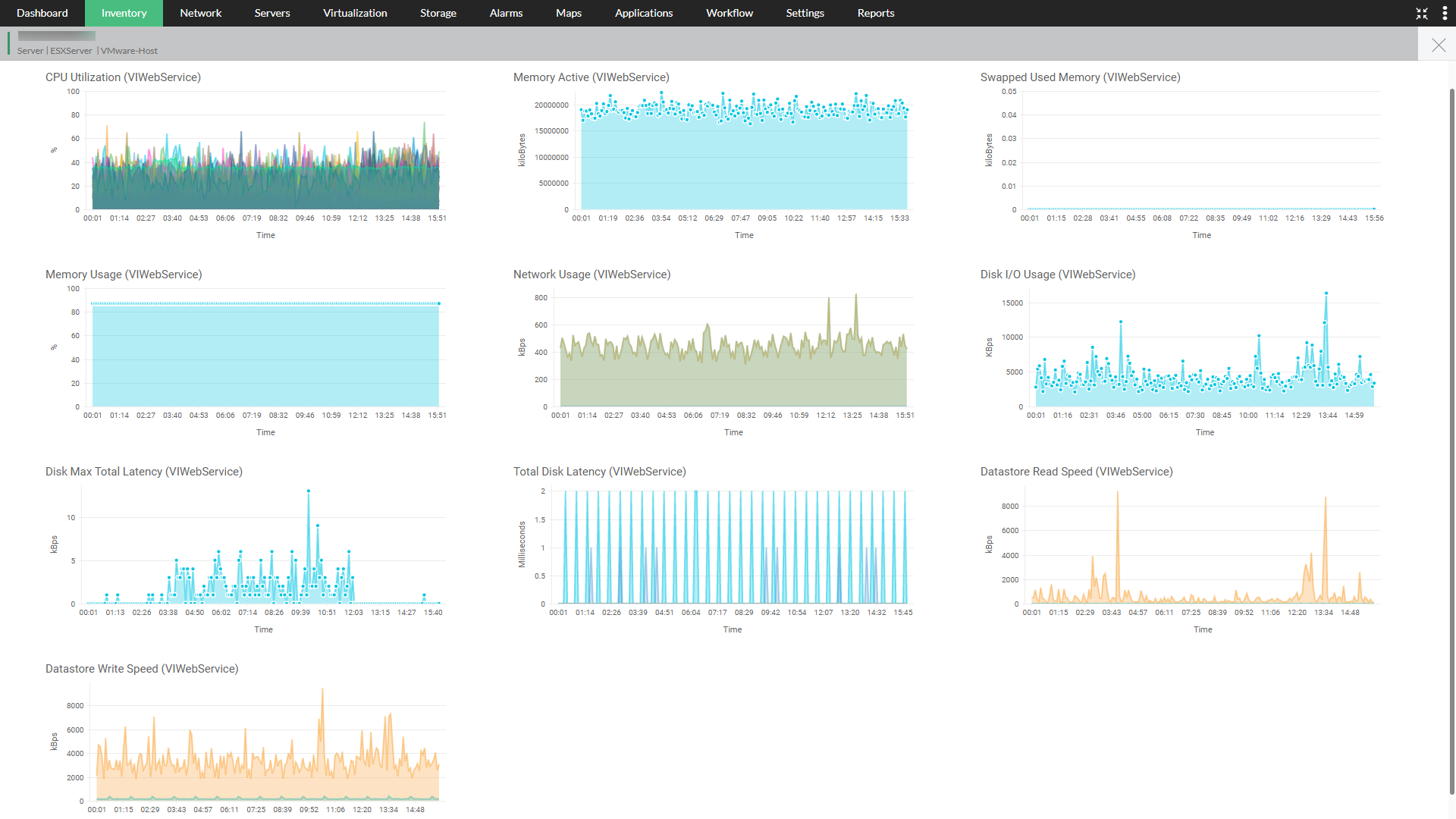
🔹 Key Metrics:
CPU
- Usage
- Ready time
Memory
- Active memory
- Ballooning
Disk
- Latency
- Throughput
Network
- Packet loss
- Throughput
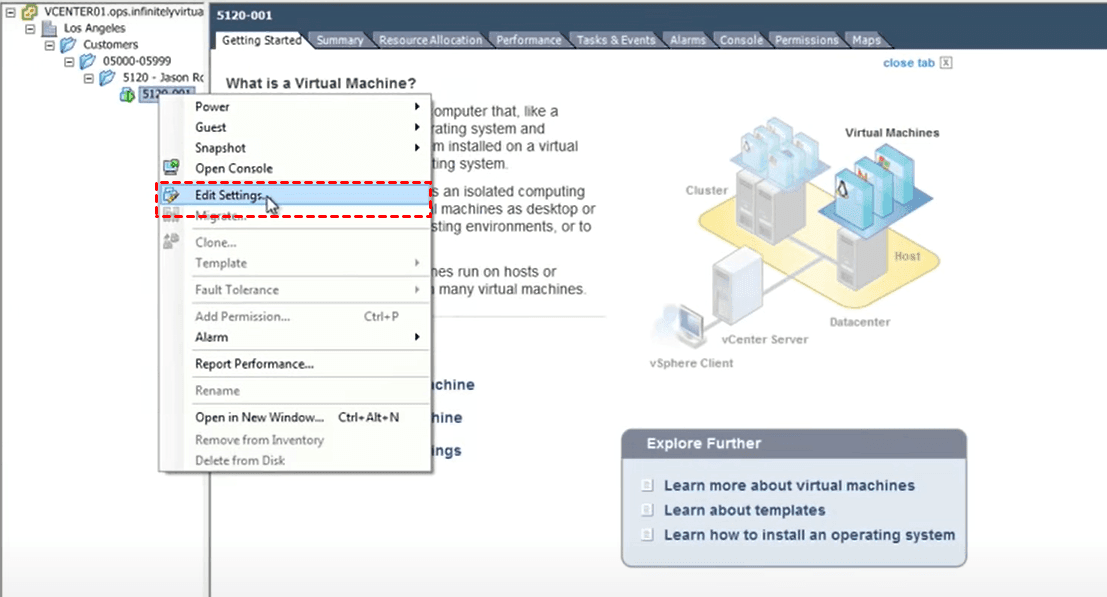
🔧 5.10 VM Configuration Changes
🔹 Hot Add / Remove
- CPU and memory changes without downtime
🔹 Device Management
- Add/remove disks
- Network adapters
🔹 Advanced Settings
- Fine-tuning performance
🗑️ 5.11 VM Decommissioning
🔹 Steps:
- Power off VM
- Backup if required
- Remove from inventory
- Delete files
🔹 Governance:
- Avoid orphaned VMs
- Track ownership
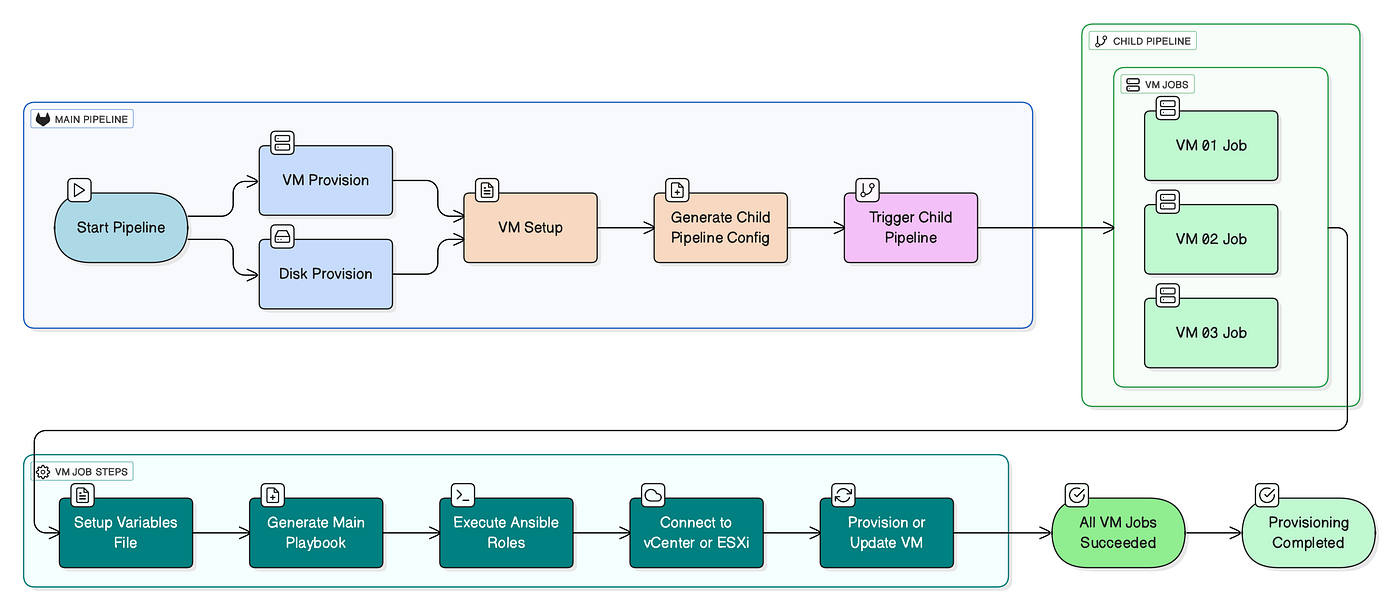
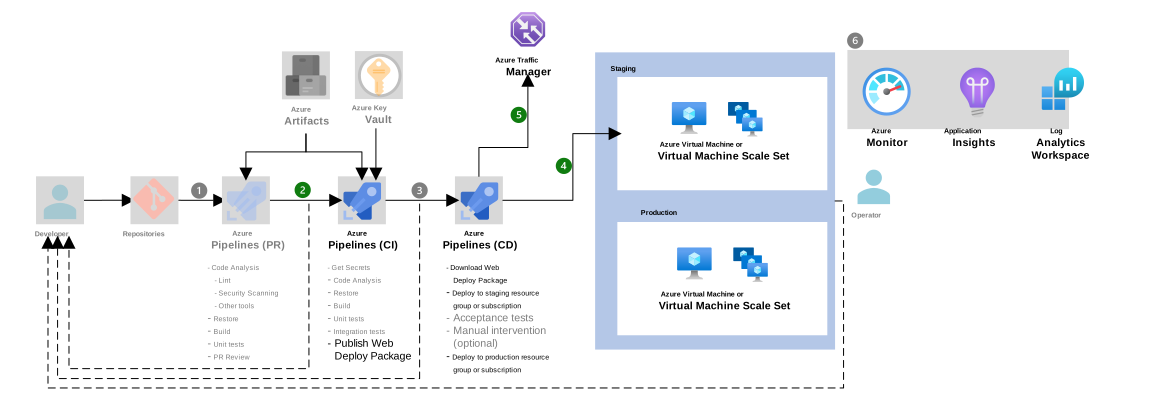
🏢 5.12 Enterprise VM Management Strategies
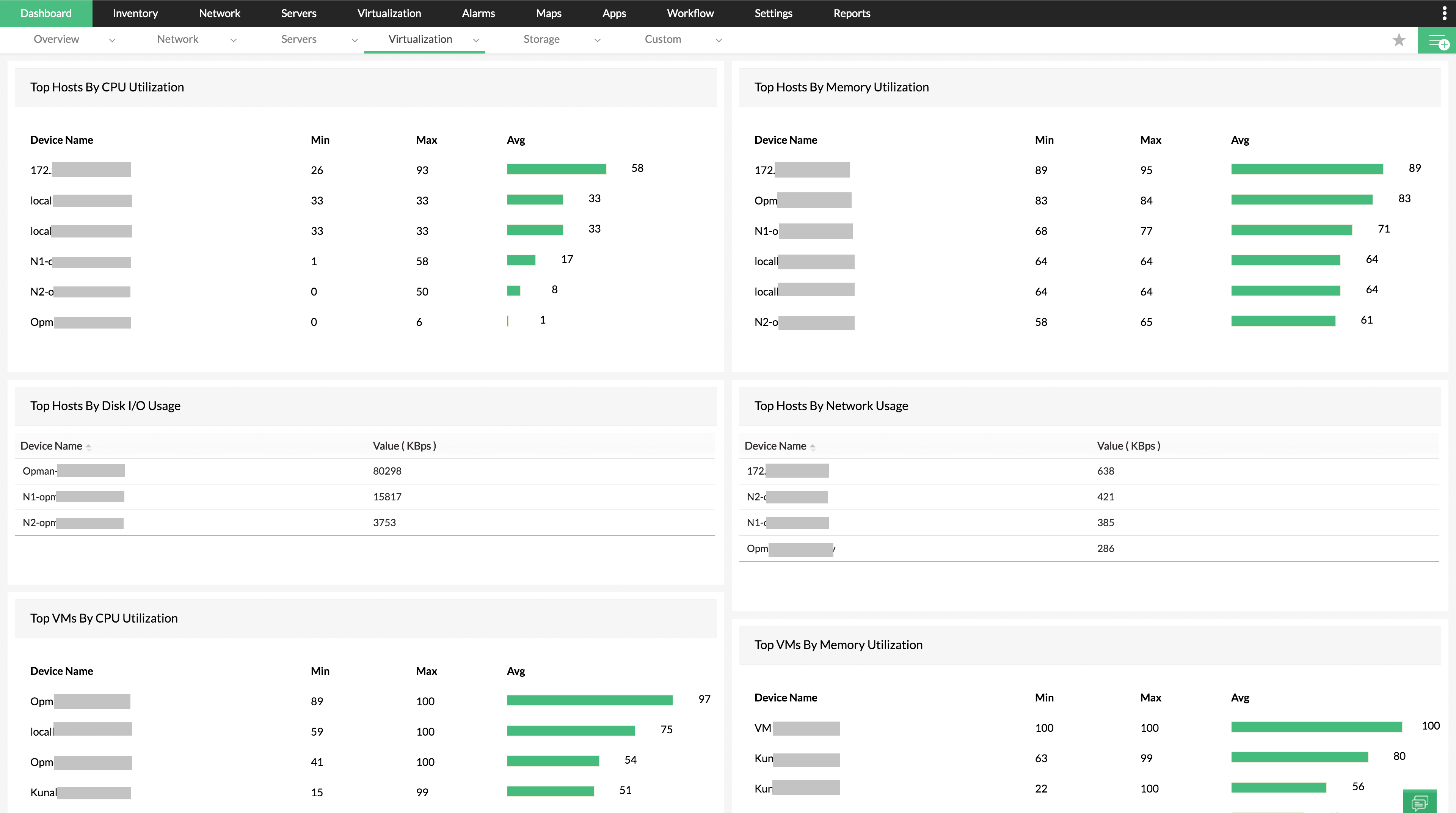
🔹 Challenges:
- VM sprawl
- Resource contention
- Lack of visibility
🔹 Solutions:
- Use templates
- Implement tagging
- Automate lifecycle
- Monitor continuously
⚠️ 5.13 Common Pitfalls and Best Practices
❌ Pitfalls:
- Over-allocating resources
- Keeping snapshots too long
- Ignoring performance metrics
✅ Best Practices:
- Right-size VMs
- Use templates
- Monitor continuously
- Automate provisioning
📌 5.14 Summary
Virtual machines are the core building blocks of vSphere.
Through proper management, organizations can achieve:
- High efficiency
- Scalability
- Reliability
VMware vSphere enables VMs to operate as:
- Portable
- Secure
- High-performance workloads
📘 Chapter 6: Resource Management and Scheduling
(Aligned with official Broadcom TechDocs: vSphere Resource Management)
🧠 6.1 Introduction to Resource Management in vSphere


Resource management is the core intelligence layer of VMware vSphere. It determines how physical resources—CPU, memory, storage, and network—are allocated across virtual machines.
Unlike traditional systems, where resources are statically assigned, vSphere introduces:
- Dynamic allocation
- Policy-driven control
- Fair scheduling
🔍 Core Objective
Ensure:
- Optimal utilization
- Performance isolation
- Predictable behavior under contention
⚙️ 6.2 CPU Virtualization and Scheduling


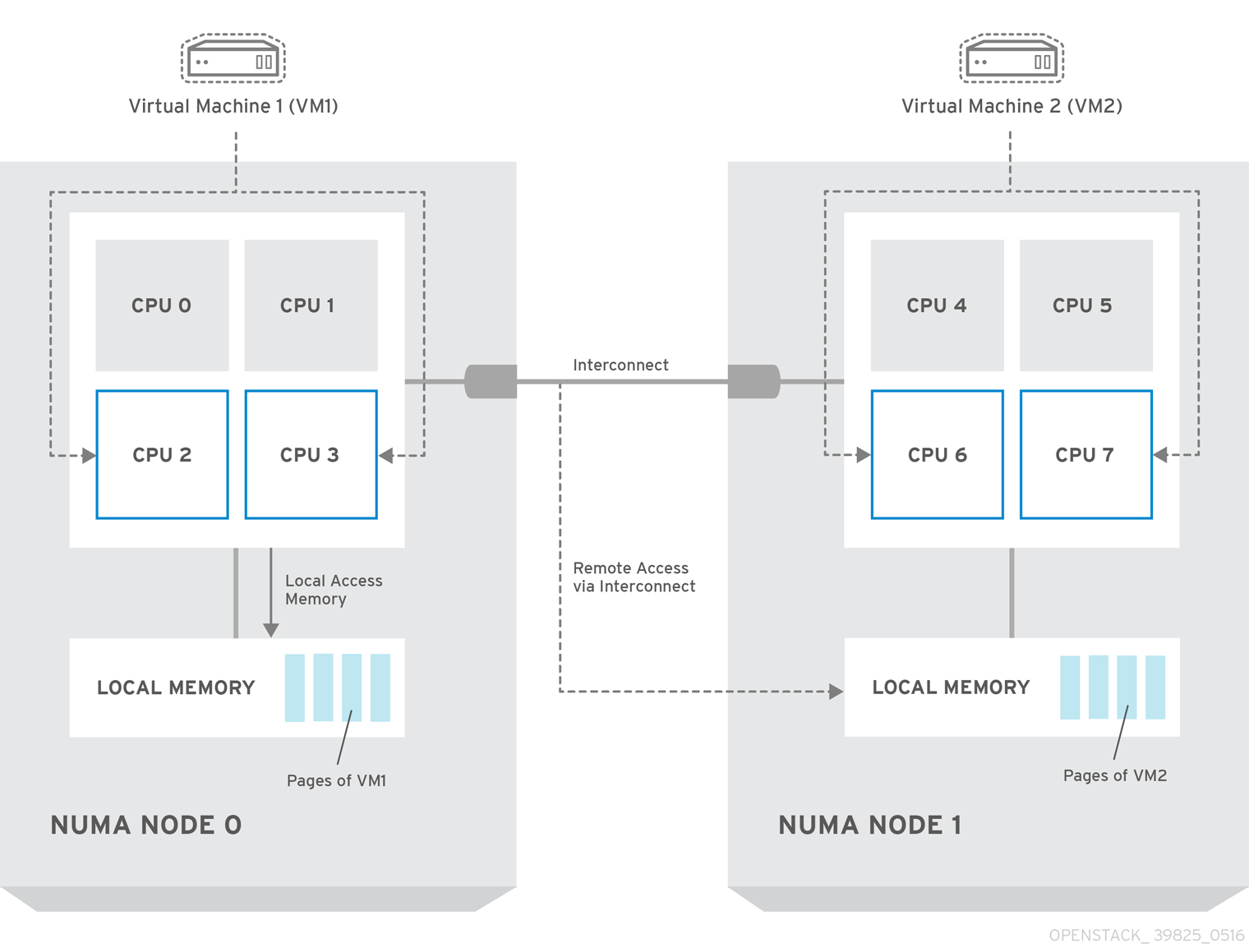
🔹 vCPU to pCPU Mapping
Each virtual machine is assigned vCPUs, which are scheduled onto physical CPUs (pCPUs).
🔹 CPU Scheduler
The ESXi scheduler:
- Allocates CPU time slices
- Ensures fairness
- Handles contention
🔹 Key Metrics
CPU Ready Time
- Time VM waits for CPU
- High values indicate contention
🔹 NUMA Awareness
Modern servers use NUMA (Non-Uniform Memory Access).
vSphere ensures:
- VM memory locality
- Reduced latency
🔹 Best Practice:
Avoid oversized VMs (too many vCPUs).
🧠 6.3 Memory Management Internals

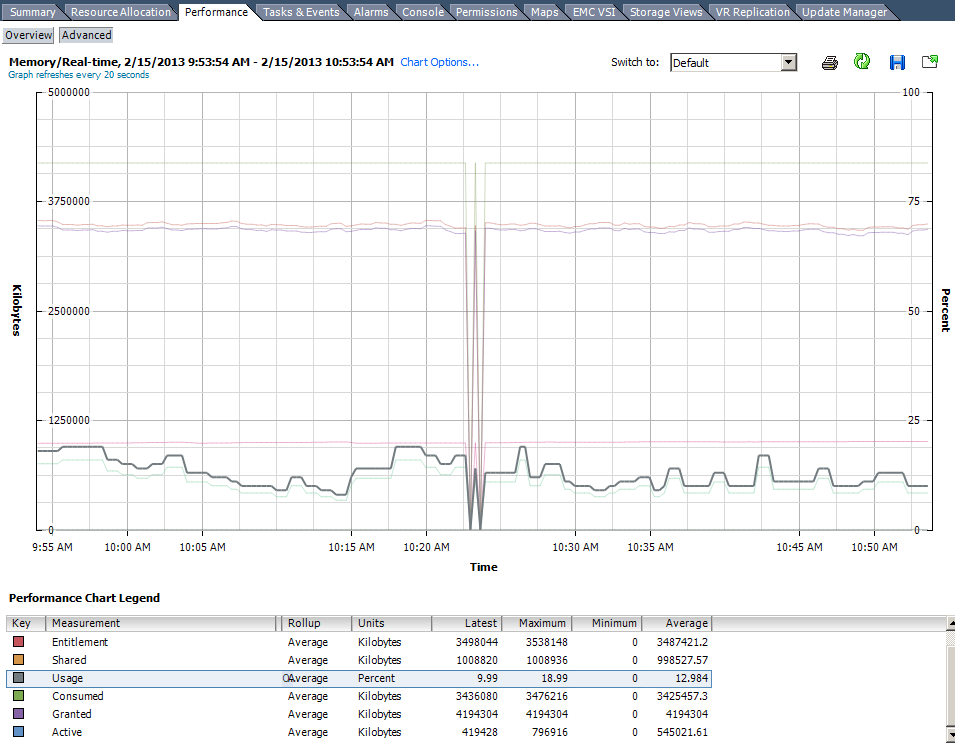
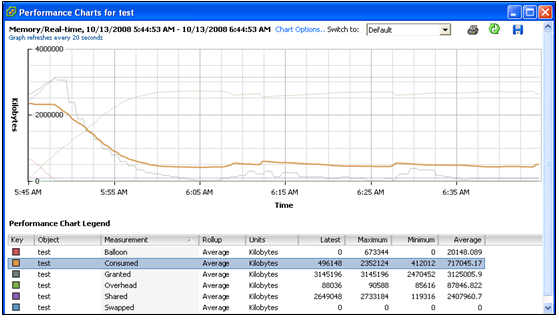
🔹 Memory Overcommitment
vSphere allows:
- Allocating more memory than physically available
🔹 Techniques Used
Transparent Page Sharing (TPS)
- Eliminates duplicate memory pages
Ballooning
- Reclaims memory from VMs
Swapping
- Uses disk when memory is exhausted
Compression
- Compresses memory pages
🔹 Key Metrics:
- Active memory
- Consumed memory
- Ballooned memory
🔹 Design Insight:
Memory is often the first bottleneck in virtual environments.
📦 6.4 Resource Allocation Controls
🔹 Shares
Relative priority during contention.
🔹 Reservations
Guaranteed resources.
🔹 Limits
Maximum allowed usage.
🔹 Example:
| VM | Shares | Reservation | Limit |
|---|---|---|---|
| DB | High | 8 GB | Unlimited |
| Web | Normal | 2 GB | 4 GB |
🔹 Key Insight:
Reservations reduce consolidation ratios.
🧩 6.5 Resource Pools

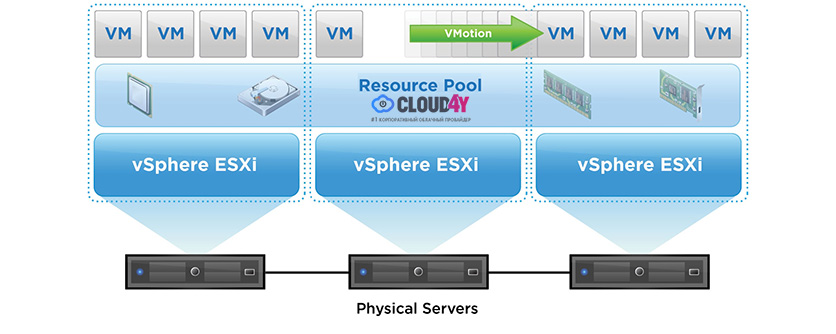
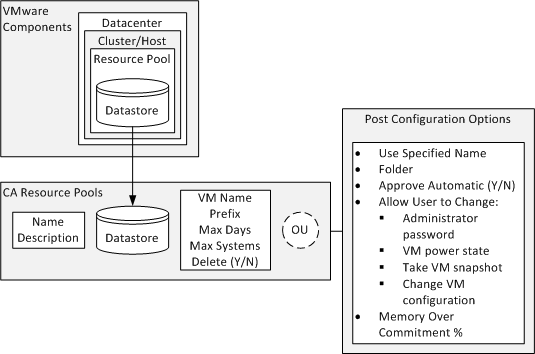
🔹 Purpose
- Logical grouping of resources
- Multi-tenancy support
- Resource isolation
🔹 Features:
- Hierarchical structure
- Inherited resource settings
🔹 Use Cases:
- Dev/Test/Prod separation
- Department-based allocation
🔄 6.6 Distributed Resource Scheduler (DRS)


🔹 What is DRS?
DRS automatically:
- Balances workloads
- Optimizes resource usage
🔹 How It Works:
- Monitors resource usage
- Detects imbalance
- Migrates VMs using vMotion
🔹 Automation Levels:
| Level | Behavior |
|---|---|
| Manual | Recommendations only |
| Partially Automated | Initial placement |
| Fully Automated | Automatic migration |
🔹 DRS Benefits:
- Improved performance
- Reduced hotspots
- Better utilization
⚖️ 6.7 Load Balancing and Fairness
🔹 Fairness Model
vSphere ensures:
- Equal access to resources
- Priority-based allocation
🔹 Contention Handling:
- Shares determine priority
- DRS redistributes load
🔹 Key Insight:
Fairness ≠ Equal distribution It means priority-aware allocation.
🔧 6.8 Advanced CPU Features
🔹 CPU Affinity
- Bind VM to specific CPUs
- Rarely recommended
🔹 Hyper-Threading
- Improves performance
- Requires careful monitoring
🔹 Latency Sensitivity
- For real-time workloads
📊 6.9 Monitoring Resource Usage
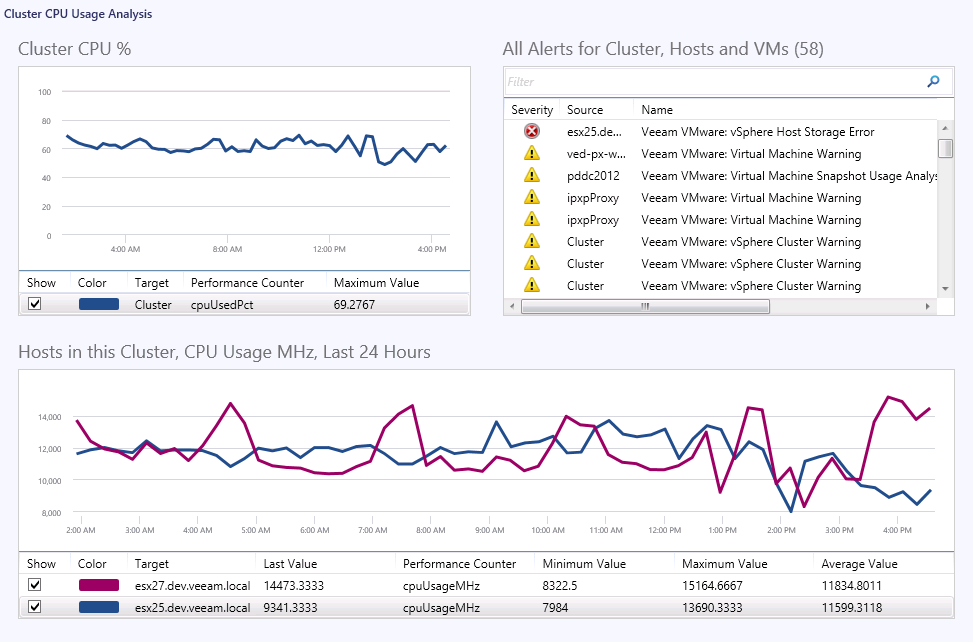

🔹 Key Metrics:
CPU
- Usage
- Ready time
Memory
- Active
- Ballooned
Disk
- Latency
Network
- Throughput
🔹 Tools:
- vCenter performance charts
- Alarms and alerts
🏢 6.10 Cluster-Level Resource Management
🔹 Cluster as Resource Pool
Clusters aggregate:
- CPU
- Memory
🔹 Benefits:
- Resource sharing
- High availability
- Load balancing
🔹 Design Considerations:
- Number of hosts
- Workload types
- Failover capacity
🔄 6.11 Overcommitment Strategies
🔹 CPU Overcommitment
- Generally safe
🔹 Memory Overcommitment
- Requires monitoring
🔹 Storage Overcommitment
- Thin provisioning
🔹 Risk:
Overcommitment can lead to:
- Performance degradation
⚠️ 6.12 Common Pitfalls and Best Practices
❌ Pitfalls:
- Over-provisioning CPUs
- Ignoring NUMA boundaries
- Misusing limits
✅ Best Practices:
- Right-size workloads
- Monitor continuously
- Use DRS effectively
- Avoid unnecessary limits
🧠 6.13 Architectural Insights
🔹 Resource Management Philosophy
vSphere operates on:
- Demand-based allocation
- Policy-driven control
- Dynamic optimization
🔹 Key Principle:
Design for contention scenarios, not ideal conditions.
📌 6.14 Summary
Resource management is the intelligence engine of VMware vSphere.
It ensures:
- Efficient utilization
- Predictable performance
- Fair resource distribution
Through:
- CPU scheduling
- Memory management
- DRS automation
- Resource pools
📘 Chapter 7: vSphere Networking
(Aligned with official Broadcom TechDocs: vSphere Networking)
🌐 7.1 Introduction to vSphere Networking


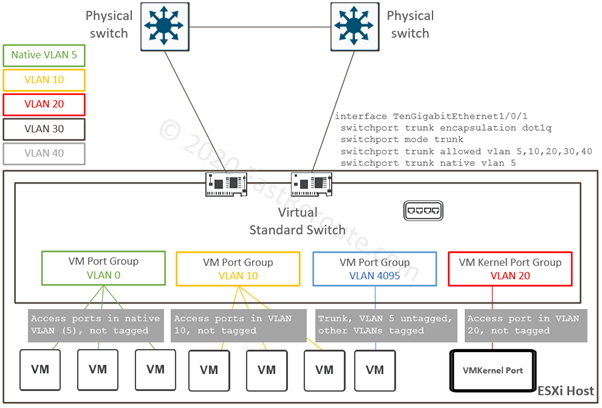
Networking in VMware vSphere is not merely a connectivity layer—it is a fully abstracted, software-defined networking model that mirrors and extends physical networking capabilities.
In traditional infrastructure:
- Networking is hardware-bound
- Configuration is manual and device-specific
In vSphere:
- Networking is virtualized
- Configuration is centralized and policy-driven
🔍 Key Objective
Provide:
- Connectivity
- Isolation
- Performance
- Security
for virtual machines and system services.
🧠 7.2 vSphere Networking Architecture


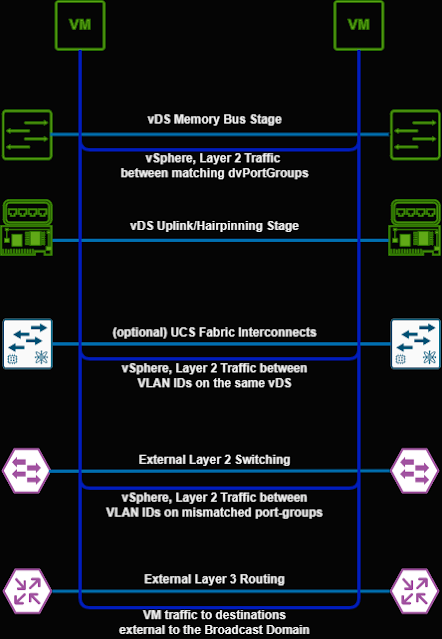
🔹 Core Components
Virtual Switch (vSwitch)
- Software equivalent of a physical switch
Port Groups
- Logical grouping of ports
- Defines policies
VMkernel Ports
- Used for host services
Physical NICs (vmnics)
- Connect virtual network to physical network
🔁 Packet Flow
VM → vSwitch → Uplink → Physical Network
🔹 Key Insight
vSphere networking decouples logical network design from physical topology, enabling flexibility and automation.
🔌 7.3 Standard Switch (vSS)
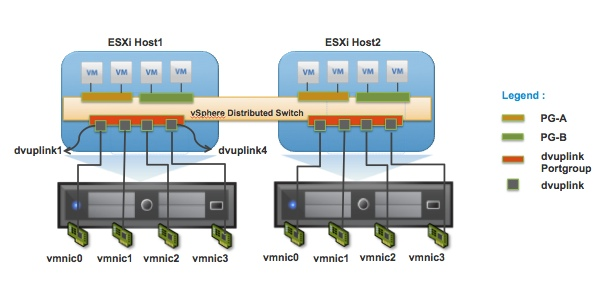

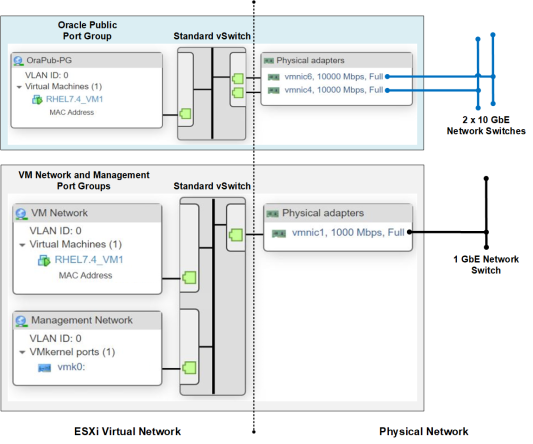
🔹 Characteristics
- Host-level configuration
- Simple and lightweight
- Managed per ESXi host
🔹 Components
- Port groups
- Uplinks
- Security policies
🔹 Limitations
- No centralized management
- Configuration inconsistency across hosts
🔹 Use Cases
- Small environments
- Lab setups
🌍 7.4 Distributed Switch (vDS)



🔹 What is vDS?
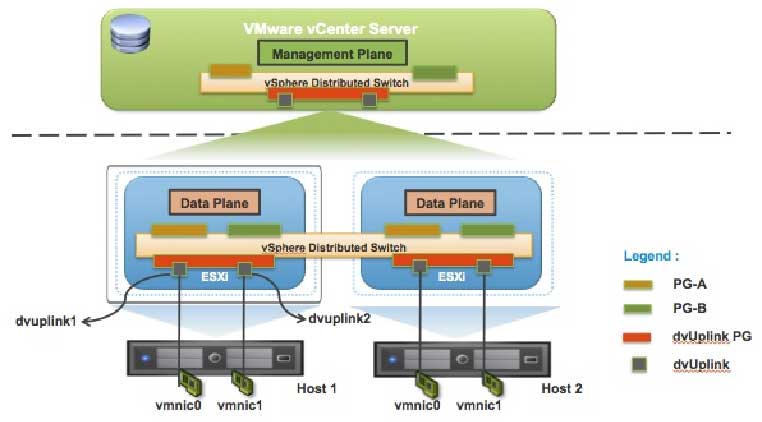
A centrally managed virtual switch across multiple hosts via vCenter Server.
🔹 Architecture
- Control plane → vCenter
- Data plane → ESXi hosts
🔹 Benefits
- Centralized configuration
- Consistency across hosts
- Advanced features
🔹 Key Features
- Network I/O Control (NIOC)
- Port mirroring
- NetFlow
- Traffic shaping
🔹 Enterprise Insight
vDS is essential for:
- Large-scale deployments
- Standardization
- Automation
🧩 7.5 Port Groups and VLANs
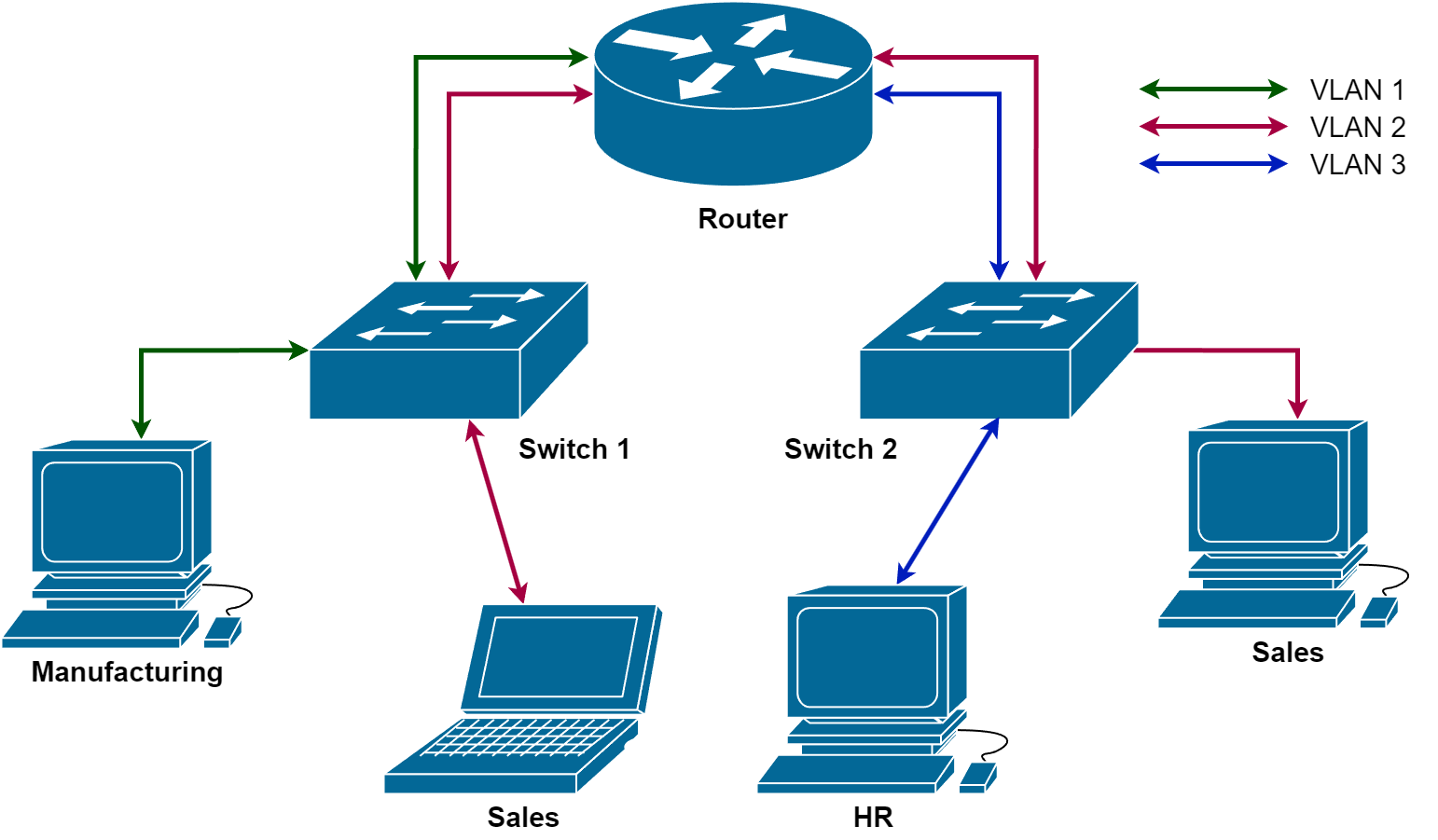
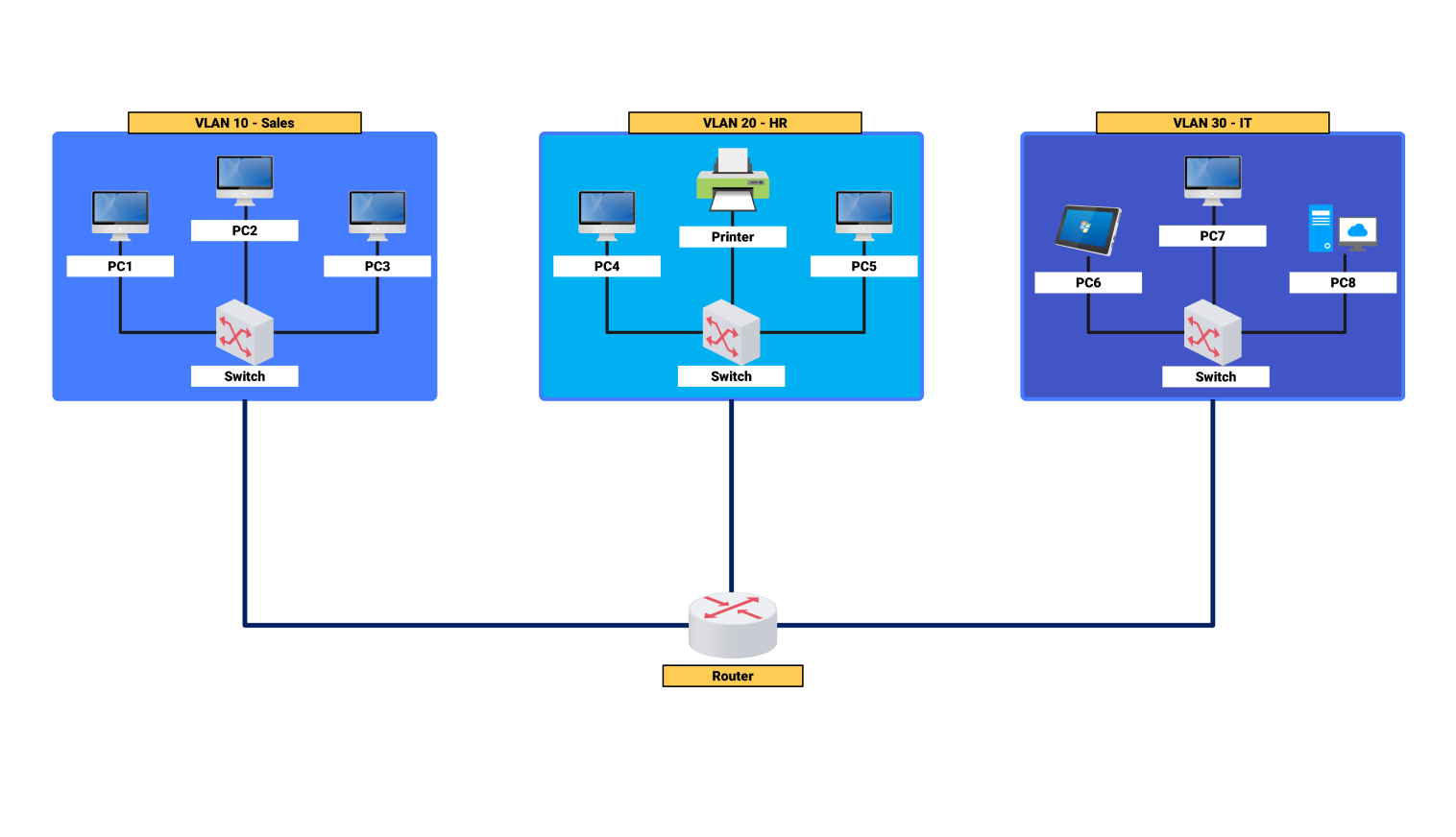
🔹 Port Groups
Define:
- Network policies
- VLAN configuration
🔹 VLAN Types
| Type | Description |
|---|---|
| VLAN ID | Tagged traffic |
| VLAN 4095 | Trunk mode |
| VLAN 0 | Untagged |
🔹 Benefits
- Network segmentation
- Isolation between workloads
🔄 7.6 VMkernel Networking
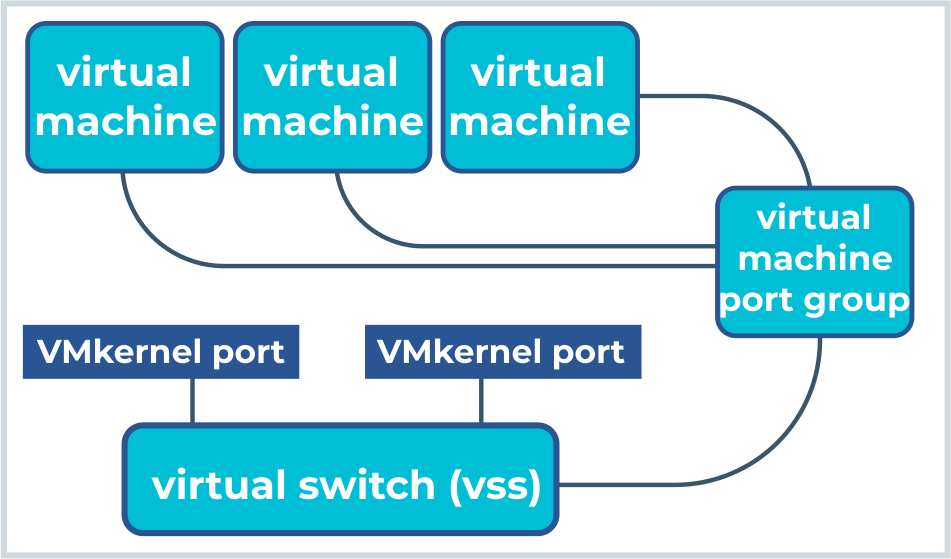


🔹 What is VMkernel?
A specialized interface used for host-level services.
🔹 Common VMkernel Services
- Management
- vMotion
- Storage (iSCSI, NFS)
- Fault Tolerance
🔹 Best Practice
Separate VMkernel traffic:
- Dedicated NICs
- Dedicated VLANs
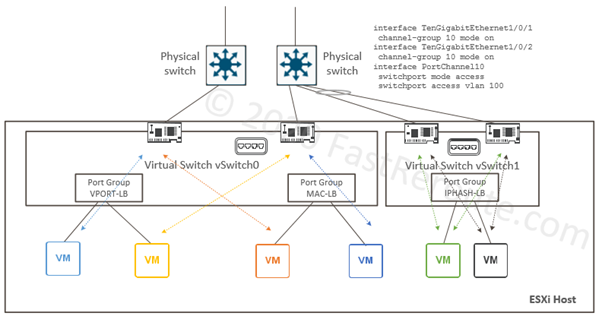
⚖️ 7.7 NIC Teaming and Load Balancing

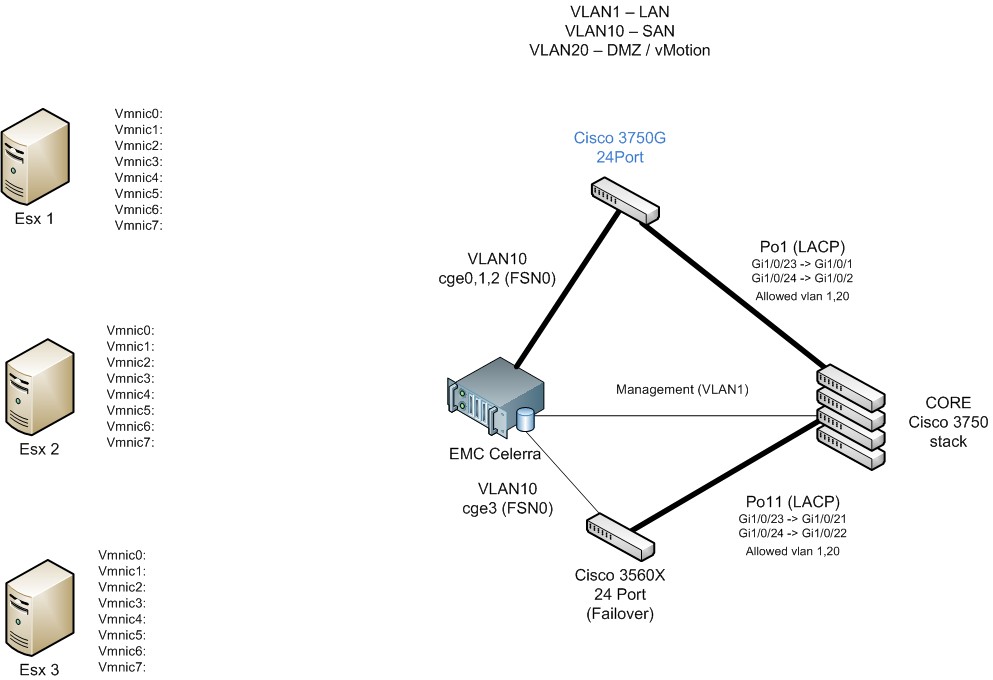
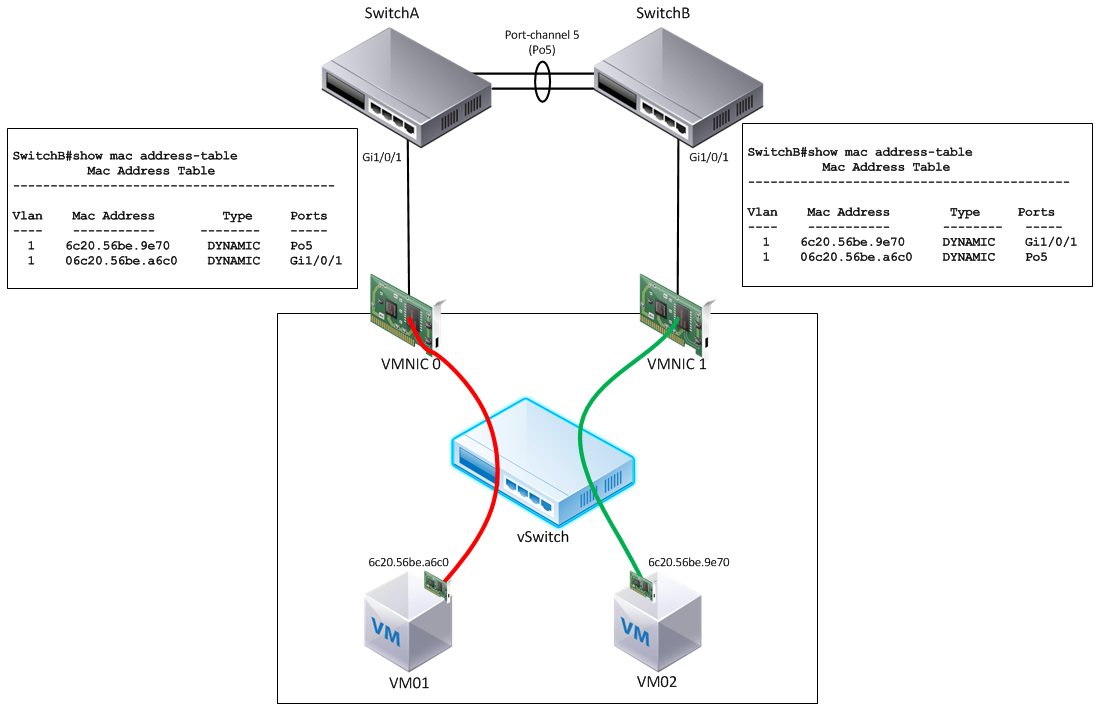

🔹 Purpose
- Redundancy
- Load balancing
🔹 Policies
| Policy | Description |
|---|---|
| Originating Port ID | Default |
| IP Hash | Requires EtherChannel |
| Load-based teaming | Dynamic balancing |
🔹 Failover
- Active/Standby configuration
- Automatic failover
🚦 7.8 Network I/O Control (NIOC)
🔹 What is NIOC?
Controls bandwidth allocation across traffic types.
🔹 Traffic Types:
- Management
- vMotion
- VM traffic
- Storage
🔹 Benefit
Ensures:
- Critical traffic gets priority
- Prevents congestion
🔐 7.9 Network Security Policies
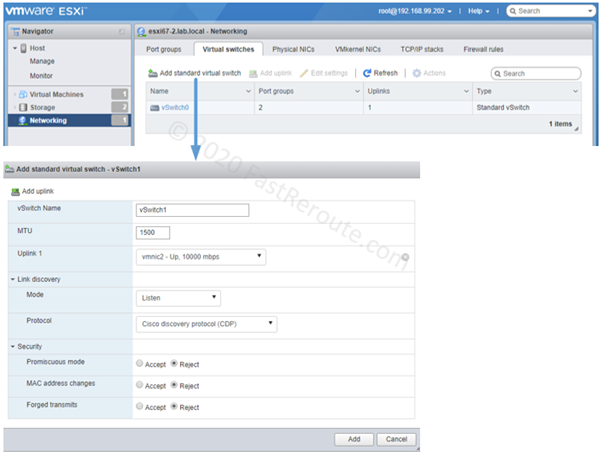
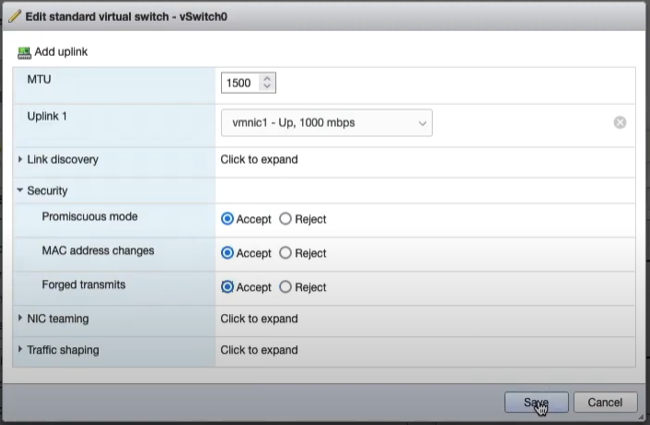
🔹 Key Policies
Promiscuous Mode
- Allows all traffic
MAC Address Changes
- Controls MAC spoofing
Forged Transmits
- Prevents impersonation
🔹 Best Practice
Disable unless explicitly required.
🌐 7.10 Integration with VMware NSX
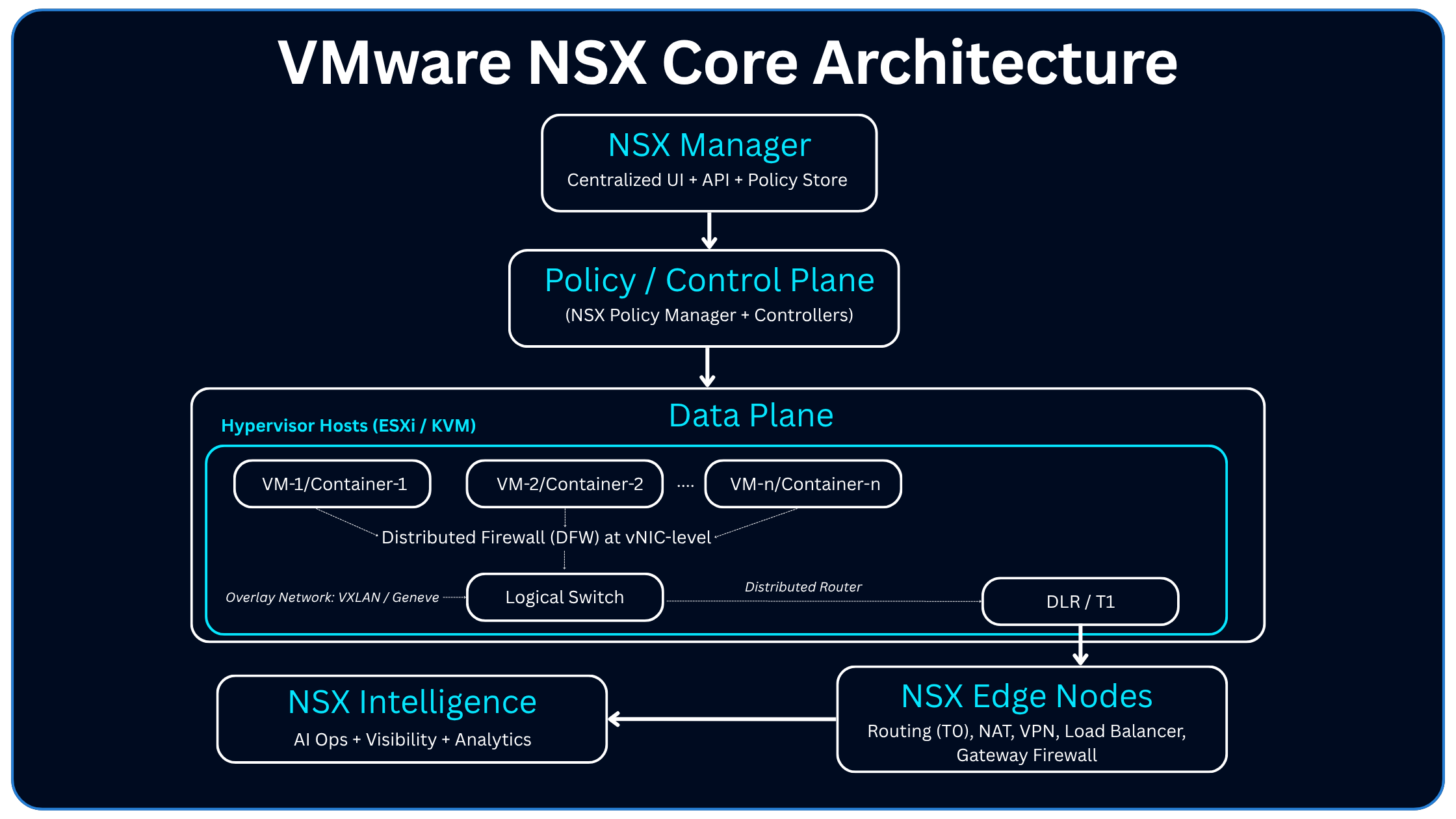

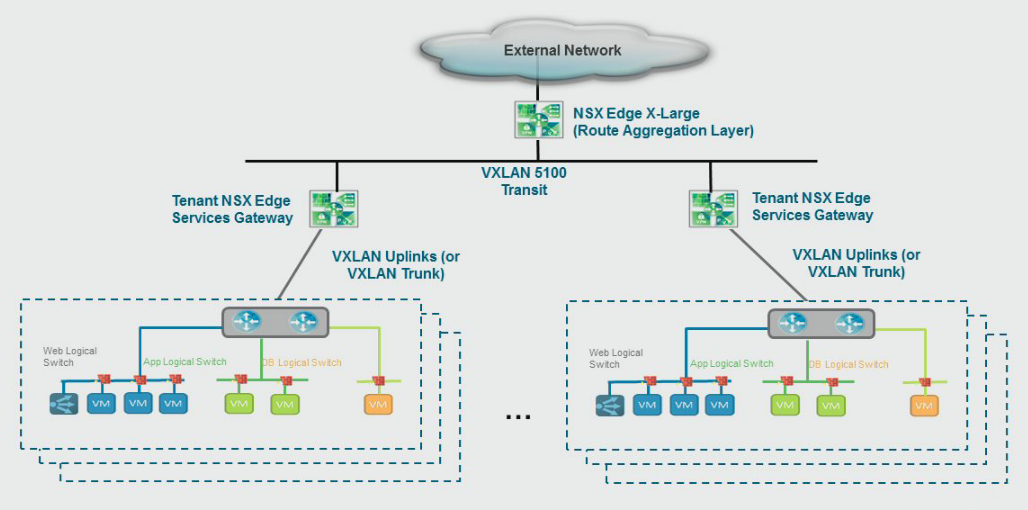
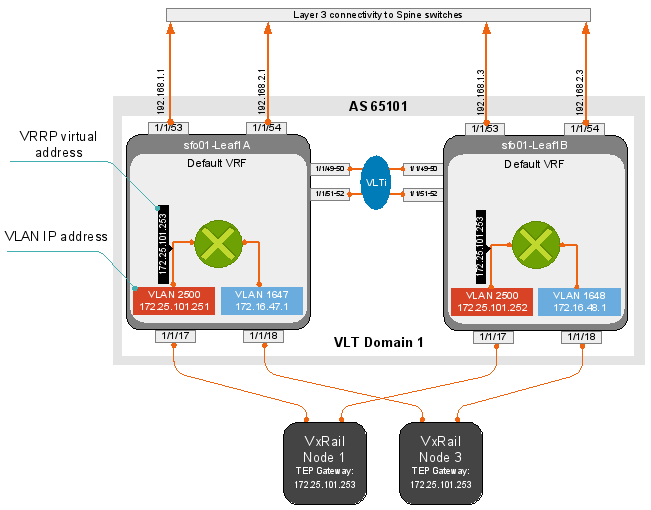
🔹 What NSX Adds
- Overlay networking
- Micro-segmentation
- Software-defined firewall
🔹 Key Concepts
Logical Switches
- Abstracted L2 networks
Overlay Networks
- VXLAN / Geneve
Distributed Firewall
- Security at VM level
🔹 Enterprise Value
- Zero Trust architecture
- Fine-grained control
📊 7.11 Monitoring and Troubleshooting
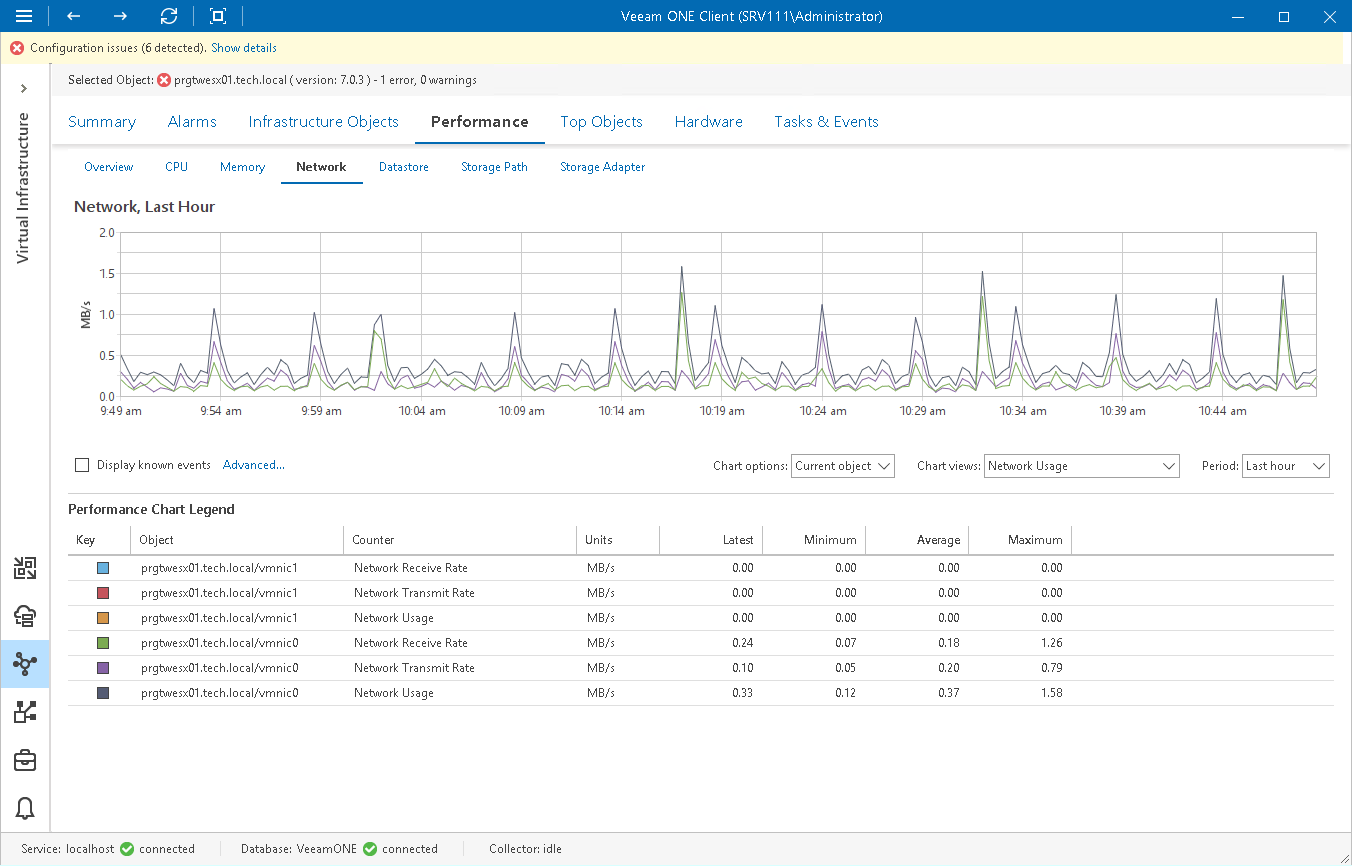

🔹 Tools
- vCenter performance charts
- ESXi logs
- Packet capture
🔹 Key Metrics
- Throughput
- Latency
- Packet loss
🔹 Common Issues
- VLAN mismatch
- NIC misconfiguration
- MTU mismatch
🏢 7.12 Enterprise Network Design Patterns
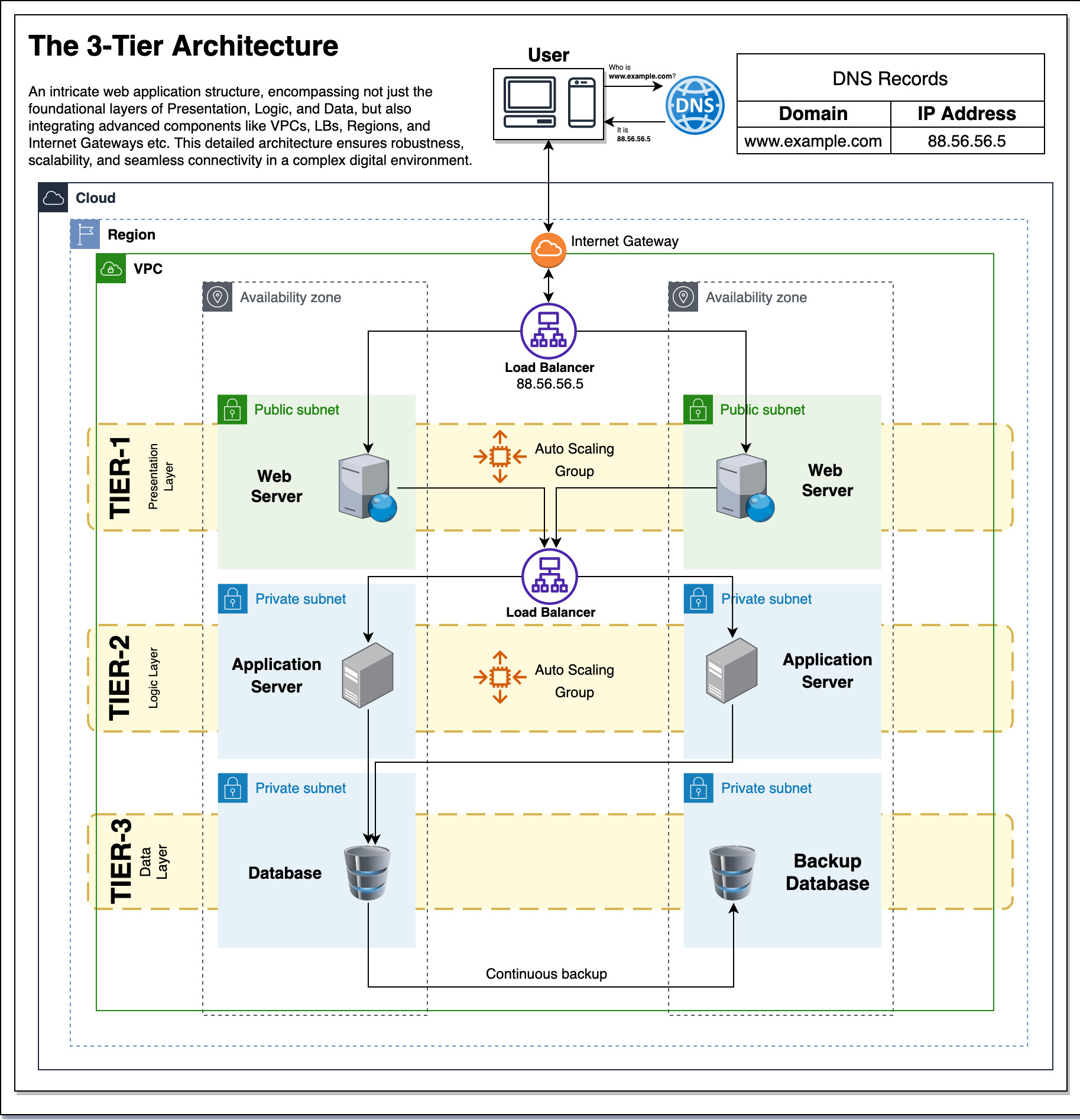
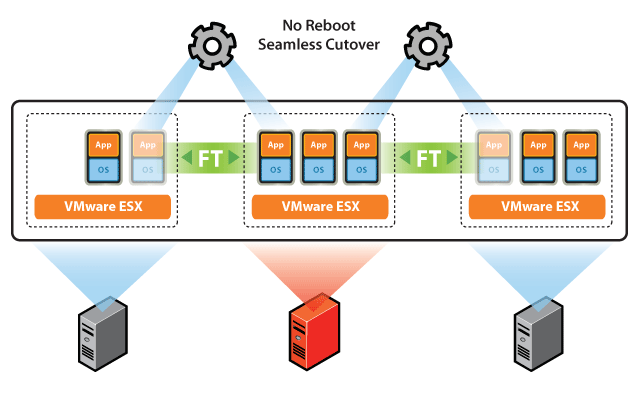
🔹 Segmentation Strategy
-
Separate:
- Management
- Storage
- VM traffic
🔹 Redundancy
- Multiple uplinks
- NIC teaming
🔹 Scalability
- Use distributed switches
- Automate configurations
⚠️ 7.13 Common Pitfalls and Best Practices
❌ Pitfalls:
- Mixing traffic types
- Poor VLAN design
- Lack of redundancy
✅ Best Practices:
- Use vDS in production
- Separate critical traffic
- Monitor continuously
- Document network design
📌 7.14 Summary
Networking in VMware vSphere is:
- Software-defined
- Highly flexible
- Enterprise-grade
It enables:
- Connectivity
- Isolation
- Security
- Performance optimization
📘 Chapter 8: vSphere Storage Architecture
(Aligned with official Broadcom TechDocs: vSphere Storage)
💾 8.1 Introduction to vSphere Storage
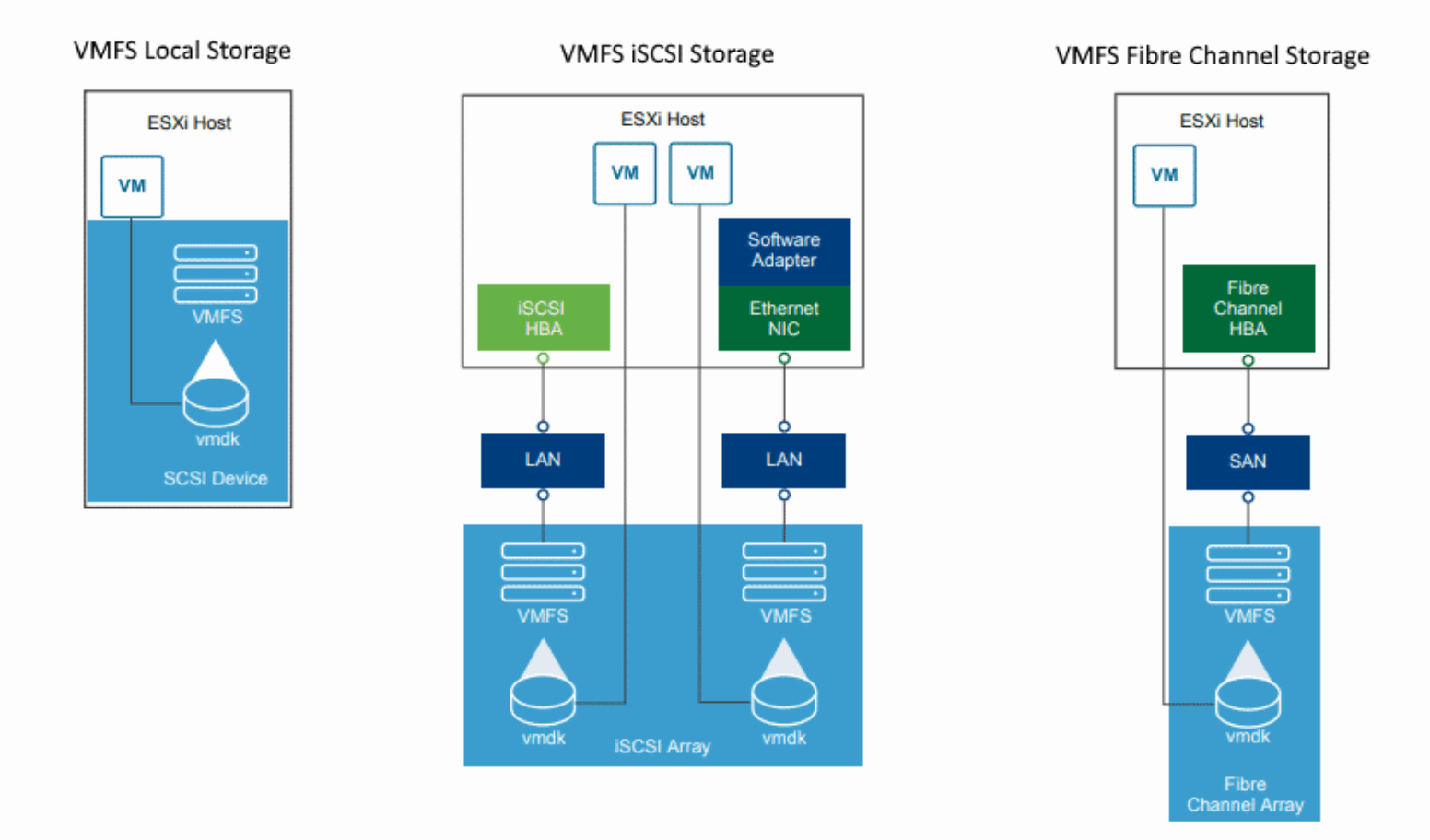

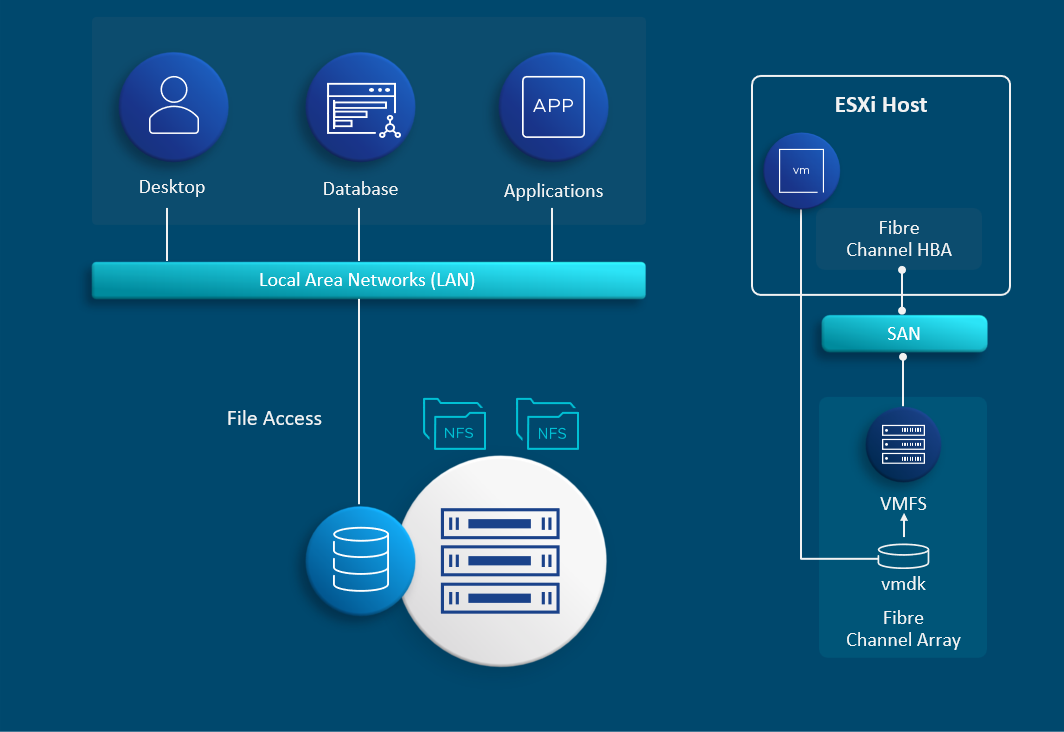
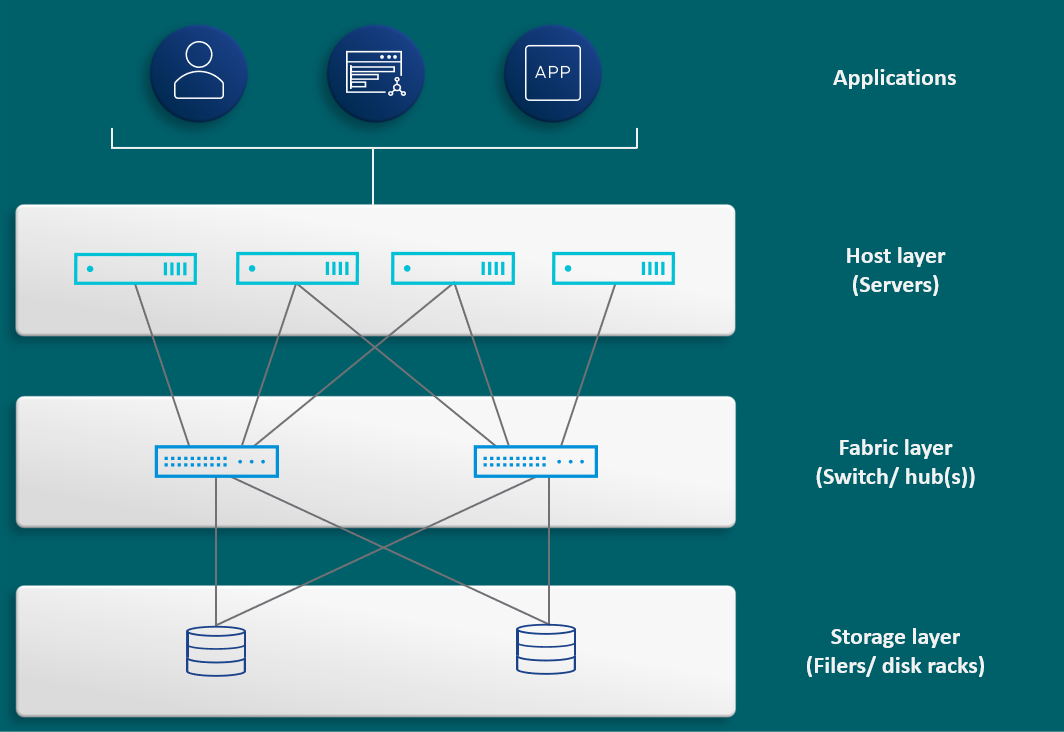
Storage in VMware vSphere is not just about attaching disks—it is about abstracting, pooling, and managing storage resources in a way that aligns with application requirements and enterprise policies.
🔍 Core Objective
Provide:
- High availability
- Performance
- Scalability
- Policy-driven control
🔹 Key Concept: Storage Abstraction
vSphere introduces datastores as logical containers:
- Hide physical storage complexity
- Present uniform storage interface
🧠 8.2 vSphere Storage Architecture Overview


🔹 Core Components
Datastore
- Logical storage container
Storage Device
- Physical disk or LUN
Storage Adapter
- Connects host to storage
VMkernel Storage Stack
- Handles I/O operations
🔁 Data Flow
VM → VMkernel → Storage Adapter → Physical Storage
📦 8.3 Datastores


🔹 Types of Datastores
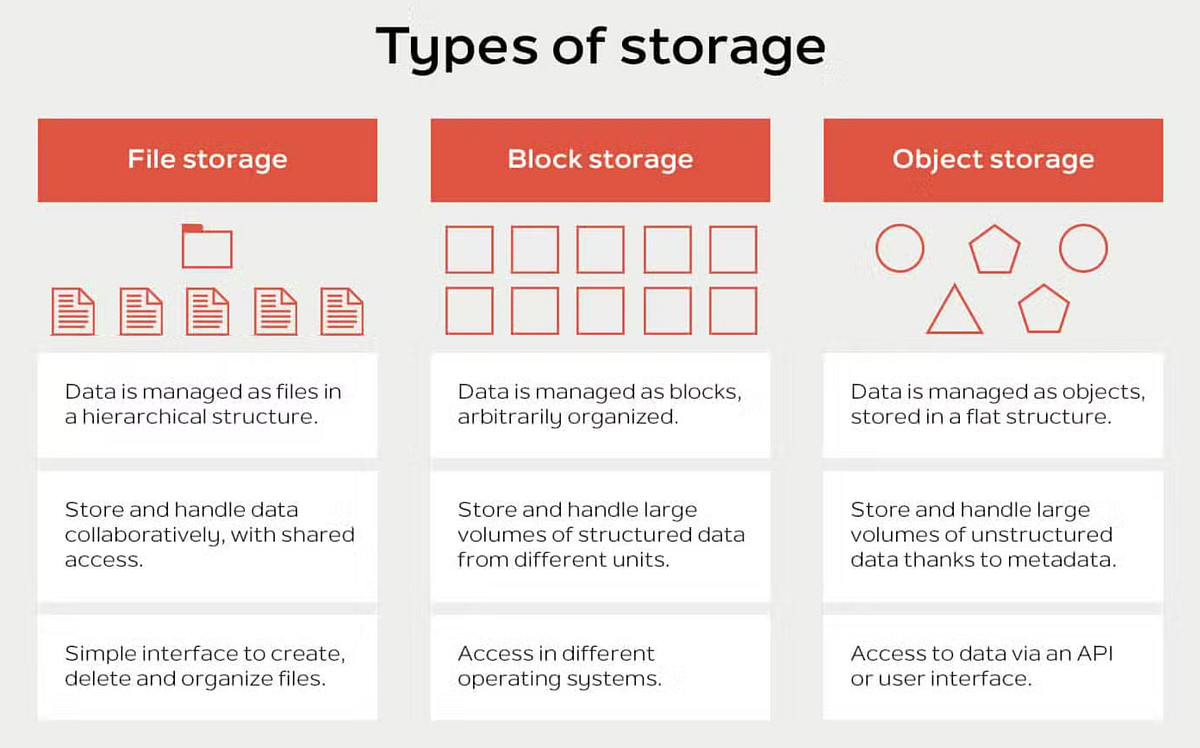
| Type | Description |
|---|---|
| VMFS | Block storage |
| NFS | File-based storage |
| vSAN | Hyperconverged storage |
🔹 Key Features:
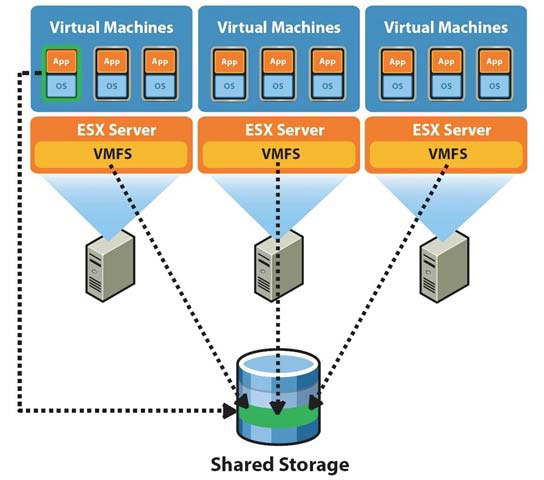
- Shared access across hosts
- Supports VM files
- Enables migration (vMotion)
🔹 Design Insight
Shared storage is critical for:
- High availability
- Load balancing
🧱 8.4 VMFS (Virtual Machine File System)


🔹 What is VMFS?
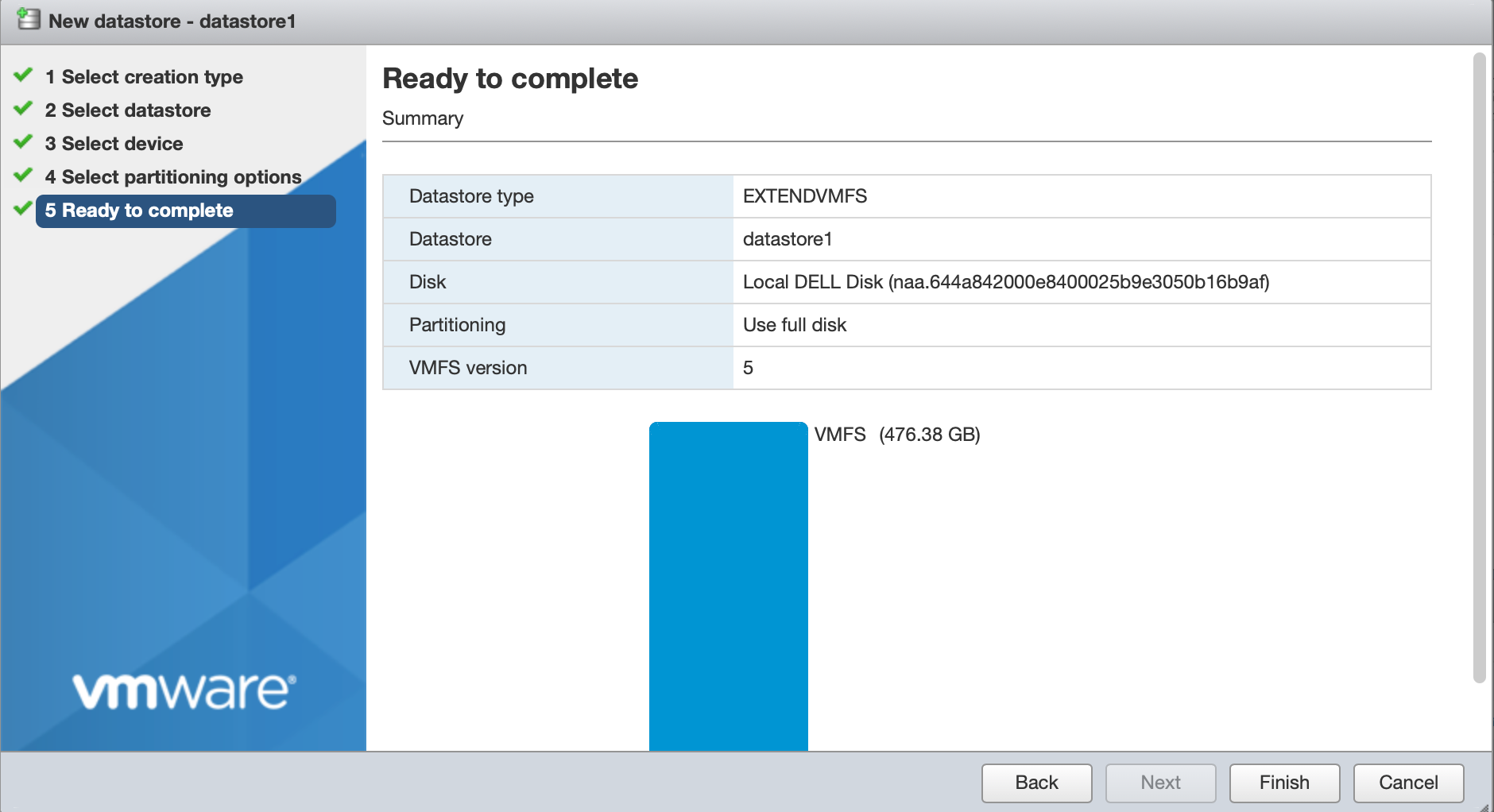
A clustered file system designed for virtualization.
🔹 Features:
- Concurrent access by multiple hosts
- Efficient locking mechanisms
- High performance
🔹 Use Cases:
- SAN environments
- High-performance workloads
🌐 8.5 NFS Storage

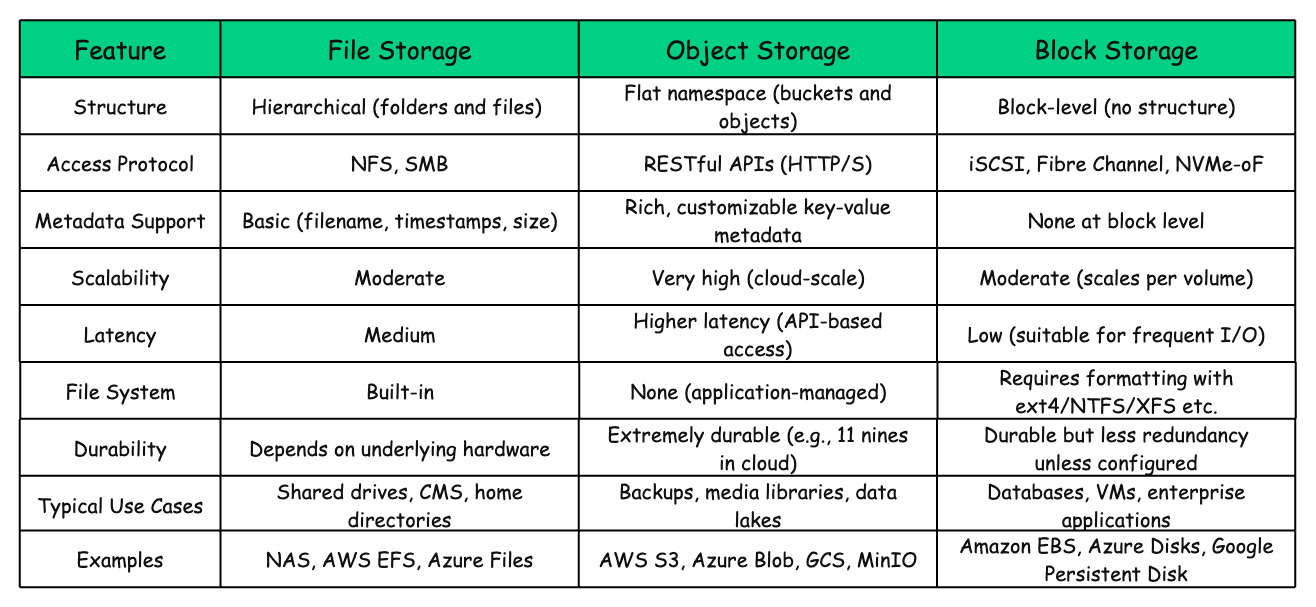
🔹 Characteristics
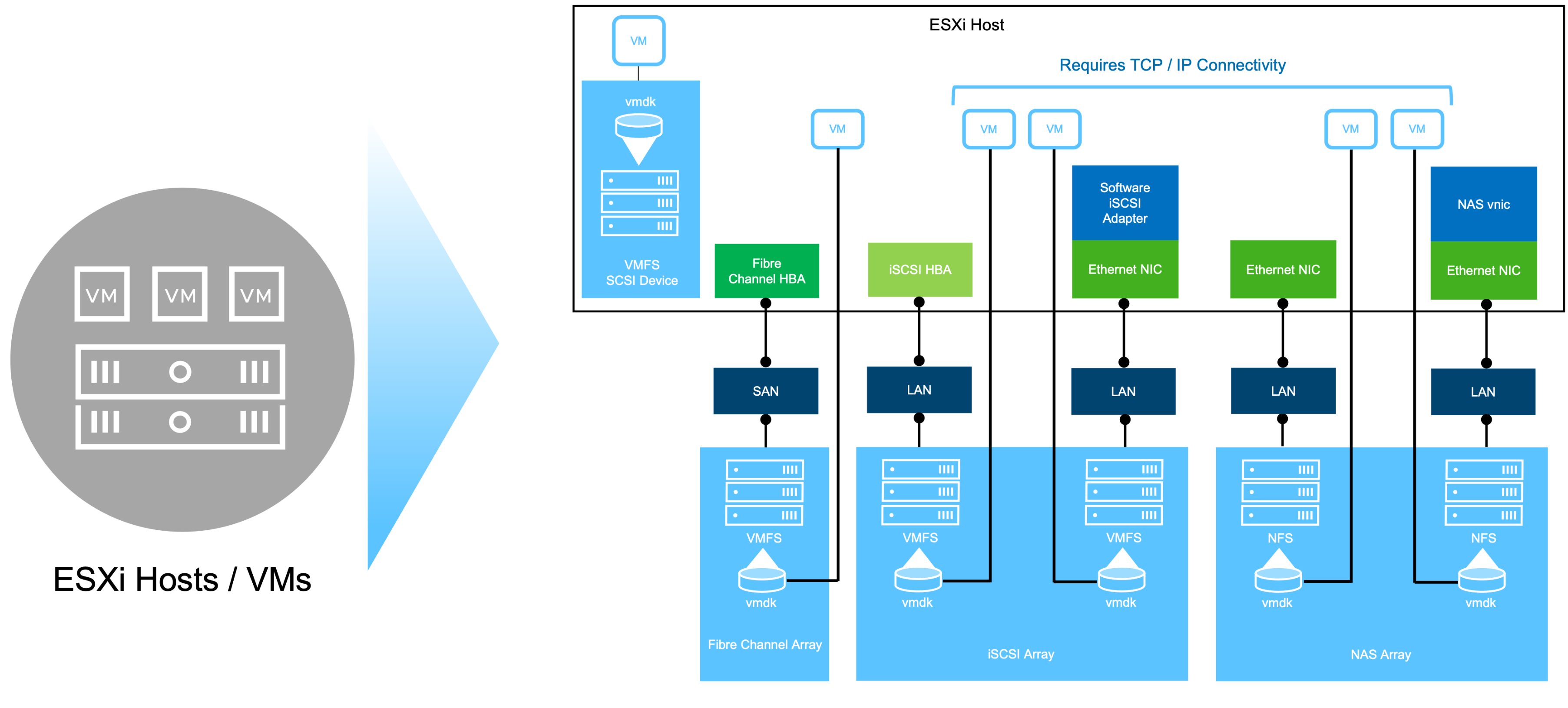
- File-based protocol
- Simple to configure
- Flexible
🔹 Benefits:
- Easy management
- No need for LUN configuration
🔹 Limitations:
- Depends on network performance
- Slightly higher latency
🧩 8.6 vSAN (Virtual SAN)

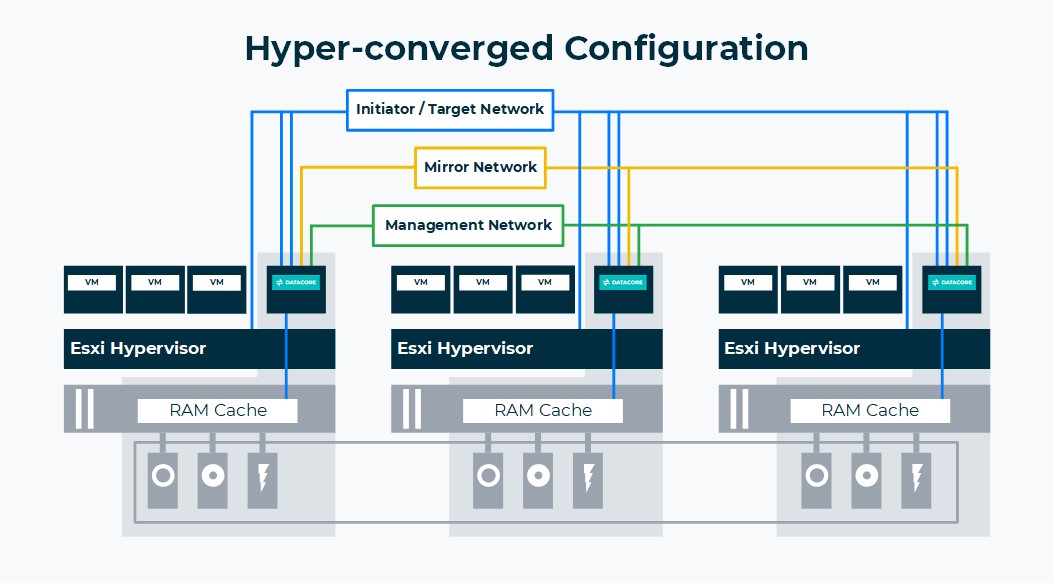

🔹 What is vSAN?
A software-defined storage solution that aggregates local disks into a shared datastore.
🔹 Key Concepts:
Disk Groups
- Cache tier
- Capacity tier
Storage Policies
- Define performance and availability
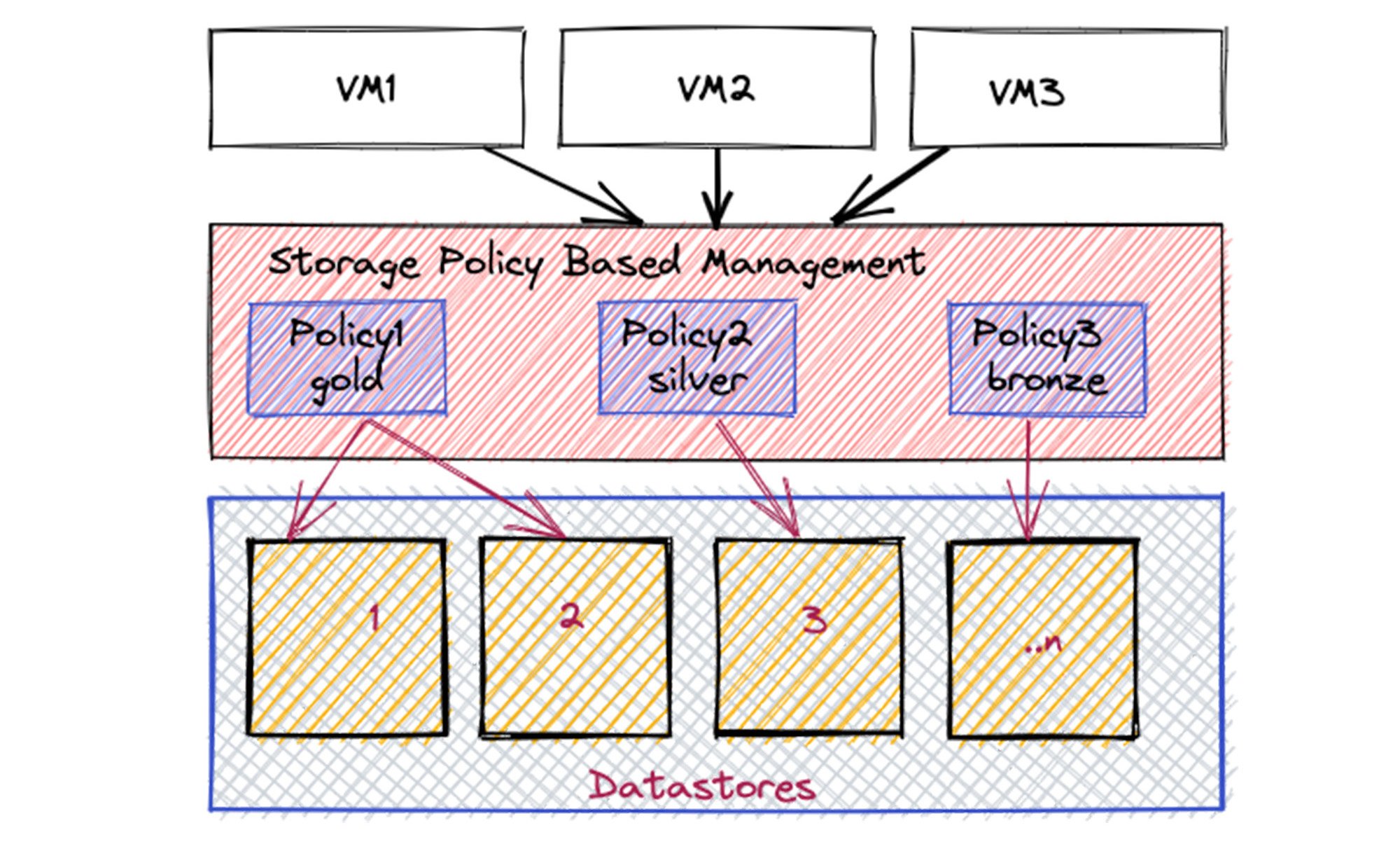
Fault Domains
- Protect against failures
🔹 Benefits:
- Hyperconverged infrastructure
- Scalability
- Policy-driven storage
📜 8.7 Storage Policy-Based Management (SPBM)


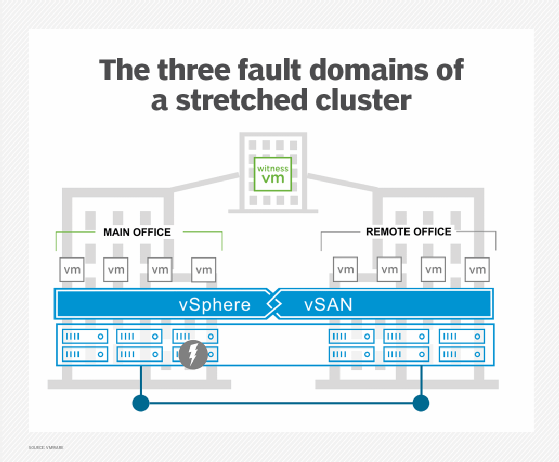
🔹 What is SPBM?
Allows defining storage requirements as policies.
🔹 Policy Examples:
- Number of replicas
- Performance level
- Encryption
🔹 Benefits:
- Automation
- Consistency
- Compliance
⚙️ 8.8 Storage I/O Control (SIOC)
🔹 Purpose
Manages storage bandwidth during contention.
🔹 How It Works:
- Monitors latency
- Applies fairness
🔹 Benefit:
Prevents one VM from dominating storage resources.
🔄 8.9 Storage Multipathing


🔹 Why Multipathing?
Provides:
- Redundancy
- Load balancing
🔹 Path Policies:
| Policy | Description |
|---|---|
| Fixed | Static path |
| Round Robin | Load balancing |
| MRU | Most recently used |
🔹 Best Practice:
Use multiple paths for resilience.
🔐 8.10 Storage Security
🔹 Features:
- VM encryption
- Secure access control
- Data-at-rest protection
🔹 Best Practices:
- Use encrypted datastores
- Secure storage networks
📊 8.11 Monitoring Storage Performance


🔹 Key Metrics:
Latency
- Response time
IOPS
- Input/output operations
Throughput
- Data transfer rate
🔹 Common Issues:
- High latency
- Storage contention
🏢 8.12 Enterprise Storage Design Patterns

🔹 Tiered Storage
- High-performance tier
- Capacity tier
🔹 Hybrid Models
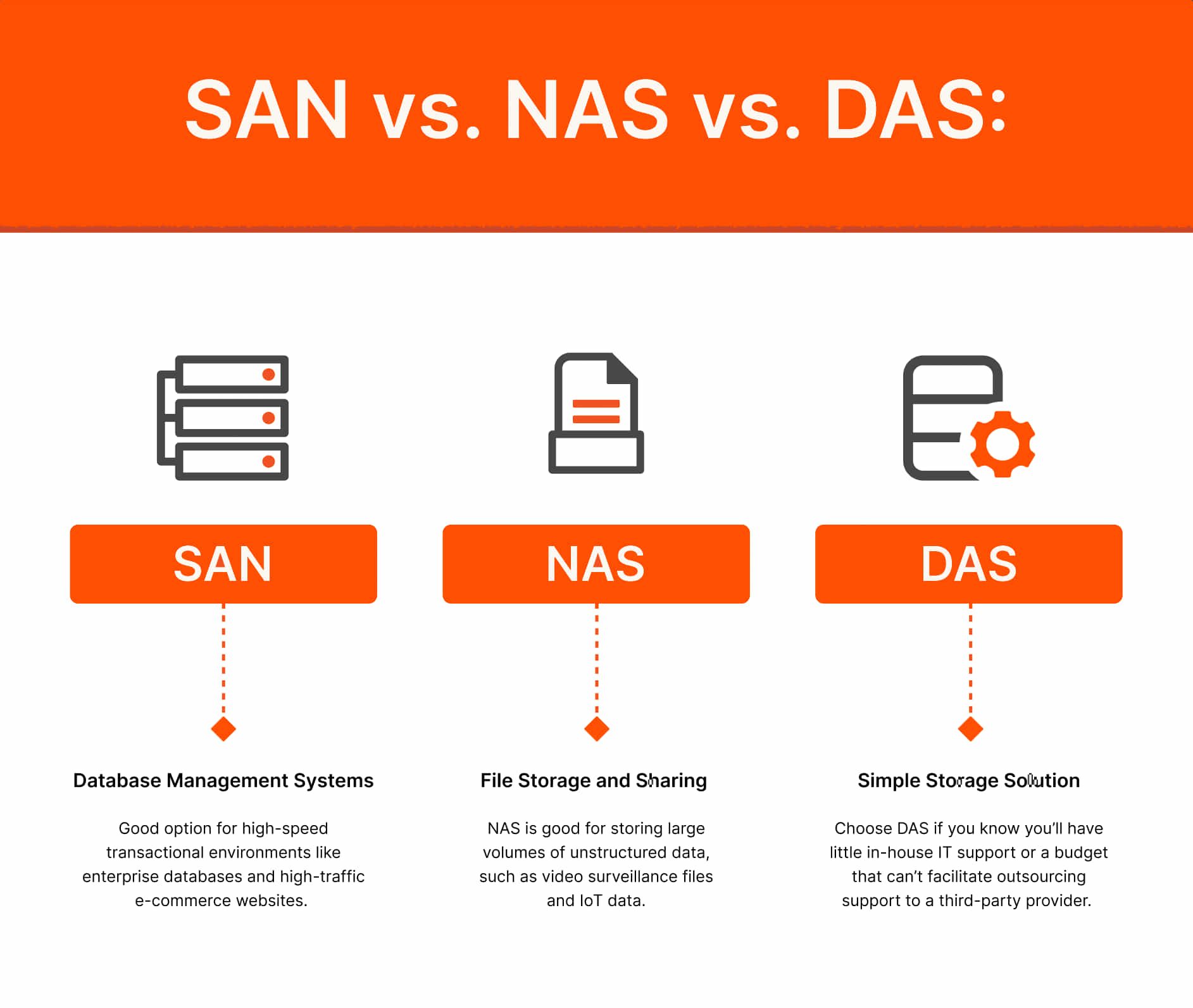
- Combine SAN + vSAN
🔹 DR Integration
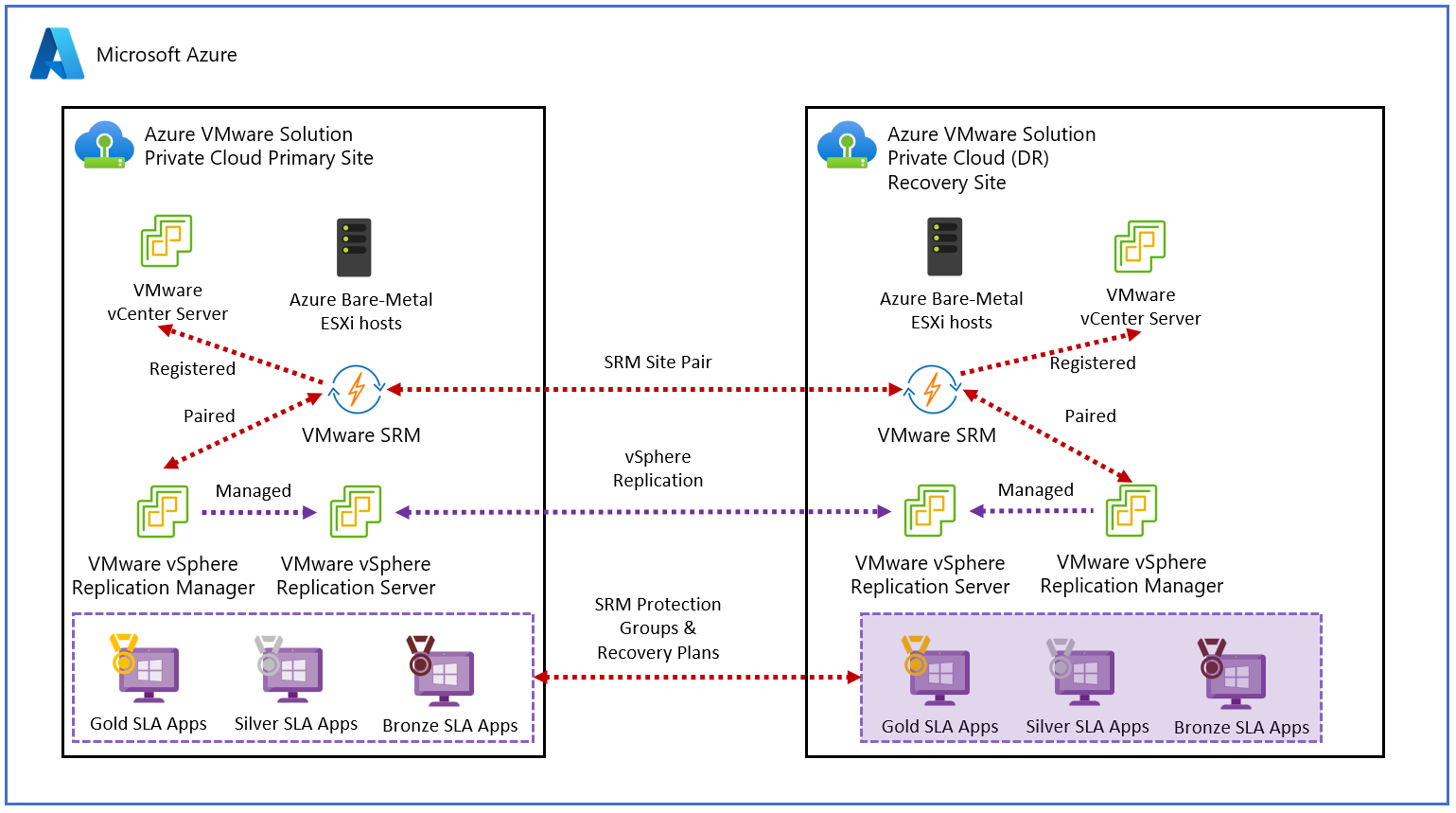
- Replication strategies
🔹 Scalability
- Add disks or nodes
⚠️ 8.13 Common Pitfalls and Best Practices
❌ Pitfalls:
- Ignoring latency metrics
- Overloading datastores
- Poor storage design
✅ Best Practices:
- Monitor continuously
- Use SPBM
- Design for redundancy
- Separate workloads
🧠 8.14 Architectural Insights
🔹 Storage Philosophy
vSphere storage is:
- Abstracted
- Policy-driven
- Scalable
🔹 Key Principle:
Align storage design with application requirements, not hardware constraints.
📌 8.15 Summary
Storage in VMware vSphere is:
- Flexible
- Scalable
- Policy-driven
It enables:
- Efficient data management
- High availability
- Performance optimization
📘 Chapter 8: vSphere Storage Architecture
(Aligned with official Broadcom TechDocs: vSphere Storage)
💾 8.1 Introduction to vSphere Storage
Storage in VMware vSphere is not just about attaching disks—it is about abstracting, pooling, and managing storage resources in a way that aligns with application requirements and enterprise policies.
🔍 Core Objective
Provide:
- High availability
- Performance
- Scalability
- Policy-driven control
🔹 Key Concept: Storage Abstraction
vSphere introduces datastores as logical containers:
- Hide physical storage complexity
- Present uniform storage interface
🧠 8.2 vSphere Storage Architecture Overview
🔹 Core Components
Datastore
- Logical storage container
Storage Device
- Physical disk or LUN
Storage Adapter
- Connects host to storage
VMkernel Storage Stack
- Handles I/O operations
🔁 Data Flow
VM → VMkernel → Storage Adapter → Physical Storage
📦 8.3 Datastores
🔹 Types of Datastores
| Type | Description |
|---|---|
| VMFS | Block storage |
| NFS | File-based storage |
| vSAN | Hyperconverged storage |
🔹 Key Features:
- Shared access across hosts
- Supports VM files
- Enables migration (vMotion)
🔹 Design Insight
Shared storage is critical for:
- High availability
- Load balancing
🧱 8.4 VMFS (Virtual Machine File System)
🔹 What is VMFS?
A clustered file system designed for virtualization.
🔹 Features:
- Concurrent access by multiple hosts
- Efficient locking mechanisms
- High performance
🔹 Use Cases:
- SAN environments
- High-performance workloads
🌐 8.5 NFS Storage
🔹 Characteristics
- File-based protocol
- Simple to configure
- Flexible
🔹 Benefits:
- Easy management
- No need for LUN configuration
🔹 Limitations:
- Depends on network performance
- Slightly higher latency
🧩 8.6 vSAN (Virtual SAN)
🔹 What is vSAN?
A software-defined storage solution that aggregates local disks into a shared datastore.
🔹 Key Concepts:
Disk Groups
- Cache tier
- Capacity tier
Storage Policies
- Define performance and availability
Fault Domains
- Protect against failures
🔹 Benefits:
- Hyperconverged infrastructure
- Scalability
- Policy-driven storage
📜 8.7 Storage Policy-Based Management (SPBM)
🔹 What is SPBM?
Allows defining storage requirements as policies.
🔹 Policy Examples:
- Number of replicas
- Performance level
- Encryption
🔹 Benefits:
- Automation
- Consistency
- Compliance
⚙️ 8.8 Storage I/O Control (SIOC)
🔹 Purpose
Manages storage bandwidth during contention.
🔹 How It Works:
- Monitors latency
- Applies fairness
🔹 Benefit:
Prevents one VM from dominating storage resources.
🔄 8.9 Storage Multipathing
🔹 Why Multipathing?
Provides:
- Redundancy
- Load balancing
🔹 Path Policies:
| Policy | Description |
|---|---|
| Fixed | Static path |
| Round Robin | Load balancing |
| MRU | Most recently used |
🔹 Best Practice:
Use multiple paths for resilience.
🔐 8.10 Storage Security
🔹 Features:
- VM encryption
- Secure access control
- Data-at-rest protection
🔹 Best Practices:
- Use encrypted datastores
- Secure storage networks
📊 8.11 Monitoring Storage Performance
🔹 Key Metrics:
Latency
- Response time
IOPS
- Input/output operations
Throughput
- Data transfer rate
🔹 Common Issues:
- High latency
- Storage contention
🏢 8.12 Enterprise Storage Design Patterns
🔹 Tiered Storage
- High-performance tier
- Capacity tier
🔹 Hybrid Models
- Combine SAN + vSAN
🔹 DR Integration
- Replication strategies
🔹 Scalability
- Add disks or nodes
⚠️ 8.13 Common Pitfalls and Best Practices
❌ Pitfalls:
- Ignoring latency metrics
- Overloading datastores
- Poor storage design
✅ Best Practices:
- Monitor continuously
- Use SPBM
- Design for redundancy
- Separate workloads
🧠 8.14 Architectural Insights
🔹 Storage Philosophy
vSphere storage is:
- Abstracted
- Policy-driven
- Scalable
🔹 Key Principle:
Align storage design with application requirements, not hardware constraints.
📌 8.15 Summary
Storage in VMware vSphere is:
- Flexible
- Scalable
- Policy-driven
It enables:
- Efficient data management
- High availability
- Performance optimization
📘 Chapter 10: Monitoring and Performance
(Aligned with official Broadcom TechDocs: vSphere Monitoring and Performance)
🧠 10.1 Introduction to Monitoring in vSphere
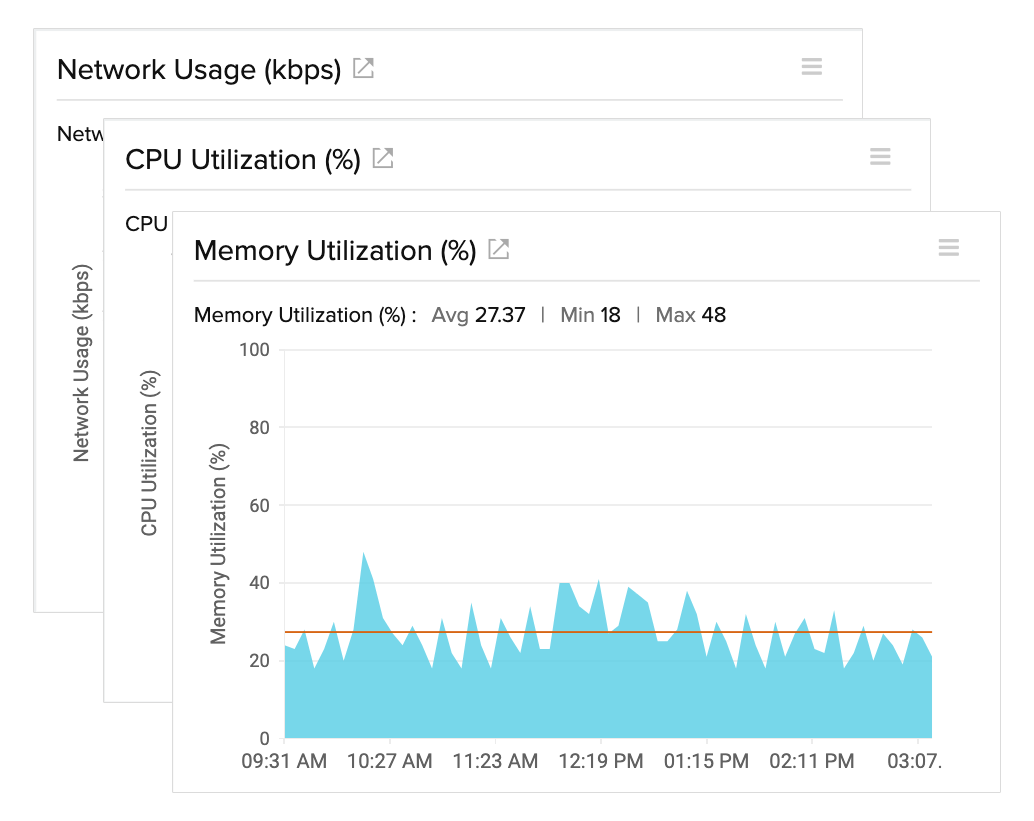
Monitoring is the observability backbone of VMware vSphere. Without it, even the most well-designed infrastructure becomes opaque, reactive, and difficult to manage.
🔍 Core Objective
Provide:
- Visibility into system behavior
- Early detection of issues
- Data-driven optimization
- Capacity planning insights
🔹 Key Principle
“You cannot optimize what you cannot measure.”
📊 10.2 Monitoring Architecture in vSphere


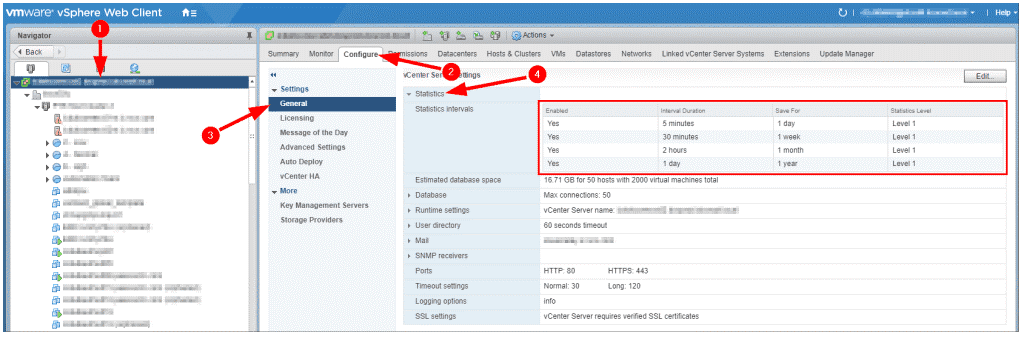
🔹 Data Collection Flow
- Metrics collected at ESXi host
- Sent to vCenter Server
- Stored in database
- Visualized in charts
🔹 Types of Data
- Performance metrics
- Events
- Tasks
- Logs
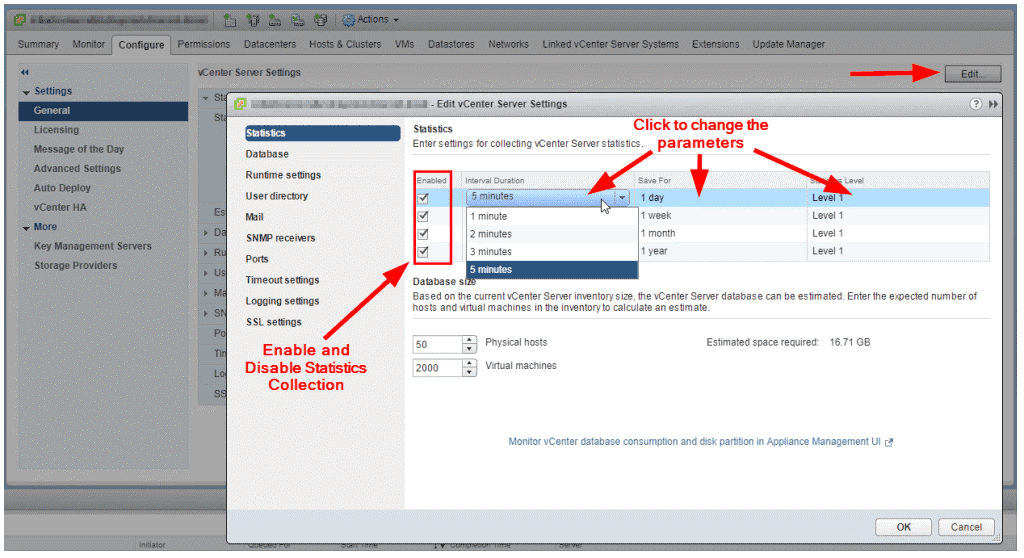
🔹 Statistics Levels
| Level | Detail |
|---|---|
| Level 1 | Basic |
| Level 4 | Detailed |
🔹 Trade-Off
Higher detail → More storage + overhead
⚙️ 10.3 Key Performance Metrics
🔹 CPU Metrics
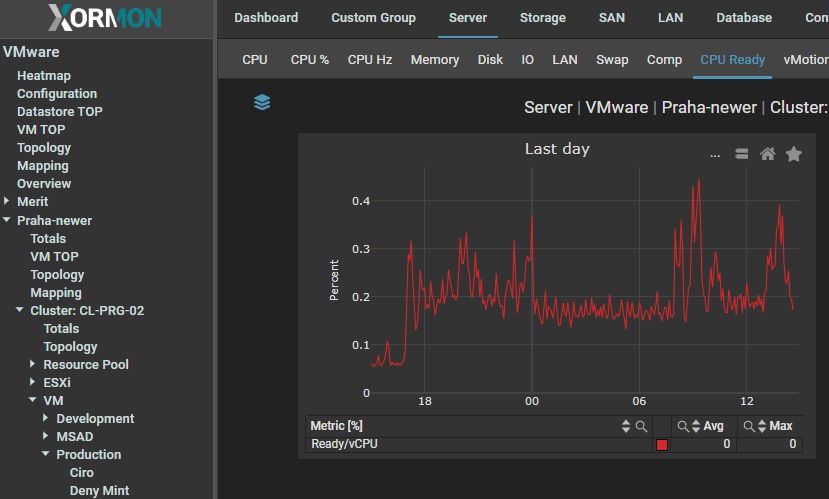


CPU Usage
- Percentage of CPU used
CPU Ready
- Time VM waits for CPU
Co-Stop
- Synchronization delay in multi-vCPU VMs
🔹 Key Insight:
High CPU ready time = contention
🧠 10.4 Memory Metrics
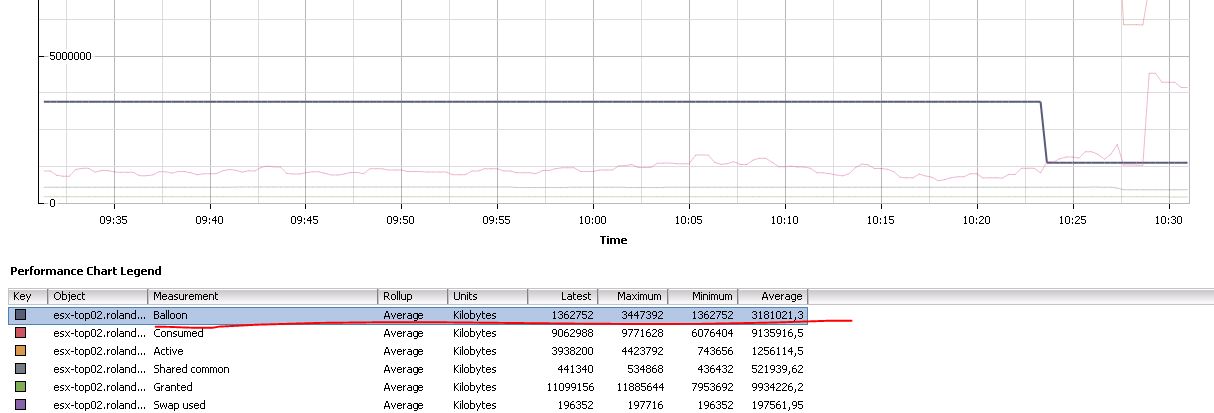


🔹 Important Metrics
Active Memory
- Actively used memory
Consumed Memory
- Allocated memory
Ballooning
- Memory reclaimed
Swapping
- Disk usage for memory
🔹 Key Insight:
Swapping = performance degradation
💾 10.5 Storage Metrics
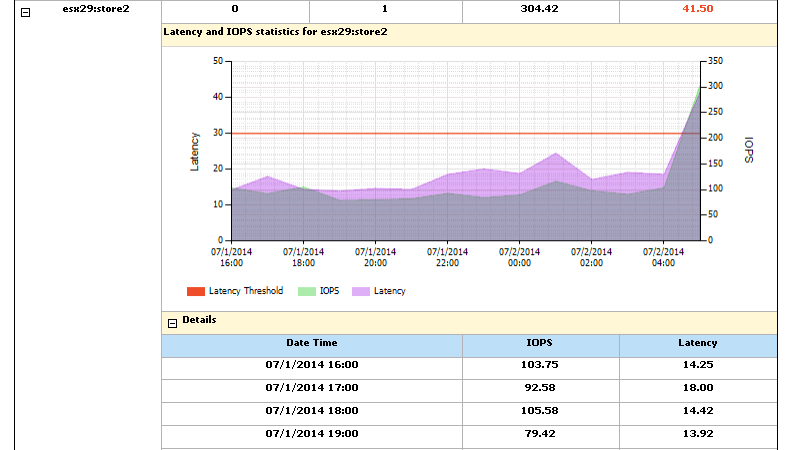
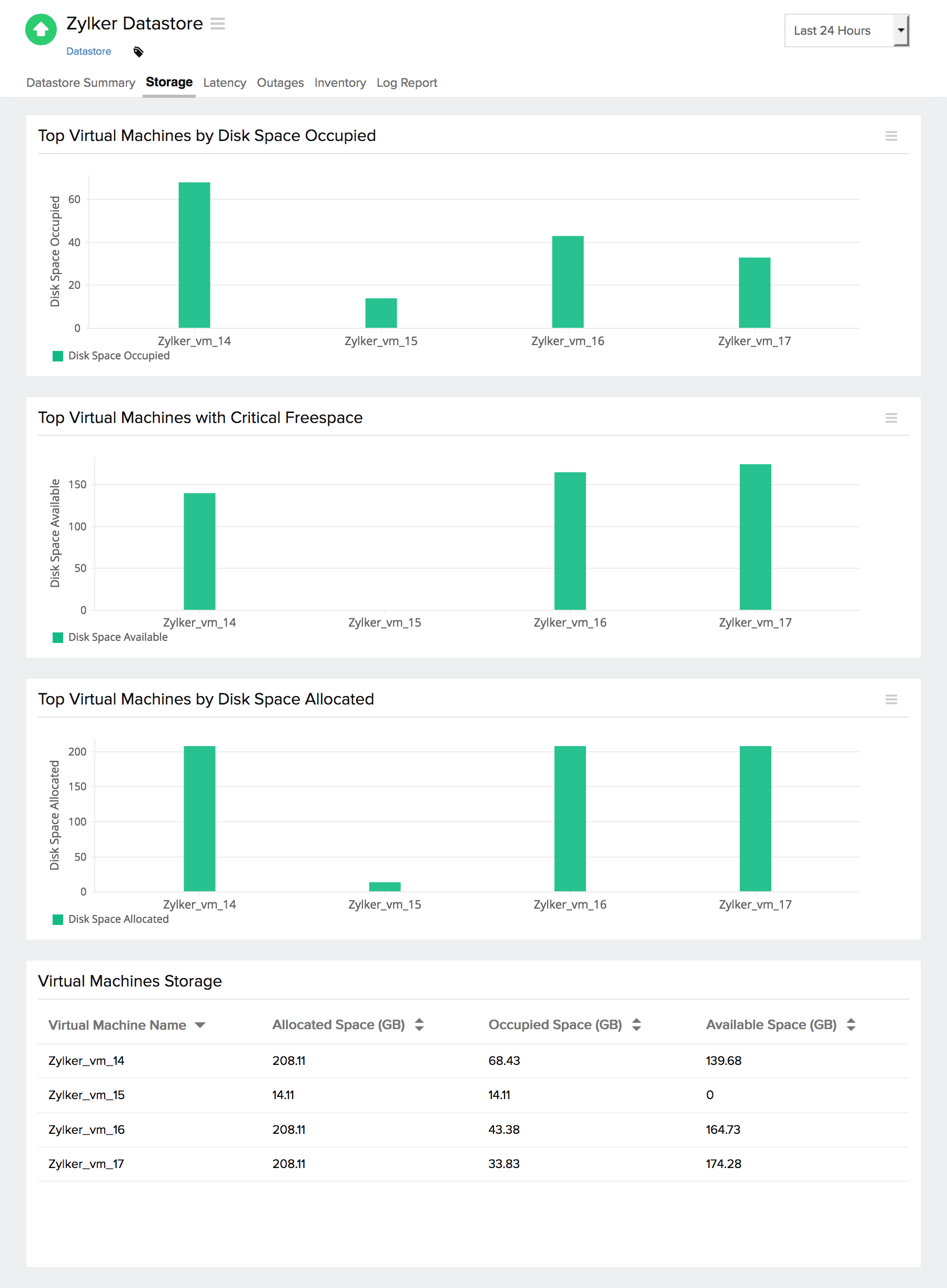
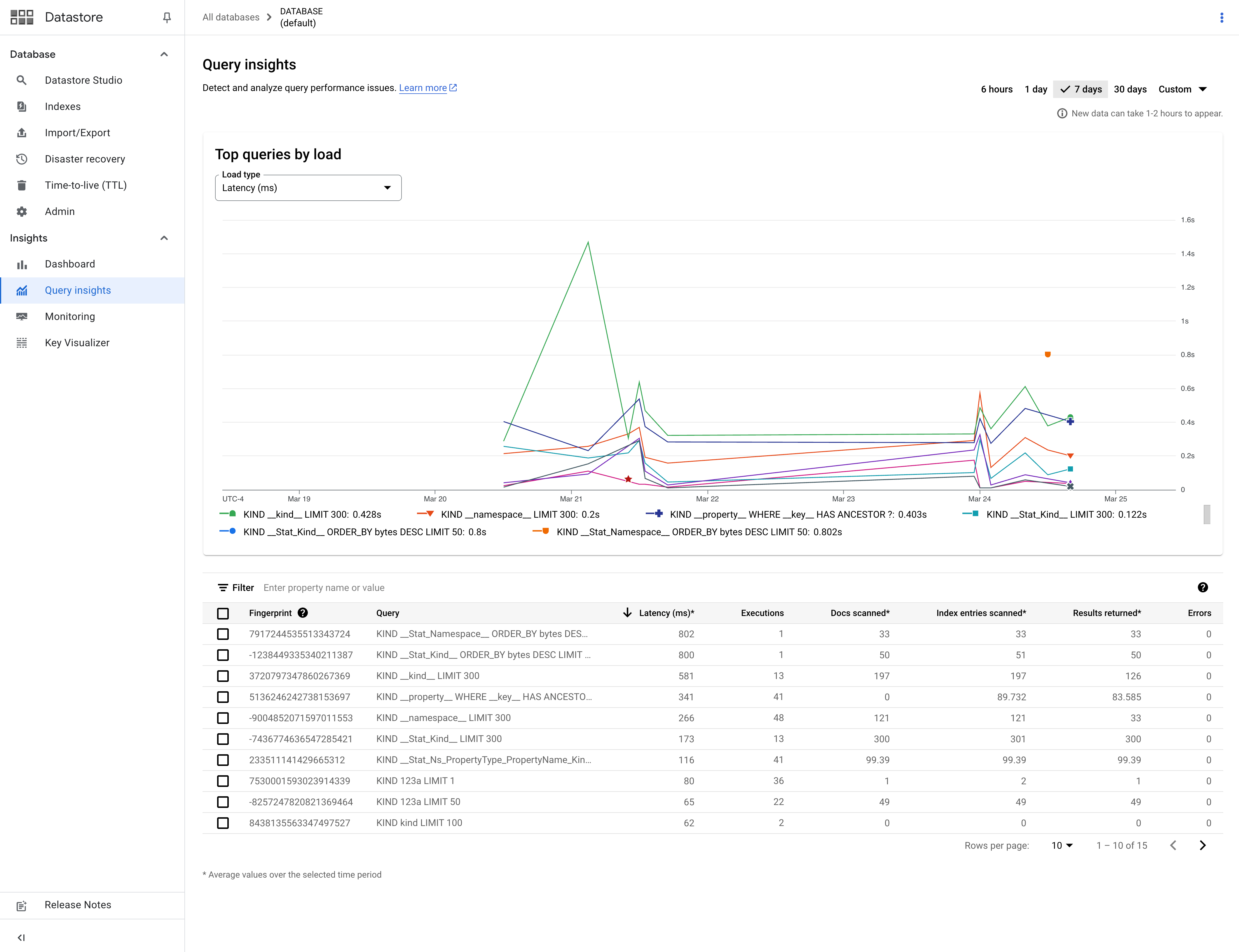
🔹 Key Metrics
Latency
- Response time
IOPS
- Operations per second
Throughput
- Data transfer rate
🔹 Thresholds:
- Latency > 20 ms → concern
🌐 10.6 Network Metrics
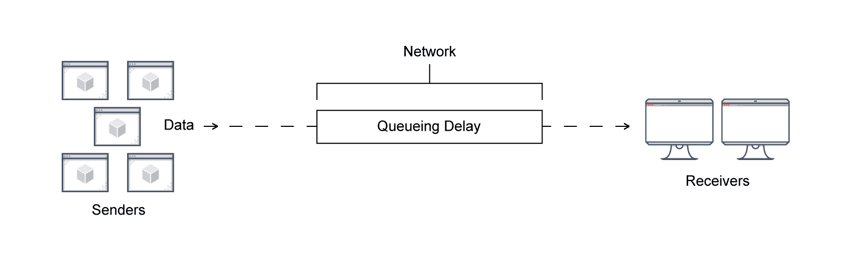
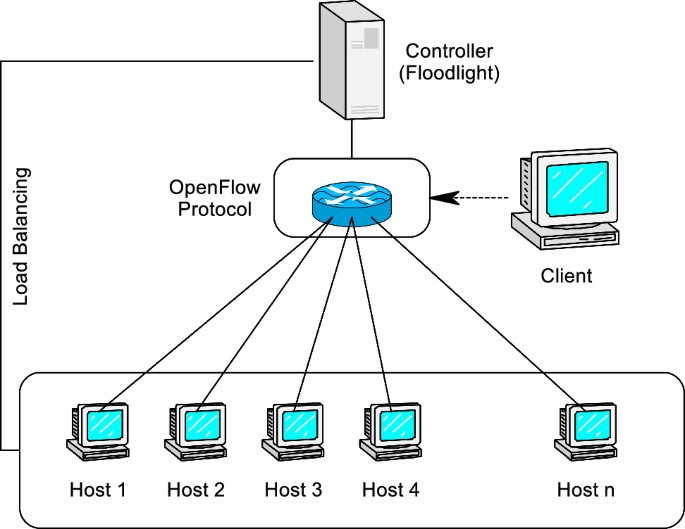
🔹 Metrics
- Throughput
- Packet loss
- Latency
🔹 Common Issues:
- Network congestion
- Misconfiguration
📈 10.7 Performance Charts and Analysis
🔹 Chart Types
- Real-time
- Historical
🔹 Time Ranges
- 20 seconds (real-time)
- Hourly
- Daily
🔹 Use Cases:
- Troubleshooting
- Trend analysis
🚨 10.8 Alarms and Alerts


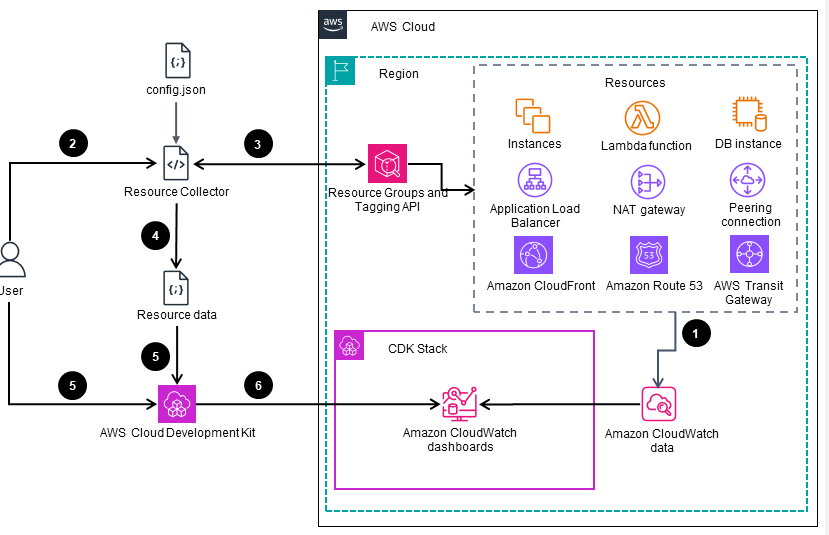
🔹 Alarm Components
- Trigger condition
- Threshold
- Action
🔹 Actions:
- Email notification
- Script execution
🔹 Best Practice:
Tune thresholds carefully
🧪 10.9 Performance Troubleshooting Methodology
🔹 Step-by-Step Approach
- Identify symptoms
- Check metrics
- Isolate bottleneck
- Apply fix
🔹 Bottleneck Types:
| Type | Indicator |
|---|---|
| CPU | High ready time |
| Memory | Swapping |
| Storage | High latency |
| Network | Packet loss |
🔹 Golden Rule:
Fix root cause, not symptoms
📊 10.10 Capacity Planning

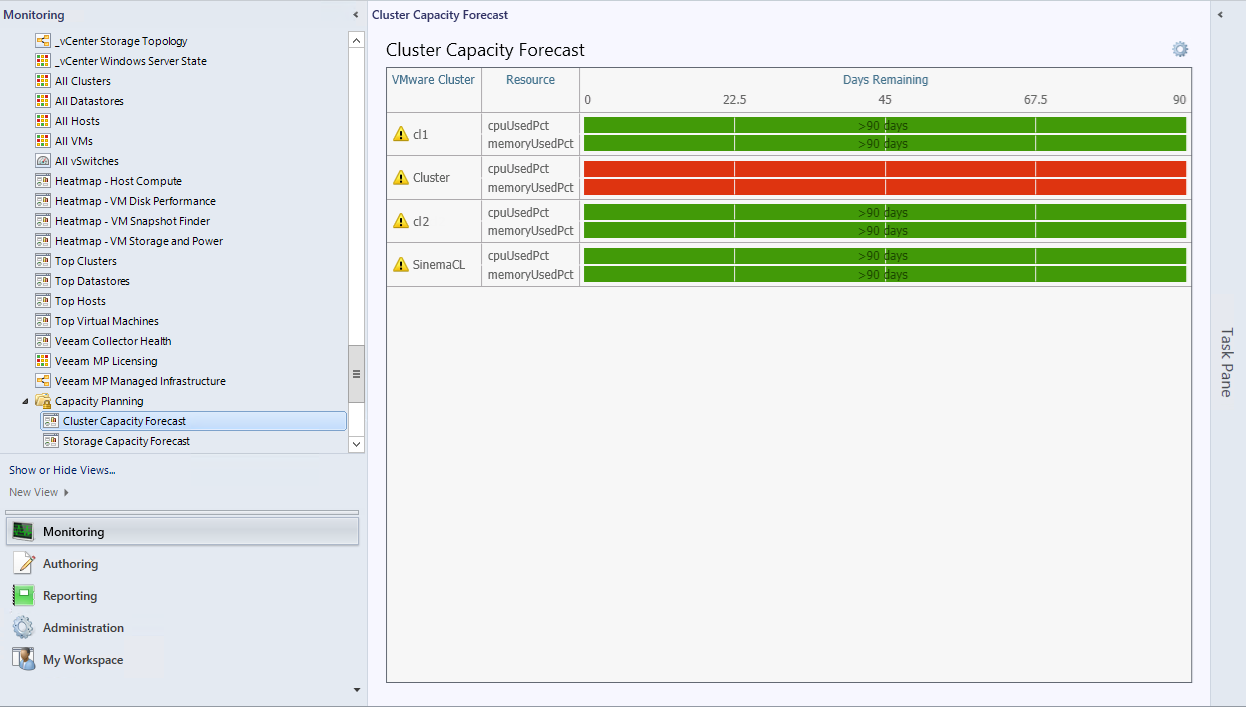


🔹 Objectives
- Predict future needs
- Avoid resource shortages
🔹 Key Metrics:
- Resource utilization trends
- Growth rate
🔹 Strategy:
- Scale proactively
🏢 10.11 Monitoring at Scale
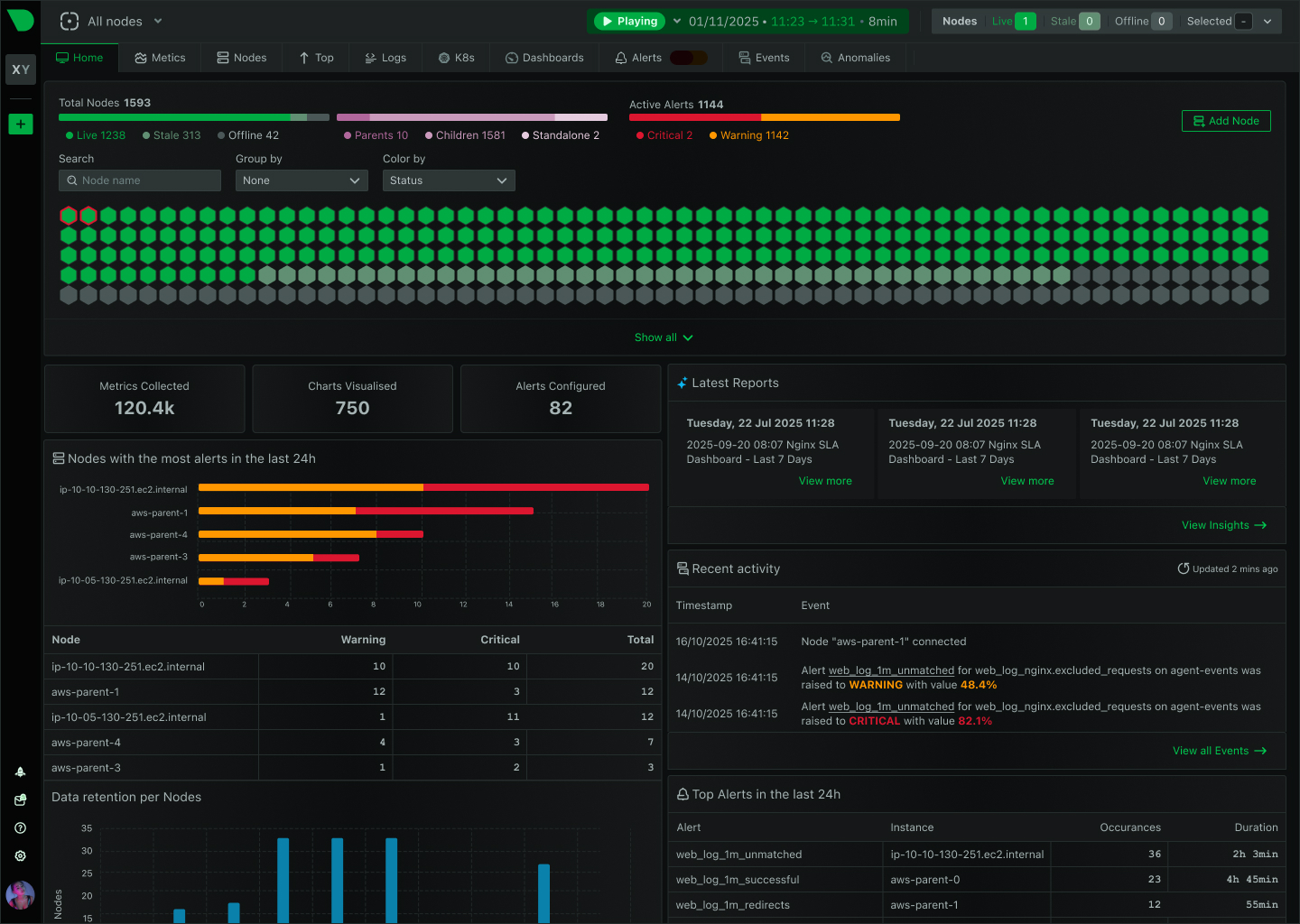
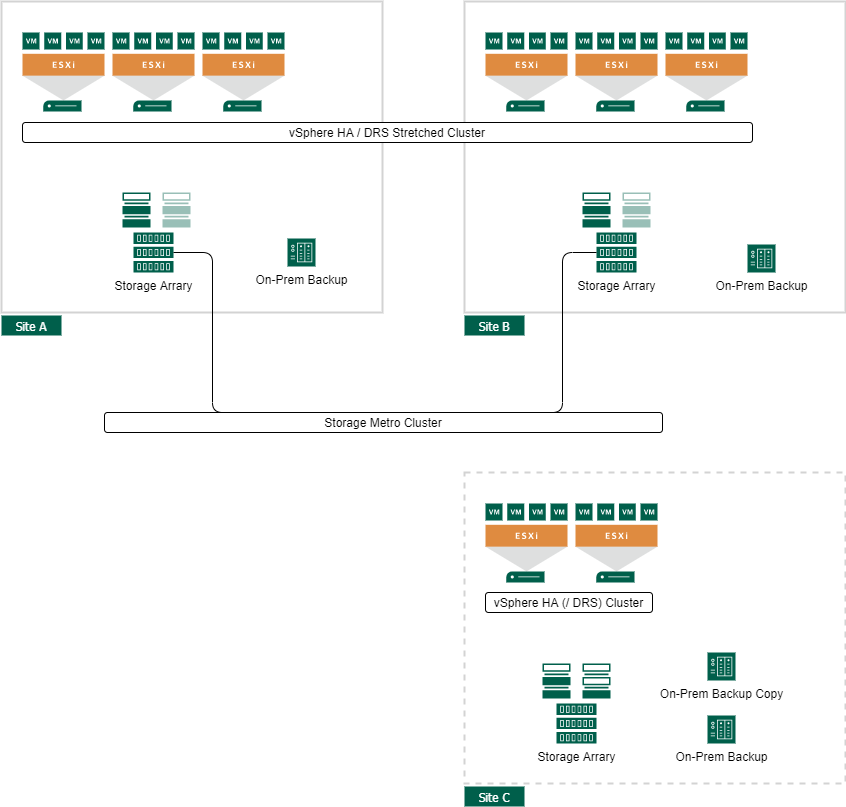
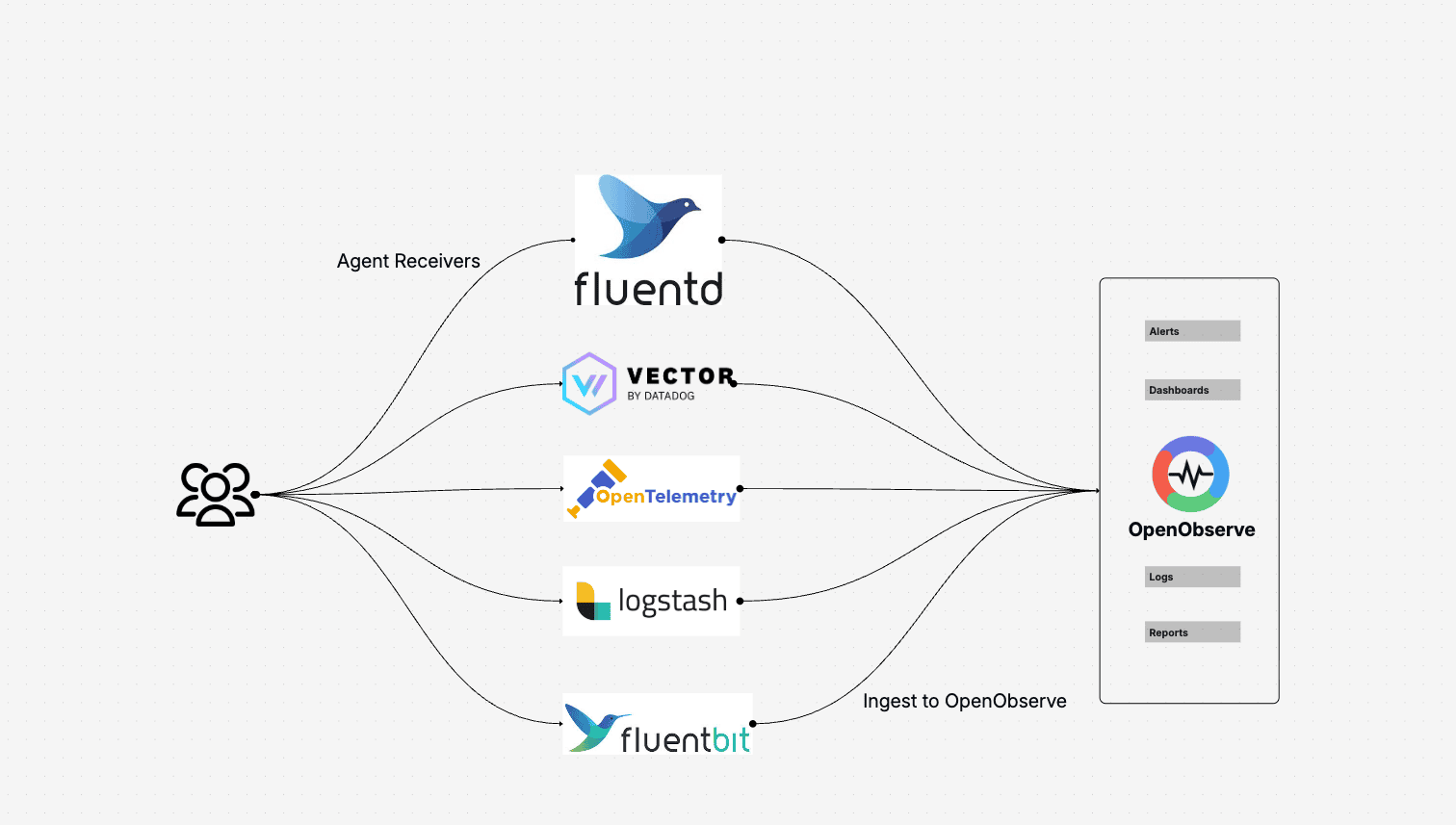
🔹 Challenges:
- Data volume
- Complexity
- Noise
🔹 Solutions:
- Centralized monitoring
- Automation
- AI-driven insights
🔄 10.12 Integration with Advanced Tools
🔹 Examples:
- VMware Aria Operations
- Log analytics tools
🔹 Benefits:
- Predictive analytics
- Root cause analysis
⚠️ 10.13 Common Pitfalls and Best Practices
❌ Pitfalls:
- Ignoring alerts
- Overloading dashboards
- Misinterpreting metrics
✅ Best Practices:
- Focus on key metrics
- Automate alerts
- Regular reviews
- Use baselines
🧠 10.14 Architectural Insights
🔹 Monitoring Philosophy
vSphere monitoring is:
- Data-driven
- Continuous
- Proactive
🔹 Key Principle:
Observability enables intelligent decision-making.
📌 10.15 Summary
Monitoring in VMware vSphere ensures:
- Visibility
- Performance optimization
- Capacity planning
- Rapid troubleshooting
It transforms infrastructure from:
- Reactive → Proactive
- Opaque → Transparent
📘 Chapter 10: Monitoring and Performance
(Aligned with official Broadcom TechDocs: vSphere Monitoring and Performance)
🧠 10.1 Introduction to Monitoring in vSphere
Monitoring is the observability backbone of VMware vSphere. Without it, even the most well-designed infrastructure becomes opaque, reactive, and difficult to manage.
🔍 Core Objective
Provide:
- Visibility into system behavior
- Early detection of issues
- Data-driven optimization
- Capacity planning insights
🔹 Key Principle
“You cannot optimize what you cannot measure.”
📊 10.2 Monitoring Architecture in vSphere
🔹 Data Collection Flow
- Metrics collected at ESXi host
- Sent to vCenter Server
- Stored in database
- Visualized in charts
🔹 Types of Data
- Performance metrics
- Events
- Tasks
- Logs
🔹 Statistics Levels
| Level | Detail |
|---|---|
| Level 1 | Basic |
| Level 4 | Detailed |
🔹 Trade-Off
Higher detail → More storage + overhead
⚙️ 10.3 Key Performance Metrics
🔹 CPU Metrics
CPU Usage
- Percentage of CPU used
CPU Ready
- Time VM waits for CPU
Co-Stop
- Synchronization delay in multi-vCPU VMs
🔹 Key Insight:
High CPU ready time = contention
🧠 10.4 Memory Metrics
🔹 Important Metrics
Active Memory
- Actively used memory
Consumed Memory
- Allocated memory
Ballooning
- Memory reclaimed
Swapping
- Disk usage for memory
🔹 Key Insight:
Swapping = performance degradation
💾 10.5 Storage Metrics
🔹 Key Metrics
Latency
- Response time
IOPS
- Operations per second
Throughput
- Data transfer rate
🔹 Thresholds:
- Latency > 20 ms → concern
🌐 10.6 Network Metrics
🔹 Metrics
- Throughput
- Packet loss
- Latency
🔹 Common Issues:
- Network congestion
- Misconfiguration
📈 10.7 Performance Charts and Analysis
🔹 Chart Types
- Real-time
- Historical
🔹 Time Ranges
- 20 seconds (real-time)
- Hourly
- Daily
🔹 Use Cases:
- Troubleshooting
- Trend analysis
🚨 10.8 Alarms and Alerts
🔹 Alarm Components
- Trigger condition
- Threshold
- Action
🔹 Actions:
- Email notification
- Script execution
🔹 Best Practice:
Tune thresholds carefully
🧪 10.9 Performance Troubleshooting Methodology
🔹 Step-by-Step Approach
- Identify symptoms
- Check metrics
- Isolate bottleneck
- Apply fix
🔹 Bottleneck Types:
| Type | Indicator |
|---|---|
| CPU | High ready time |
| Memory | Swapping |
| Storage | High latency |
| Network | Packet loss |
🔹 Golden Rule:
Fix root cause, not symptoms
📊 10.10 Capacity Planning
🔹 Objectives
- Predict future needs
- Avoid resource shortages
🔹 Key Metrics:
- Resource utilization trends
- Growth rate
🔹 Strategy:
- Scale proactively
🏢 10.11 Monitoring at Scale
🔹 Challenges:
- Data volume
- Complexity
- Noise
🔹 Solutions:
- Centralized monitoring
- Automation
- AI-driven insights
🔄 10.12 Integration with Advanced Tools
🔹 Examples:
- VMware Aria Operations
- Log analytics tools
🔹 Benefits:
- Predictive analytics
- Root cause analysis
⚠️ 10.13 Common Pitfalls and Best Practices
❌ Pitfalls:
- Ignoring alerts
- Overloading dashboards
- Misinterpreting metrics
✅ Best Practices:
- Focus on key metrics
- Automate alerts
- Regular reviews
- Use baselines
🧠 10.14 Architectural Insights
🔹 Monitoring Philosophy
vSphere monitoring is:
- Data-driven
- Continuous
- Proactive
🔹 Key Principle:
Observability enables intelligent decision-making.
📌 10.15 Summary
Monitoring in VMware vSphere ensures:
- Visibility
- Performance optimization
- Capacity planning
- Rapid troubleshooting
It transforms infrastructure from:
- Reactive → Proactive
- Opaque → Transparent
📘 Chapter 10: Monitoring and Performance
(Aligned with official Broadcom TechDocs: vSphere Monitoring and Performance)
🧠 10.1 Introduction to Monitoring in vSphere
Monitoring is the observability backbone of VMware vSphere. Without it, even the most well-designed infrastructure becomes opaque, reactive, and difficult to manage.
🔍 Core Objective
Provide:
- Visibility into system behavior
- Early detection of issues
- Data-driven optimization
- Capacity planning insights
🔹 Key Principle
“You cannot optimize what you cannot measure.”
📊 10.2 Monitoring Architecture in vSphere
🔹 Data Collection Flow
- Metrics collected at ESXi host
- Sent to vCenter Server
- Stored in database
- Visualized in charts
🔹 Types of Data
- Performance metrics
- Events
- Tasks
- Logs
🔹 Statistics Levels
| Level | Detail |
|---|---|
| Level 1 | Basic |
| Level 4 | Detailed |
🔹 Trade-Off
Higher detail → More storage + overhead
⚙️ 10.3 Key Performance Metrics
🔹 CPU Metrics
CPU Usage
- Percentage of CPU used
CPU Ready
- Time VM waits for CPU
Co-Stop
- Synchronization delay in multi-vCPU VMs
🔹 Key Insight:
High CPU ready time = contention
🧠 10.4 Memory Metrics
🔹 Important Metrics
Active Memory
- Actively used memory
Consumed Memory
- Allocated memory
Ballooning
- Memory reclaimed
Swapping
- Disk usage for memory
🔹 Key Insight:
Swapping = performance degradation
💾 10.5 Storage Metrics
🔹 Key Metrics
Latency
- Response time
IOPS
- Operations per second
Throughput
- Data transfer rate
🔹 Thresholds:
- Latency > 20 ms → concern
🌐 10.6 Network Metrics
🔹 Metrics
- Throughput
- Packet loss
- Latency
🔹 Common Issues:
- Network congestion
- Misconfiguration
📈 10.7 Performance Charts and Analysis
🔹 Chart Types
- Real-time
- Historical
🔹 Time Ranges
- 20 seconds (real-time)
- Hourly
- Daily
🔹 Use Cases:
- Troubleshooting
- Trend analysis
🚨 10.8 Alarms and Alerts
🔹 Alarm Components
- Trigger condition
- Threshold
- Action
🔹 Actions:
- Email notification
- Script execution
🔹 Best Practice:
Tune thresholds carefully
🧪 10.9 Performance Troubleshooting Methodology
🔹 Step-by-Step Approach
- Identify symptoms
- Check metrics
- Isolate bottleneck
- Apply fix
🔹 Bottleneck Types:
| Type | Indicator |
|---|---|
| CPU | High ready time |
| Memory | Swapping |
| Storage | High latency |
| Network | Packet loss |
🔹 Golden Rule:
Fix root cause, not symptoms
📊 10.10 Capacity Planning
🔹 Objectives
- Predict future needs
- Avoid resource shortages
🔹 Key Metrics:
- Resource utilization trends
- Growth rate
🔹 Strategy:
- Scale proactively
🏢 10.11 Monitoring at Scale
🔹 Challenges:
- Data volume
- Complexity
- Noise
🔹 Solutions:
- Centralized monitoring
- Automation
- AI-driven insights
🔄 10.12 Integration with Advanced Tools
🔹 Examples:
- VMware Aria Operations
- Log analytics tools
🔹 Benefits:
- Predictive analytics
- Root cause analysis
⚠️ 10.13 Common Pitfalls and Best Practices
❌ Pitfalls:
- Ignoring alerts
- Overloading dashboards
- Misinterpreting metrics
✅ Best Practices:
- Focus on key metrics
- Automate alerts
- Regular reviews
- Use baselines
🧠 10.14 Architectural Insights
🔹 Monitoring Philosophy
vSphere monitoring is:
- Data-driven
- Continuous
- Proactive
🔹 Key Principle:
Observability enables intelligent decision-making.
📌 10.15 Summary
Monitoring in VMware vSphere ensures:
- Visibility
- Performance optimization
- Capacity planning
- Rapid troubleshooting
It transforms infrastructure from:
- Reactive → Proactive
- Opaque → Transparent
📘 Chapter 10: Monitoring and Performance
(Aligned with official Broadcom TechDocs: vSphere Monitoring and Performance)
🧠 10.1 Introduction to Monitoring in vSphere
Monitoring is the observability backbone of VMware vSphere. Without it, even the most well-designed infrastructure becomes opaque, reactive, and difficult to manage.
🔍 Core Objective
Provide:
- Visibility into system behavior
- Early detection of issues
- Data-driven optimization
- Capacity planning insights
🔹 Key Principle
“You cannot optimize what you cannot measure.”
📊 10.2 Monitoring Architecture in vSphere
🔹 Data Collection Flow
- Metrics collected at ESXi host
- Sent to vCenter Server
- Stored in database
- Visualized in charts
🔹 Types of Data
- Performance metrics
- Events
- Tasks
- Logs
🔹 Statistics Levels
| Level | Detail |
|---|---|
| Level 1 | Basic |
| Level 4 | Detailed |
🔹 Trade-Off
Higher detail → More storage + overhead
⚙️ 10.3 Key Performance Metrics
🔹 CPU Metrics
CPU Usage
- Percentage of CPU used
CPU Ready
- Time VM waits for CPU
Co-Stop
- Synchronization delay in multi-vCPU VMs
🔹 Key Insight:
High CPU ready time = contention
🧠 10.4 Memory Metrics
🔹 Important Metrics
Active Memory
- Actively used memory
Consumed Memory
- Allocated memory
Ballooning
- Memory reclaimed
Swapping
- Disk usage for memory
🔹 Key Insight:
Swapping = performance degradation
💾 10.5 Storage Metrics
🔹 Key Metrics
Latency
- Response time
IOPS
- Operations per second
Throughput
- Data transfer rate
🔹 Thresholds:
- Latency > 20 ms → concern
🌐 10.6 Network Metrics
🔹 Metrics
- Throughput
- Packet loss
- Latency
🔹 Common Issues:
- Network congestion
- Misconfiguration
📈 10.7 Performance Charts and Analysis
🔹 Chart Types
- Real-time
- Historical
🔹 Time Ranges
- 20 seconds (real-time)
- Hourly
- Daily
🔹 Use Cases:
- Troubleshooting
- Trend analysis
🚨 10.8 Alarms and Alerts
🔹 Alarm Components
- Trigger condition
- Threshold
- Action
🔹 Actions:
- Email notification
- Script execution
🔹 Best Practice:
Tune thresholds carefully
🧪 10.9 Performance Troubleshooting Methodology
🔹 Step-by-Step Approach
- Identify symptoms
- Check metrics
- Isolate bottleneck
- Apply fix
🔹 Bottleneck Types:
| Type | Indicator |
|---|---|
| CPU | High ready time |
| Memory | Swapping |
| Storage | High latency |
| Network | Packet loss |
🔹 Golden Rule:
Fix root cause, not symptoms
📊 10.10 Capacity Planning
🔹 Objectives
- Predict future needs
- Avoid resource shortages
🔹 Key Metrics:
- Resource utilization trends
- Growth rate
🔹 Strategy:
- Scale proactively
🏢 10.11 Monitoring at Scale
🔹 Challenges:
- Data volume
- Complexity
- Noise
🔹 Solutions:
- Centralized monitoring
- Automation
- AI-driven insights
🔄 10.12 Integration with Advanced Tools
🔹 Examples:
- VMware Aria Operations
- Log analytics tools
🔹 Benefits:
- Predictive analytics
- Root cause analysis
⚠️ 10.13 Common Pitfalls and Best Practices
❌ Pitfalls:
- Ignoring alerts
- Overloading dashboards
- Misinterpreting metrics
✅ Best Practices:
- Focus on key metrics
- Automate alerts
- Regular reviews
- Use baselines
🧠 10.14 Architectural Insights
🔹 Monitoring Philosophy
vSphere monitoring is:
- Data-driven
- Continuous
- Proactive
🔹 Key Principle:
Observability enables intelligent decision-making.
📌 10.15 Summary
Monitoring in VMware vSphere ensures:
- Visibility
- Performance optimization
- Capacity planning
- Rapid troubleshooting
It transforms infrastructure from:
- Reactive → Proactive
- Opaque → Transparent
📘 Chapter 14: Windows Server Failover Clustering (WSFC) on vSphere
(Aligned with official Broadcom TechDocs: Setup for Windows Server Failover Clustering on vSphere)
🧠 14.1 Introduction to WSFC on vSphere


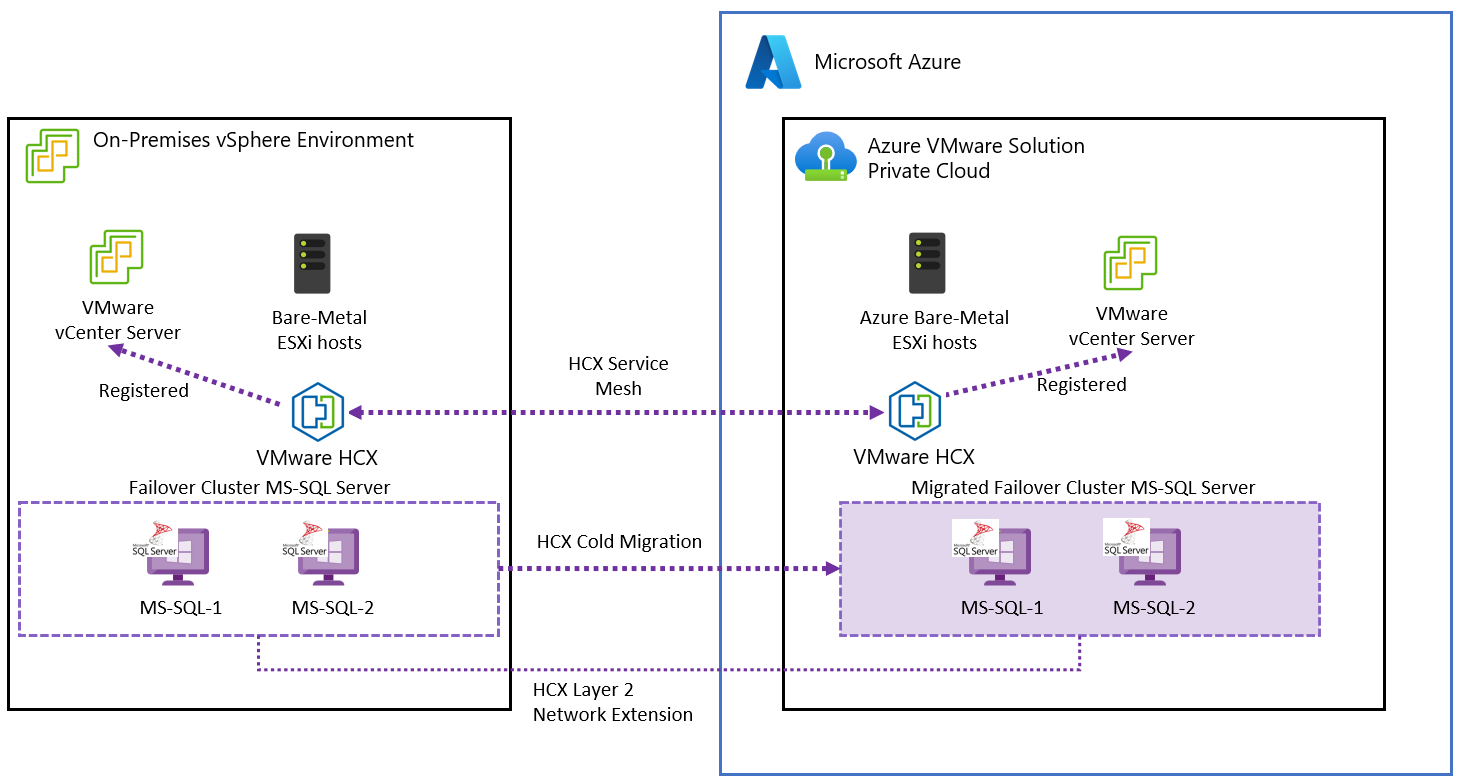
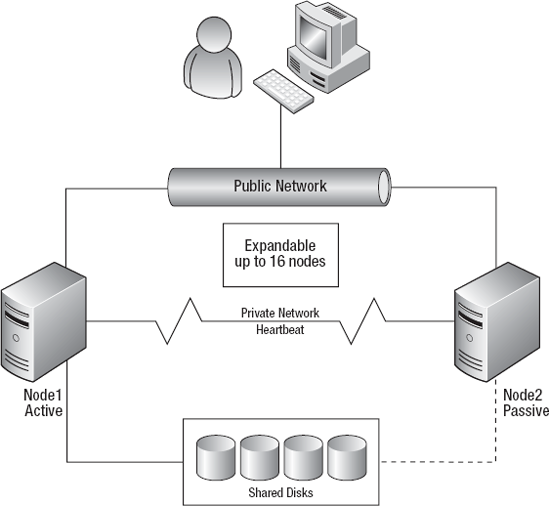
Windows Server Failover Clustering (WSFC) is a Microsoft clustering technology that provides application-level high availability. When deployed on VMware vSphere, it complements vSphere’s infrastructure-level availability (HA/FT) by enabling application-aware failover.
🔍 Why WSFC on vSphere?
- Protects stateful applications (e.g., databases)
- Provides fast failover at the application layer
- Works alongside vSphere HA for layered resilience
🔹 Key Insight
vSphere HA restarts VMs, but WSFC ensures application continuity inside the VM.
🏗️ 14.2 WSFC Architecture on vSphere
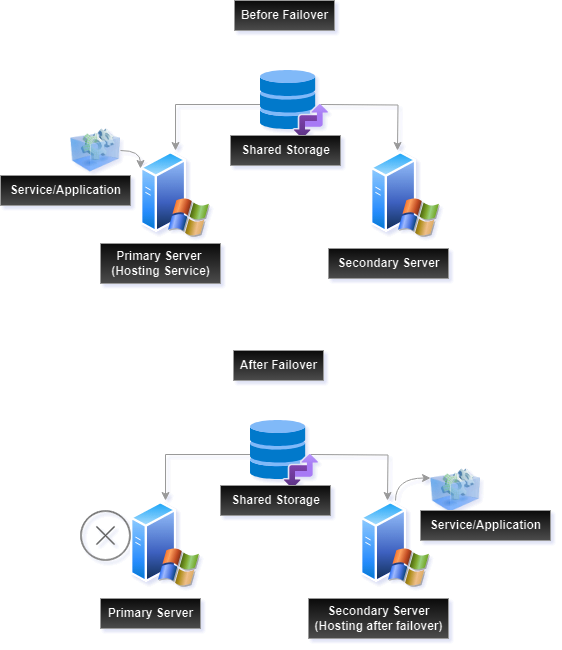


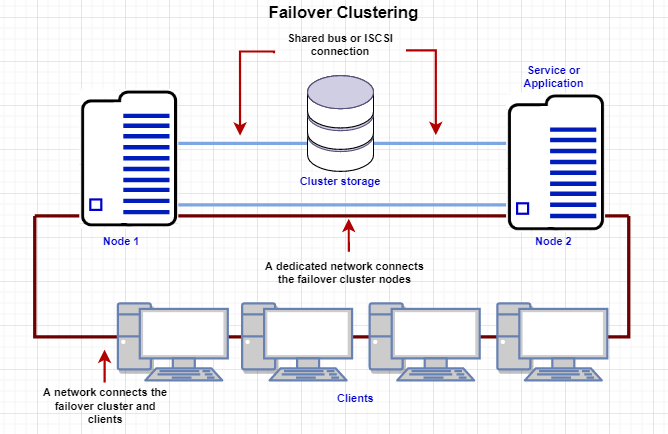
🔹 Supported Architectures
Cluster-in-a-Box
- All nodes on same host
- Not recommended for production
Cluster-Across-Boxes
- Nodes on different hosts
- Recommended approach
Multi-Site Clusters
- Nodes across data centers
- Used for disaster recovery
🔹 Components
- Cluster nodes (VMs)
- Shared storage
- Network heartbeat
- Cluster service
💾 14.3 Shared Storage Options


🔹 Storage Types
Raw Device Mapping (RDM)
- Direct access to LUN
- Traditional approach
Shared VMDK (Multi-Writer)
- Modern approach
- Supported with vSAN
vSAN Shared Disks
- Policy-driven storage
- Simplified management
🔹 Key Requirement
Shared disks must support:
- Simultaneous access
- Data consistency
🌐 14.4 Networking Requirements


🔹 Network Types
| Network | Purpose |
|---|---|
| Public | Client access |
| Private | Heartbeat |
🔹 Best Practices
- Use separate NICs
- Ensure low latency
- Avoid single points of failure
⚙️ 14.5 Configuring WSFC on vSphere
🔹 Step-by-Step Overview
- Deploy Windows Server VMs
- Configure networking
- Attach shared disks
- Install Failover Clustering feature
- Validate cluster configuration
- Create cluster
🔹 Validation
Microsoft validation tool ensures:
- Compatibility
- Stability
🔄 14.6 WSFC and vSphere HA Integration


🔹 Interaction Model
| Feature | Scope |
|---|---|
| vSphere HA | VM level |
| WSFC | Application level |
🔹 Combined Behavior
- Host failure → HA restarts VM
- Application failure → WSFC failover
🔹 Key Insight
Layered availability provides:
- Faster recovery
- Better resilience
⚠️ 14.7 Limitations and Constraints
🔹 Key Constraints
- Snapshot limitations
- Storage compatibility requirements
- Network dependency
🔹 Performance Considerations
- Shared storage latency
- Network bandwidth
🔐 14.8 Security Considerations
🔹 Areas to Secure
- Cluster communication
- Storage access
- VM isolation
🔹 Best Practices
- Use secure networks
- Restrict access
- Monitor cluster activity
📊 14.9 Monitoring WSFC on vSphere
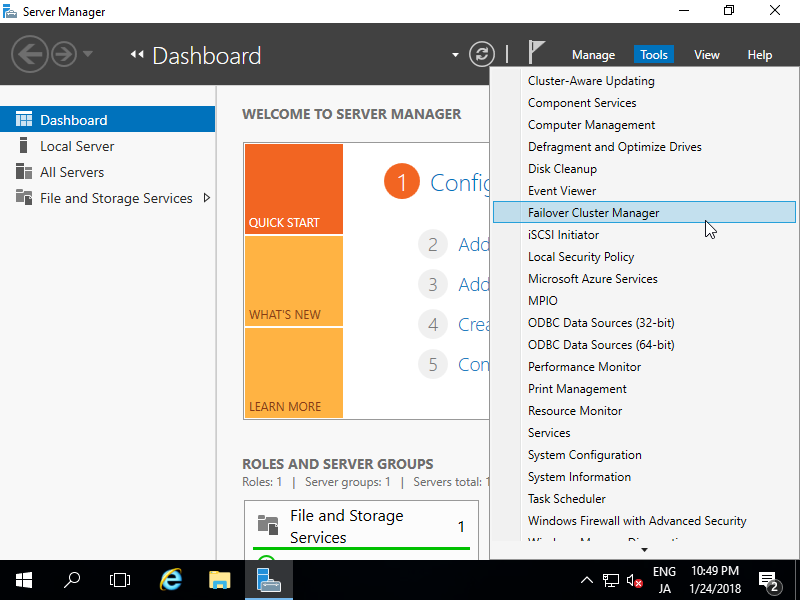
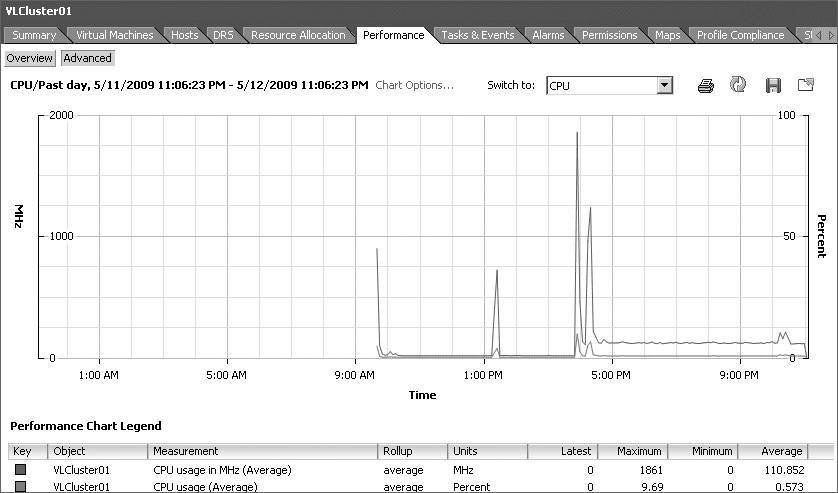
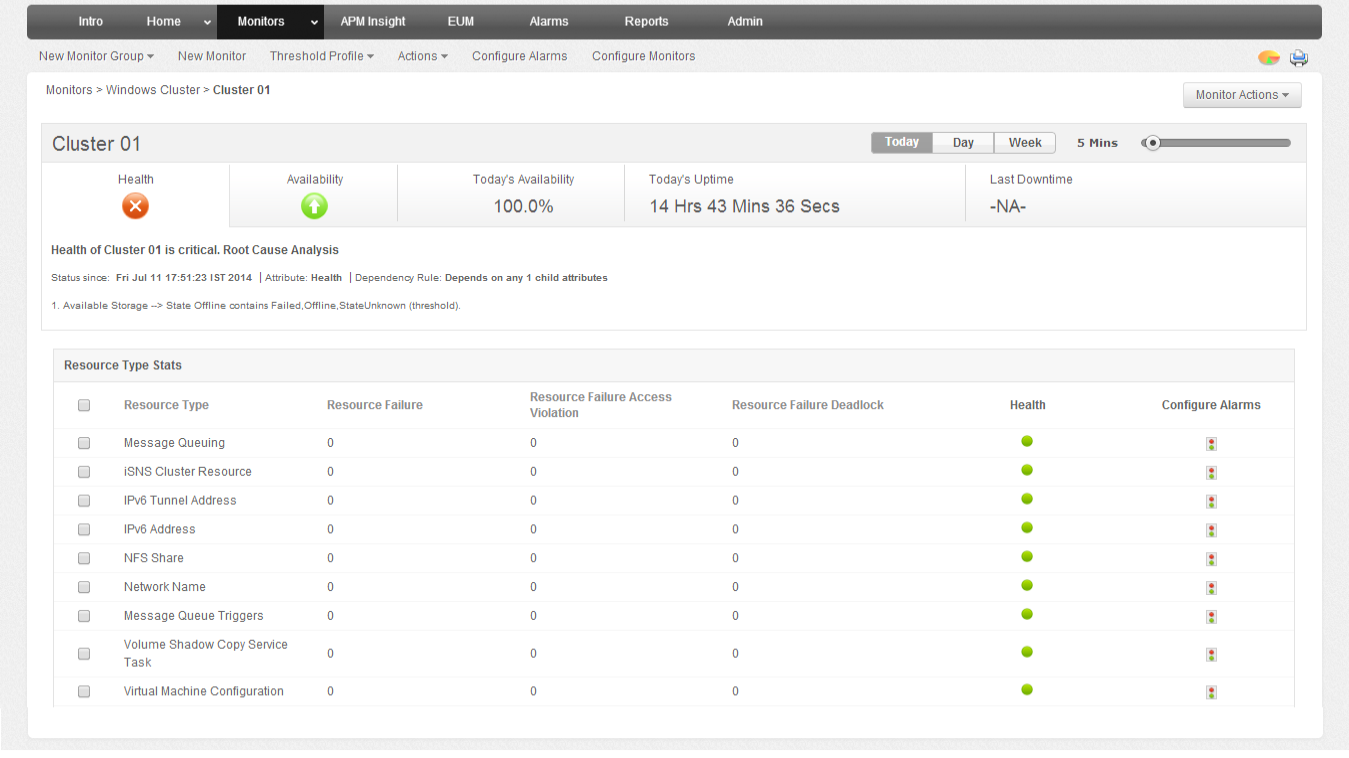
🔹 Tools
- Failover Cluster Manager
- vCenter monitoring
- Logs and alerts
🔹 Metrics
- Node health
- Failover events
- Resource usage
🏢 14.10 Enterprise Deployment Patterns
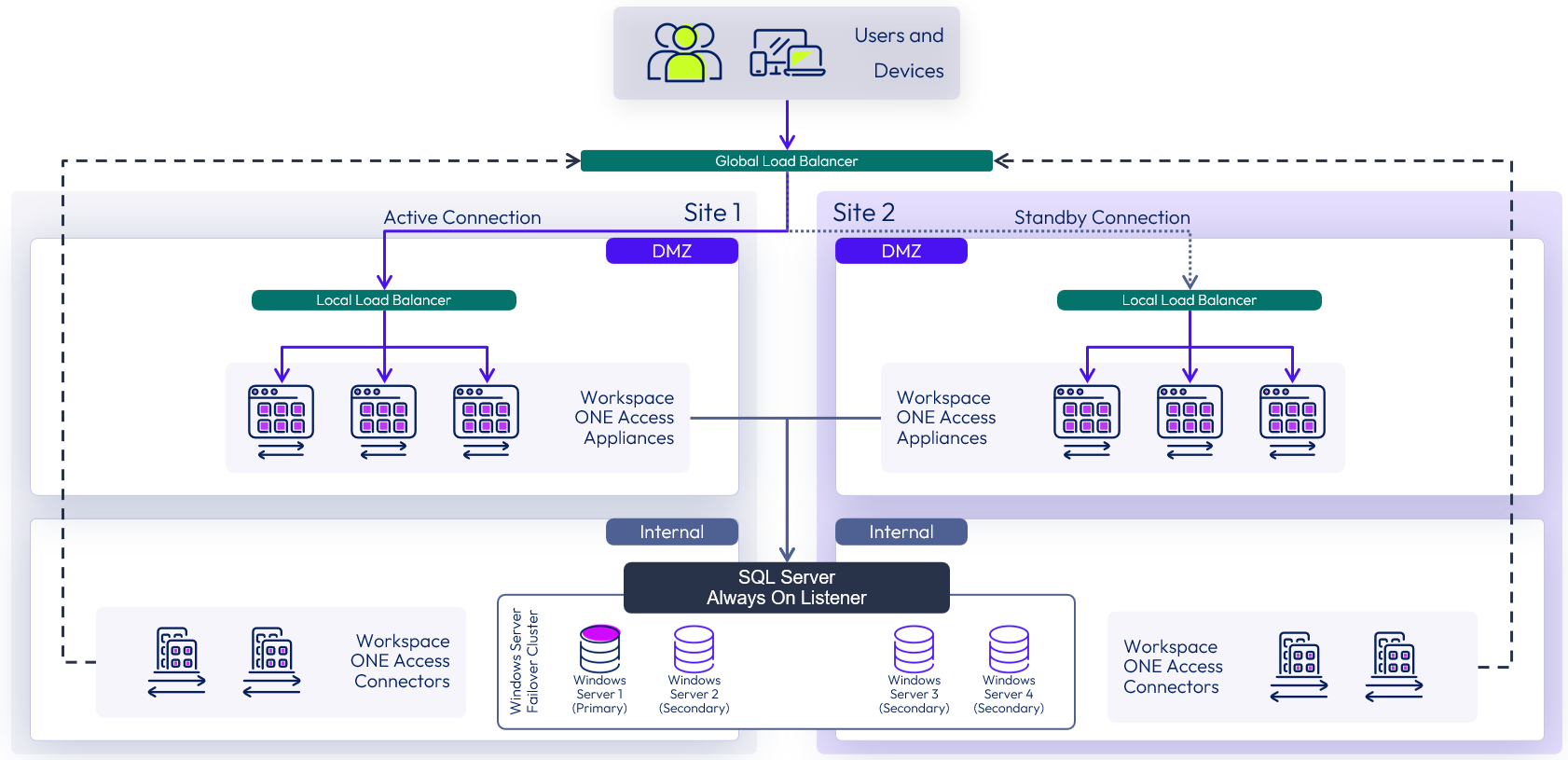
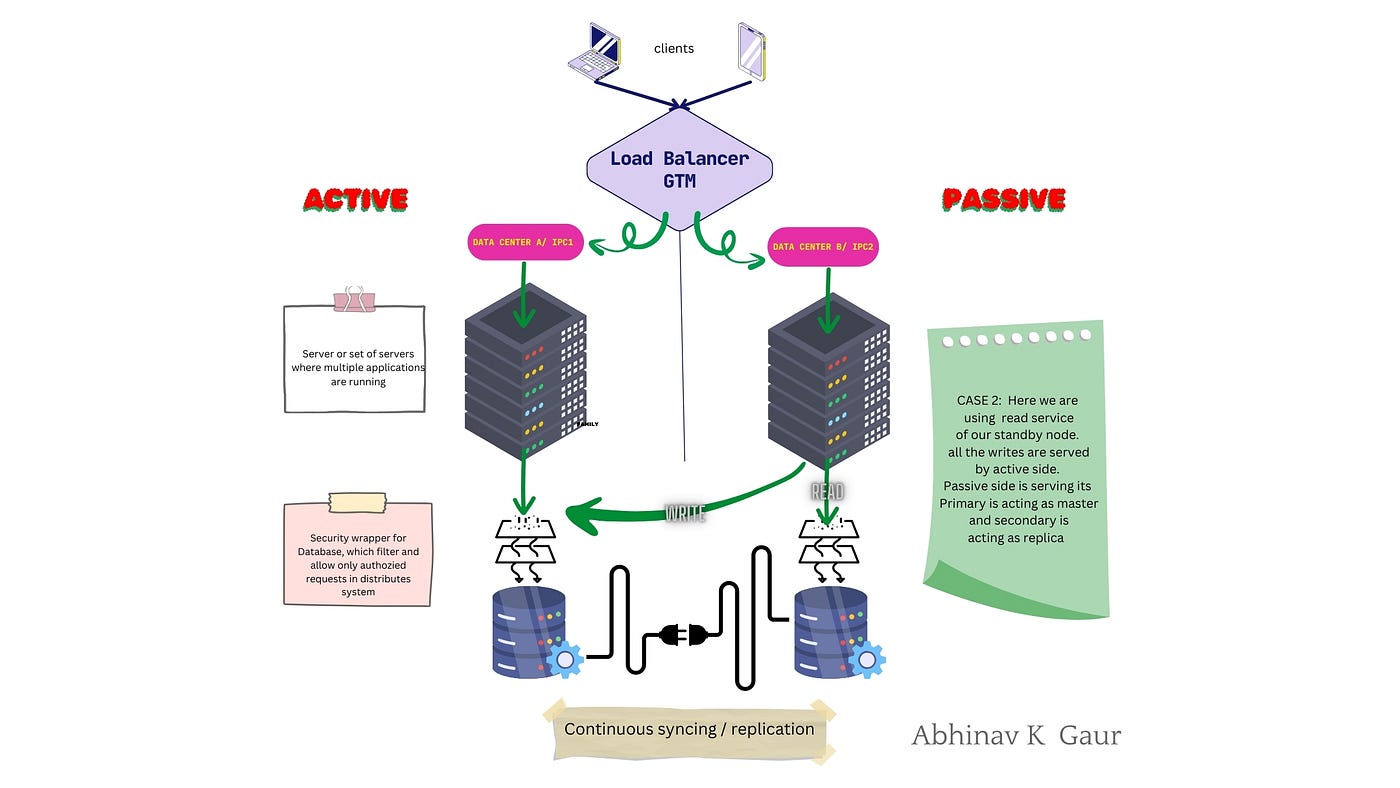
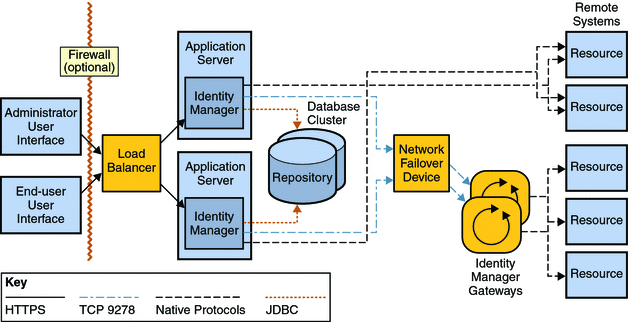
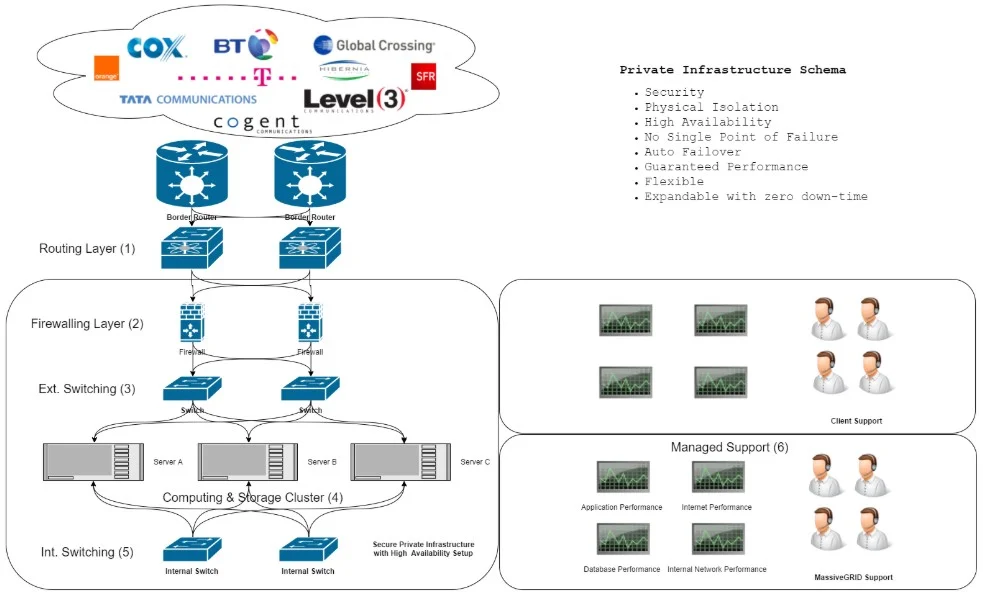
🔹 Common Use Cases
- SQL Server Failover Cluster Instances
- File server clusters
- Enterprise applications
🔹 Multi-Site DR
- Active-passive setup
- Replication integration
⚠️ 14.11 Common Pitfalls and Best Practices
❌ Pitfalls:
- Misconfigured shared storage
- Network latency issues
- Ignoring validation
✅ Best Practices:
- Follow official compatibility guidelines
- Use cluster-across-boxes design
- Test failover regularly
- Monitor continuously
🧠 14.12 Architectural Insights
🔹 WSFC Philosophy
- Application-level resilience
- Stateful workload protection
🔹 Key Principle:
Combine:
- Infrastructure availability (vSphere)
- Application availability (WSFC)
📌 14.13 Summary
WSFC on VMware vSphere provides:
- Application-level high availability
- Seamless failover
- Enterprise-grade resilience
It complements:
- vSphere HA
- Fault Tolerance
- Disaster recovery solutions
📘 Chapter 14: Windows Server Failover Clustering (WSFC) on vSphere
(Aligned with official Broadcom TechDocs: Setup for Windows Server Failover Clustering on vSphere)
🧠 14.1 Introduction to WSFC on vSphere
Windows Server Failover Clustering (WSFC) is a Microsoft clustering technology that provides application-level high availability. When deployed on VMware vSphere, it complements vSphere’s infrastructure-level availability (HA/FT) by enabling application-aware failover.
🔍 Why WSFC on vSphere?
- Protects stateful applications (e.g., databases)
- Provides fast failover at the application layer
- Works alongside vSphere HA for layered resilience
🔹 Key Insight
vSphere HA restarts VMs, but WSFC ensures application continuity inside the VM.
🏗️ 14.2 WSFC Architecture on vSphere
🔹 Supported Architectures
Cluster-in-a-Box
- All nodes on same host
- Not recommended for production
Cluster-Across-Boxes
- Nodes on different hosts
- Recommended approach
Multi-Site Clusters
- Nodes across data centers
- Used for disaster recovery
🔹 Components
- Cluster nodes (VMs)
- Shared storage
- Network heartbeat
- Cluster service
💾 14.3 Shared Storage Options
🔹 Storage Types
Raw Device Mapping (RDM)
- Direct access to LUN
- Traditional approach
Shared VMDK (Multi-Writer)
- Modern approach
- Supported with vSAN
vSAN Shared Disks
- Policy-driven storage
- Simplified management
🔹 Key Requirement
Shared disks must support:
- Simultaneous access
- Data consistency
🌐 14.4 Networking Requirements
🔹 Network Types
| Network | Purpose |
|---|---|
| Public | Client access |
| Private | Heartbeat |
🔹 Best Practices
- Use separate NICs
- Ensure low latency
- Avoid single points of failure
⚙️ 14.5 Configuring WSFC on vSphere
🔹 Step-by-Step Overview
- Deploy Windows Server VMs
- Configure networking
- Attach shared disks
- Install Failover Clustering feature
- Validate cluster configuration
- Create cluster
🔹 Validation
Microsoft validation tool ensures:
- Compatibility
- Stability
🔄 14.6 WSFC and vSphere HA Integration
🔹 Interaction Model
| Feature | Scope |
|---|---|
| vSphere HA | VM level |
| WSFC | Application level |
🔹 Combined Behavior
- Host failure → HA restarts VM
- Application failure → WSFC failover
🔹 Key Insight
Layered availability provides:
- Faster recovery
- Better resilience
⚠️ 14.7 Limitations and Constraints
🔹 Key Constraints
- Snapshot limitations
- Storage compatibility requirements
- Network dependency
🔹 Performance Considerations
- Shared storage latency
- Network bandwidth
🔐 14.8 Security Considerations
🔹 Areas to Secure
- Cluster communication
- Storage access
- VM isolation
🔹 Best Practices
- Use secure networks
- Restrict access
- Monitor cluster activity
📊 14.9 Monitoring WSFC on vSphere
🔹 Tools
- Failover Cluster Manager
- vCenter monitoring
- Logs and alerts
🔹 Metrics
- Node health
- Failover events
- Resource usage
🏢 14.10 Enterprise Deployment Patterns
🔹 Common Use Cases
- SQL Server Failover Cluster Instances
- File server clusters
- Enterprise applications
🔹 Multi-Site DR
- Active-passive setup
- Replication integration
⚠️ 14.11 Common Pitfalls and Best Practices
❌ Pitfalls:
- Misconfigured shared storage
- Network latency issues
- Ignoring validation
✅ Best Practices:
- Follow official compatibility guidelines
- Use cluster-across-boxes design
- Test failover regularly
- Monitor continuously
🧠 14.12 Architectural Insights
🔹 WSFC Philosophy
- Application-level resilience
- Stateful workload protection
🔹 Key Principle:
Combine:
- Infrastructure availability (vSphere)
- Application availability (WSFC)
📌 14.13 Summary
WSFC on VMware vSphere provides:
- Application-level high availability
- Seamless failover
- Enterprise-grade resilience
It complements:
- vSphere HA
- Fault Tolerance
- Disaster recovery solutions
📘 Chapter 16: Advanced Architecture and Design Patterns
(Aligned with official Broadcom TechDocs and VMware architecture best practices)
🧠 16.1 Introduction to Advanced vSphere Architecture
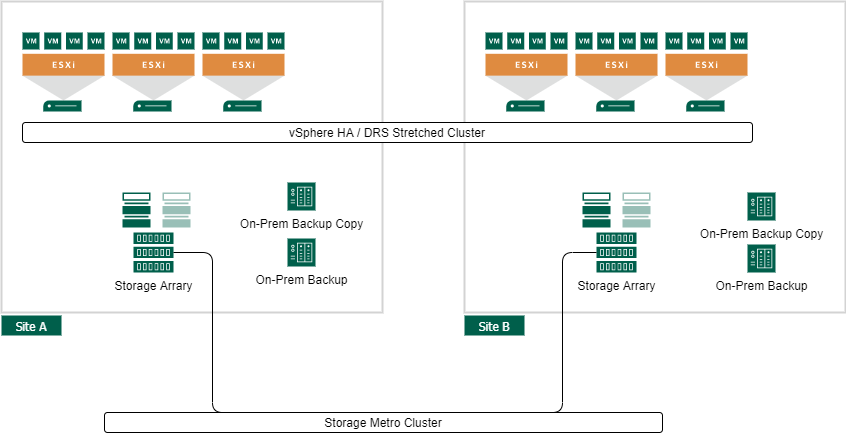
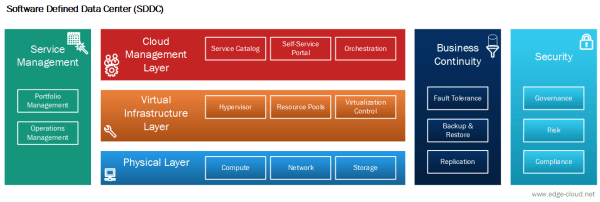


As organizations scale their infrastructure, basic deployments evolve into complex, distributed, and mission-critical systems. At this stage, architecture is no longer about individual components—it is about system design, resilience, scalability, and operational excellence.
VMware vSphere becomes the foundation layer of enterprise cloud platforms, supporting thousands of workloads across multiple environments.
🔍 Core Objective
Design infrastructure that is:
- Scalable
- Resilient
- Performant
- Secure
- Future-ready
🏗️ 16.2 Multi-Cluster Architecture Design


🔹 Why Multiple Clusters?
Single clusters have limits:
- Resource constraints
- Fault domain boundaries
- Operational complexity
🔹 Common Cluster Types
Management Cluster
- Runs vCenter, infrastructure services
Compute Cluster
- Hosts workloads
Edge Cluster
- Handles networking (NSX, gateways)
🔹 Benefits
- Isolation
- Scalability
- Fault containment
🌍 16.3 Multi-Datacenter and Multi-Site Design

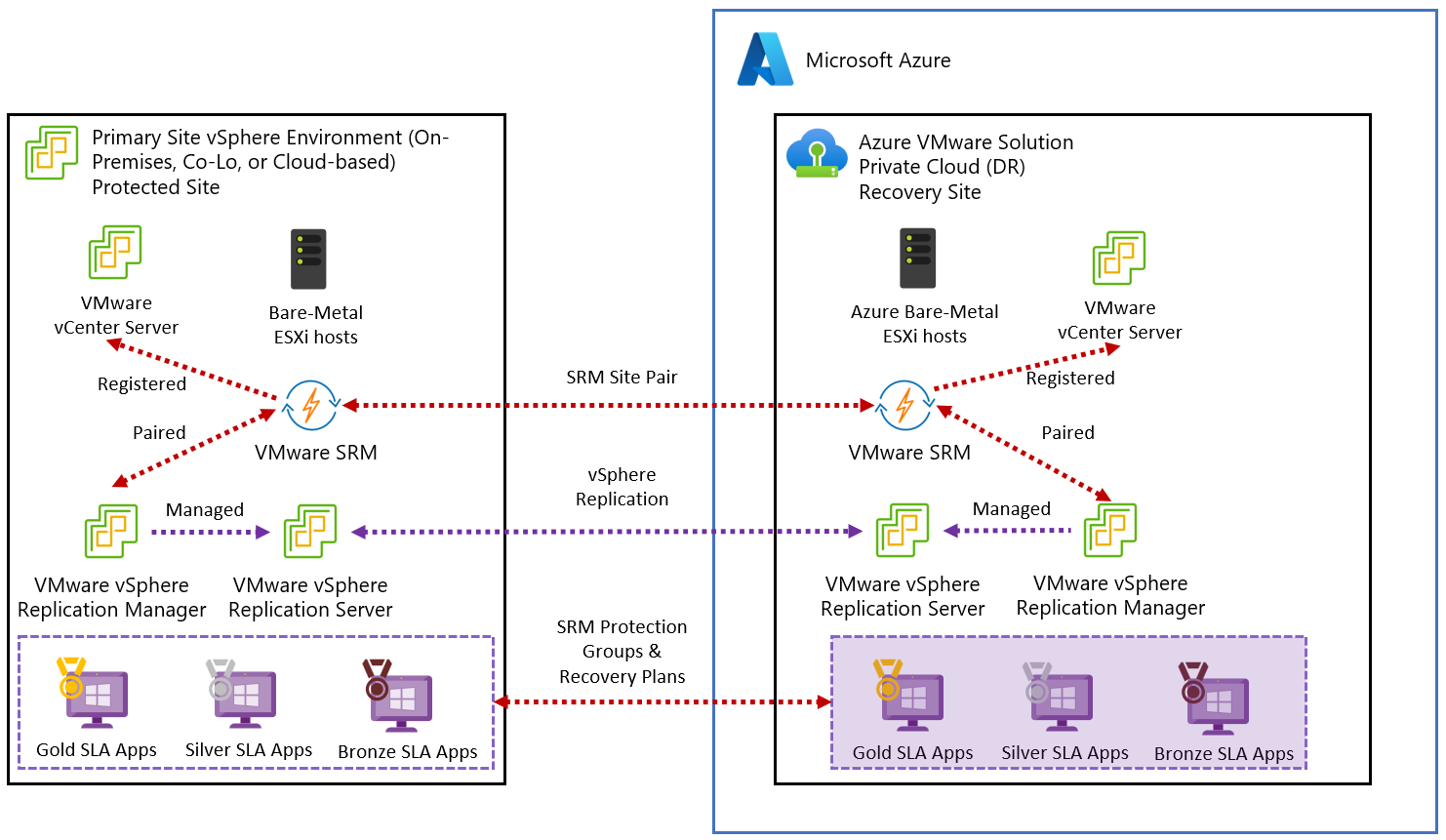
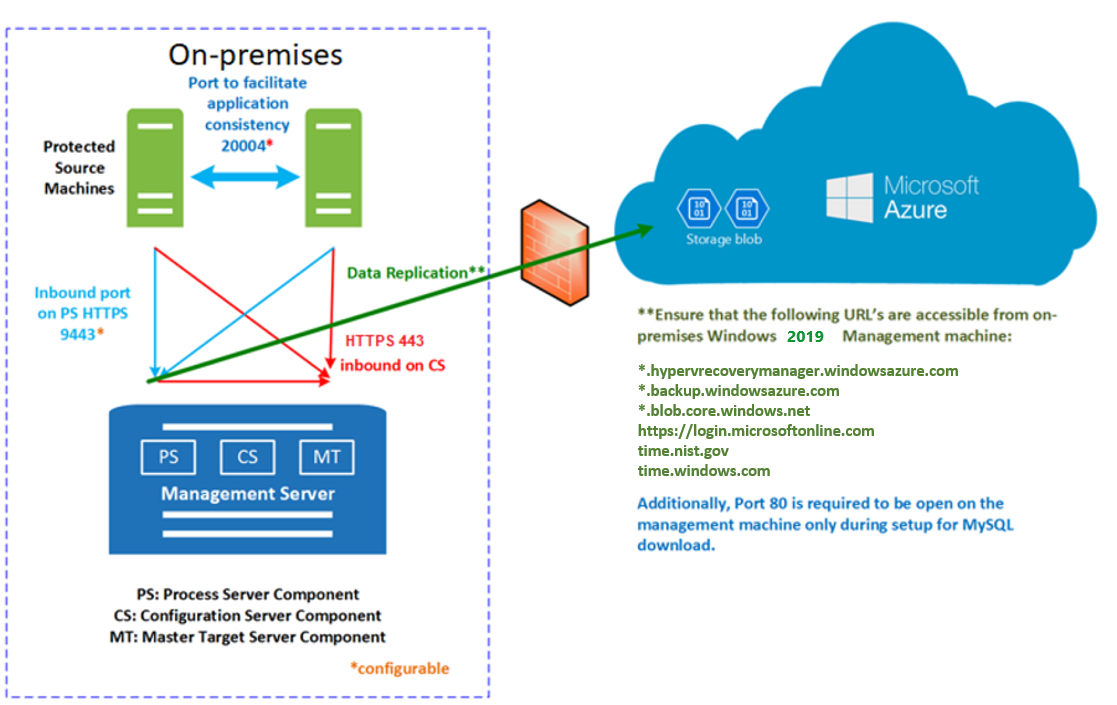
🔹 Deployment Models
Active-Passive
- Primary + standby site
Active-Active
- Both sites active
🔹 Key Considerations
- Latency
- Bandwidth
- Replication strategy
🔹 Use Cases
- Disaster recovery
- Global applications
☁️ 16.4 Hybrid and Multi-Cloud Architecture

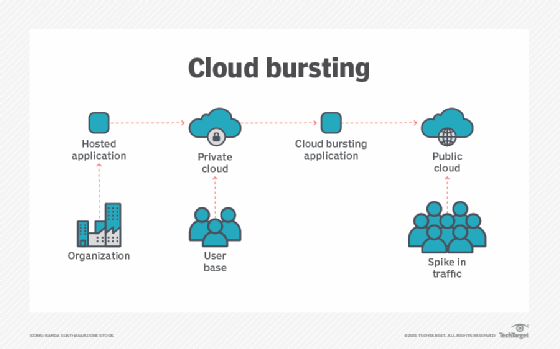
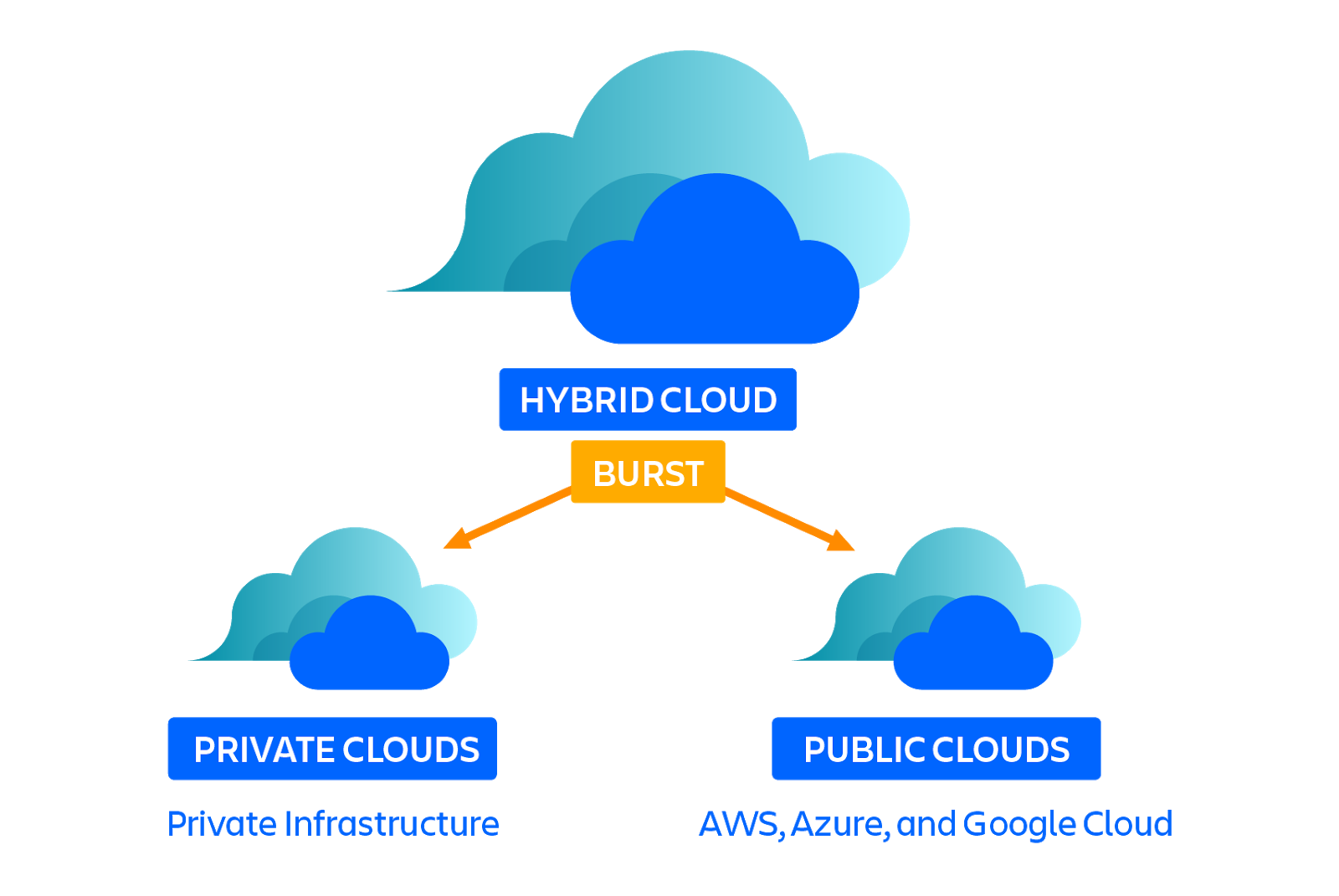
🔹 Hybrid Cloud
Combine:
- On-premises vSphere
- Public cloud
🔹 Benefits
- Flexibility
- Scalability
- Cost optimization
🔹 Key Technologies
- VMware Cloud
- HCX (workload migration)
🔹 Use Cases
- Cloud bursting
- Disaster recovery
⚙️ 16.5 Performance Optimization Architecture


🔹 CPU Optimization
- Align VMs with NUMA nodes
- Avoid over-provisioning
🔹 Memory Optimization
- Avoid excessive overcommitment
- Monitor ballooning
🔹 Storage Optimization
- Use NVMe / high-performance storage
- Optimize I/O paths
🔹 Network Optimization
- Use high-speed NICs
- Enable NIC teaming
🔐 16.6 Security Architecture at Scale


🔹 Principles
- Zero Trust
- Least privilege
- Defense-in-depth
🔹 Components
- Identity management
- Network segmentation
- Encryption
🔹 Tools
- VMware NSX
- RBAC
- Encryption
🔄 16.7 Scalability and Growth Planning

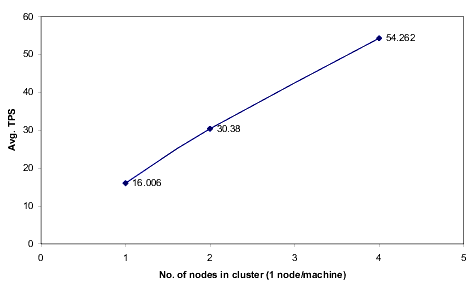
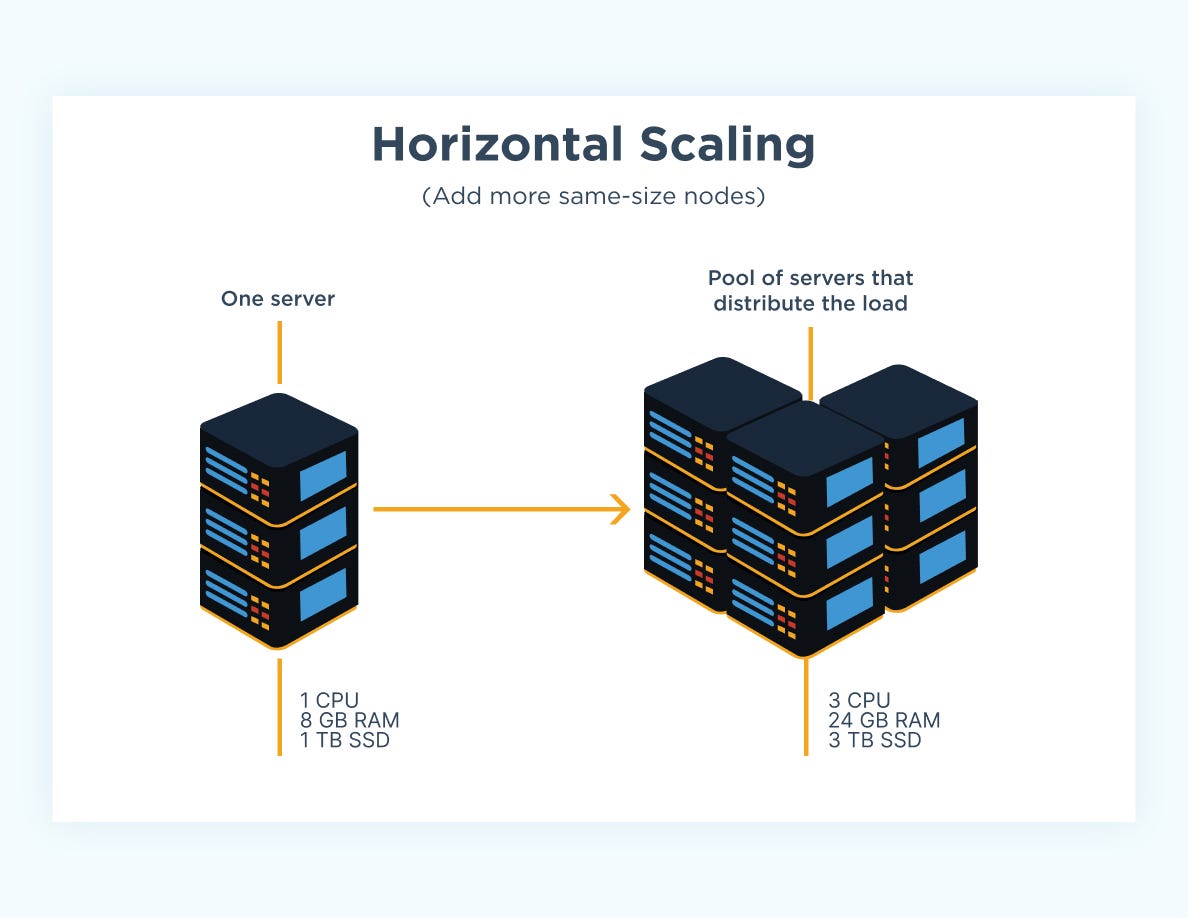
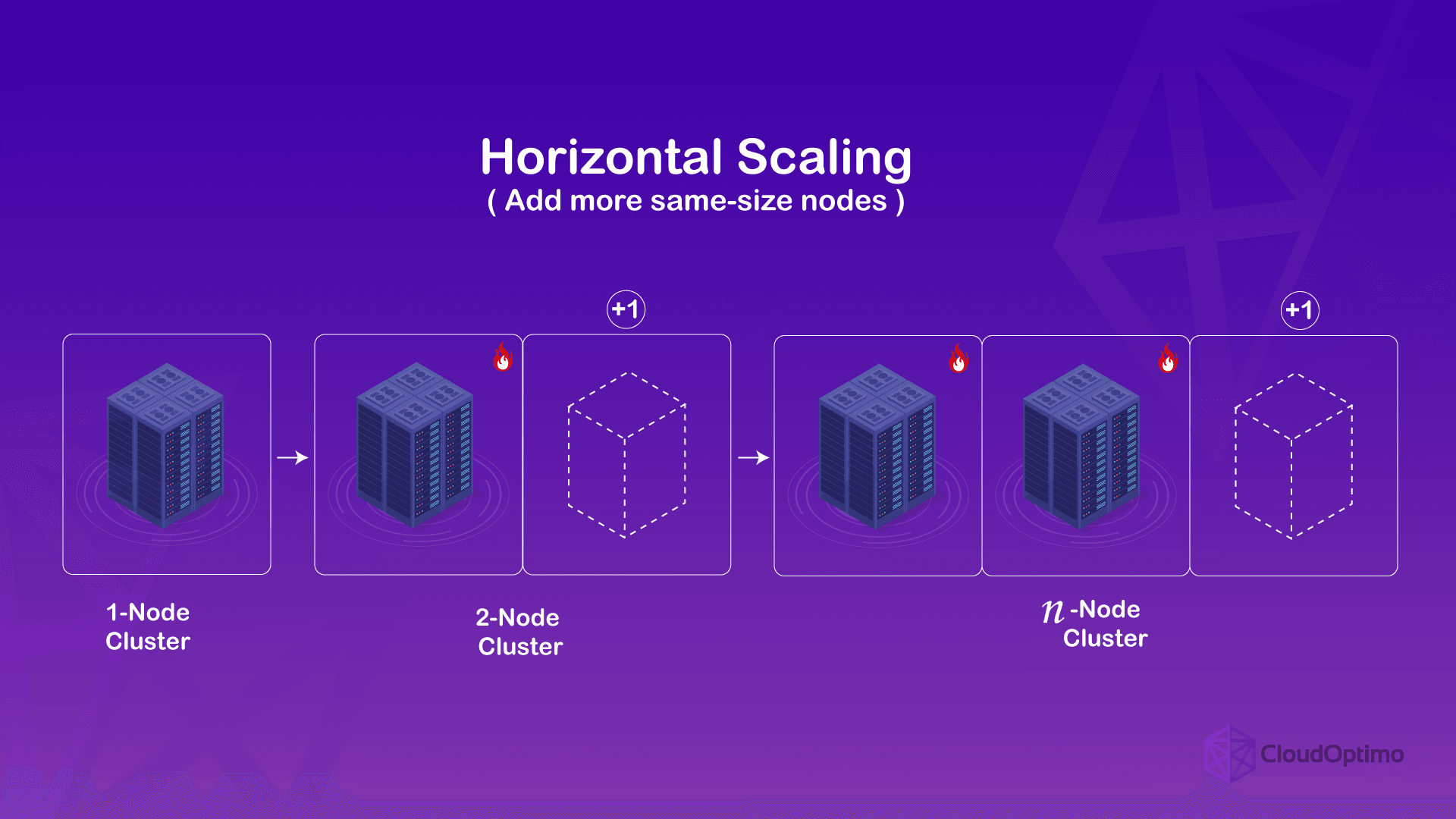
🔹 Scaling Strategies
Vertical Scaling
- Add resources to existing hosts
Horizontal Scaling
- Add more hosts
🔹 Key Insight
Horizontal scaling is preferred for:
- Flexibility
- Fault tolerance
🧩 16.8 Design Patterns for Enterprise Workloads


🔹 Three-Tier Architecture
- Web
- Application
- Database
🔹 Microservices Architecture
- Containers + VMs
🔹 Stateful vs Stateless
- Different scaling strategies
🏢 16.9 Governance and Operational Models
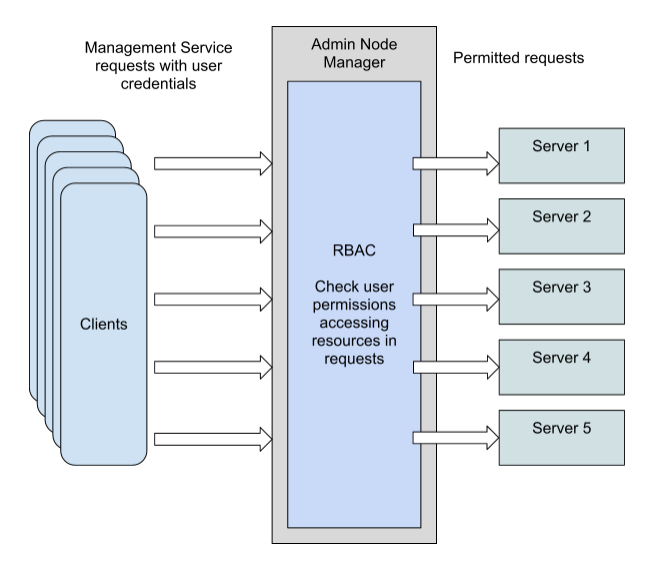
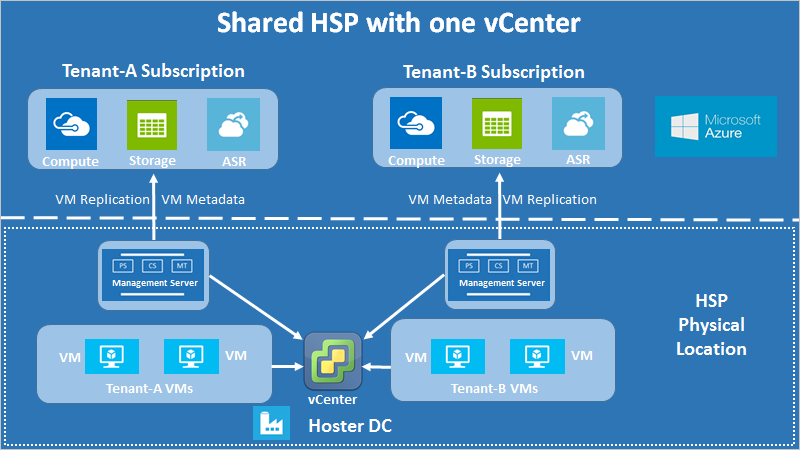

🔹 Governance Areas
- Access control
- Resource allocation
- Compliance
🔹 Models
- Centralized IT
- Federated IT
🔹 Tools
- RBAC
- Tagging
- Automation
🔄 16.10 Resilience and Fault Domain Design
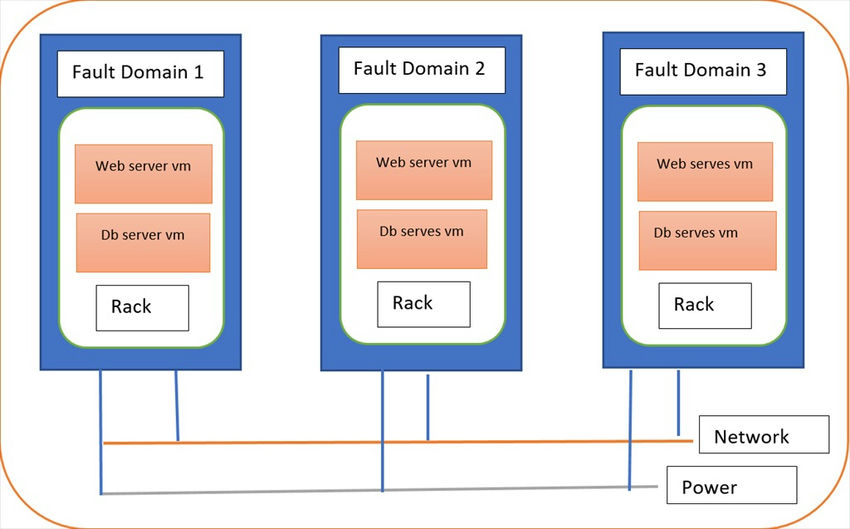
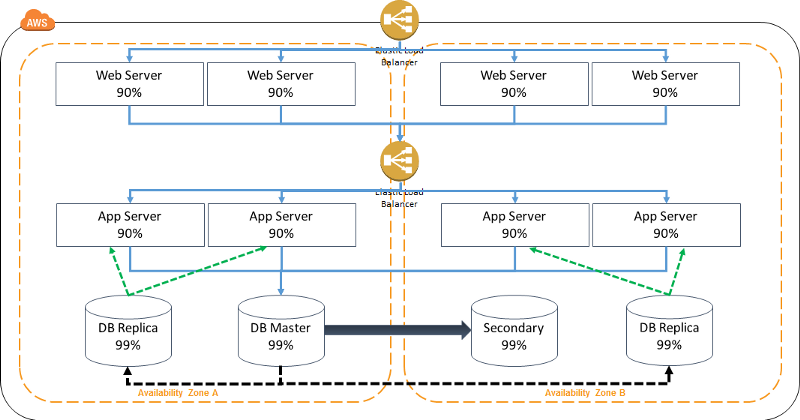

🔹 Fault Domains
- Host
- Rack
- Datacenter
🔹 Design Goal
Prevent:
- Cascading failures
🔹 Strategy
- Distribute workloads
- Avoid single points of failure
📊 16.11 Observability-Driven Architecture
🔹 Key Idea
Monitoring drives:
- Design decisions
- Optimization
🔹 Components
- Metrics
- Logs
- Alerts
🔹 Outcome
- Proactive operations
⚠️ 16.12 Common Pitfalls and Best Practices
❌ Pitfalls:
- Overcomplicated designs
- Ignoring scalability
- Lack of standardization
✅ Best Practices:
- Keep designs modular
- Plan for growth
- Automate everything
- Document architecture
🧠 16.13 Architectural Philosophy
🔹 vSphere Design Philosophy
- Abstract complexity
- Enable automation
- Ensure resilience
🔹 Key Principle
Design for:
- Failure
- Change
- Scale
📌 16.14 Summary
Advanced architecture in VMware vSphere enables:
- Enterprise-scale deployments
- Hybrid cloud integration
- High performance and resilience
Through:
- Multi-cluster design
- Multi-site architecture
- Automation and governance
It transforms infrastructure into a:
- Cloud-ready platform
- Scalable system
- Resilient foundation
© 2026 Aditya Pratap Bhuyan. All rights reserved.
No part of this publication may be reproduced, distributed, or transmitted in any form or by any means, including photocopying, recording, or other electronic or mechanical methods, without the prior written permission of the author, except in the case of brief quotations used in reviews or scholarly work. This book is an independent publication and is not affiliated with or endorsed by VMware, Inc. or Broadcom Inc. VMware, vSphere, ESXi, and vCenter are trademarks or registered trademarks of their respective owners. The information contained in this book is provided for educational and informational purposes only. While every effort has been made to ensure accuracy, the author makes no representations or warranties regarding the completeness or reliability of the content and shall not be held liable for any damages arising from its use.First Edition – 2026
Author: Aditya Pratap Bhuyan